Searching for the process to remove duplicate the transactions in QuickBooks desktop? Well, your search ends with this post, read ahead to know further. QuickBooks permits you to eliminate the duplicate transactions from the bank feeds. This simply means that you can remove the duplicate transactions directly from the bank feed. The major point to be noted here is that the process to delete the transactions largely depends upon the mode you are using.
Confused? Well, read the article to clear all your clouds of confusion. This article will provide you with a clear vision of how you can remove duplicate transactions in QuickBooks desktop. Another way of getting rid of all confusion is just a call away to our accounting professionals.
What causes QuickBooks double entry?
Below are a few of the reasons, causing QuickBooks double entry:
You might come across double entry when importing lists and transactions into the company file. The importing can be caused due to external software. In certain cases, the QuickBooks rebuild data utility can lead to double transactions in QuickBooks. This is experienced when the utility tries to recover the unrecoverable transactions.
In case some of the details are missed out, then duplicate entries can occur in QuickBooks point of sale.
Also, if you added a few of the transactions manually, especially when the automatic feature is turned on, then double entry issue can be seen.
Steps to check for duplicate transactions in QuickBooks desktop
Though this isn't a specific method to look for duplicate transactions in QuickBooks, but with the help of filter and sorting, you can spot such items. The below steps use filtering and sorting to find duplicates and also delete duplicate transactions in QuickBooks.
Herein, you simply need to click on Gear icon in the bank account and also choose Chart of accounts tab.
Heading forward, choose View register tab.
Moreover, from bank register, click on Filter menu and open it.
You are also supposed to Apply the filter to search for a month or quarter transactions.
Along with that click on Payment or deposit column, and sort the list by their amounts.
Sub sort by date, though it would be done automatically.
You now have to look for QuickBooks duplicate transactions from there to consider them for deleting.
Eliminating Duplication transactions side by side mode
In case if you are using the side -by-side mode, then in that case the downloaded transactions are on the left of the screen:
The very first step is to visit the Banking menu.
And then you will have to select the Bank feeds and then choose the Bank feeds center.
Followed by, selecting the account with the transactions you wish to remove in the items reviewed section.
Next step is to choose the Items to delete.
Moving ahead, you need to select the Deleted transactions and hit Yes to confirm.
If you have already matched the statement, you can opt for the select all downloaded transactions older than option and then set the date to the last statement end date. After that choose the delete selected. You might also be required to switch to the register mode to delete everything.
Getting rid of duplicate transactions in Register mode
Talking about the register mode, you will see the register on the top part of the screen and the downloaded transactions will be visible at the bottom. In case you have confirmed the fact that the QuickBooks software is correct and wishes to delete the transactions that doesn’t tally, then the entire statement will have to be deleted. The steps to be carried out are as follows:
Initially, visit the Banking menu.
And then choose the Bank feeds and then Bank feeds center.
Now spot and select the Statement from the items received from the financial institution section. Followed by selecting the View option.
Next step is to match the Appropriate transactions and choose done to match them.
Followed by, selecting Yes in the not finished matching screen. You will return to the Online banking center.
And then spot and select the same statement from the items received from the financial institutions section. Followed by selecting Delete.
Eliminating the statement will prevent unwanted transactions from displaying the next time the statement will be downloaded. In case you do not delete the matched statement then the transactions that weren’t matched will continue to appear on the screen.
Removing duplicate transactions or personal expenses from bank feeds
In case you need to keep a personal expense out of the business finances or if you are having duplicate bank transactions. The steps involved in excluding the transactions are as follows:
First step is to select the Transactions from the left menu.
And then, put a check mark on the Transactions you want to exclude.
Once the step is done, visit the Batch actions drop-down and then select the Exclude selected option.
You can opt for the excluded tab, in case you want to see the ones that are excluded. However, the transactions won’t appear in any associated account registers or reports, as they are not tracked or reported as part of the business finances. If you have accidentally excluded the transaction, you can include again it by the steps below:
Choose the Transactions from the left menu.
And then move to the Excluded tab.
After that, check mark the Transactions to be included.
And when done, move to the Batch actions drop down and select Undo.
Important pointsto note
In case personal expenses are excluded
If the user excludes a transaction, the bank register won’t reconcile due to the bank balance, and the QuickBooks balance will show a difference. In case you do not reconcile the bank statements with QuickBooks online, there is nothing to worry about.
In another situation, when the users reconciles the bank registers, they needs to track the personal expenses by adding the user himself as a supplier and assigning the transactions to an owner’s equity account.
In case duplicate transactions are excluded.
If you exclude a downloaded transaction, then the balance will match, and the user will be able to reconcile.
Carrying out the above steps will surely help to remove duplicate transaction in QuickBooks desktop. However, in case you find the process a bit confusing, then in that case, feel free to call us at our toll-free i.e. 1-800-761-1787. Our QuickBooks desktop support team and certified professionals will help you in dealing with all possible accounting issues.
Frequently Asked Questions (FAQs)
What leads to duplicate transactions in QB?
Duplicate transactions can show up when users try to import transactions from some external 3rd party program to the company file.
What are the quick steps to find duplicate transactions in QuickBooks?
To identify any duplicate transactions, follow these quick steps: 1. At first, navigate to the Bookkeeping menu and move to Transactions option. 2. After that, hit a click on Expenses tab and then select Number of Column to sort out transactions. 3. Now you need to verify for any duplicates.
Learn how do I resolve the error "There is an error in XML document" in QuickBooks Desktop:
XML errors are pretty much common errors that might create issues when working with QuickBooks point of sale. You might come across an error message that states “Error: Process could not access file C:ProgramDataIntuitEntitlement Clientv(x)SessionData.xml because it is being used by another process”. Or “There is an error in XML document”. This error message is seen when you opens up QuickBooks desktop point of sale. Similar to other software, QuickBooks also uses XML files to store data.
These files generally store data in plain text format and also help to support uninterrupted tasks in QuickBooks. When QB POS finds any issue with the file, then it experiences XML errors. To know more about resolving the XML error in QuickBooks POS, make sure to stick around till the end.
Before you head to the causes and fixation methods, it is very much important for you to perform a few customizations and settings. These customizations and settings include the following:
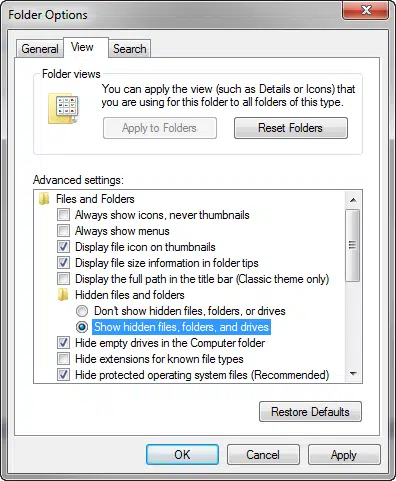
Unhide the hidden files and folders
For this, you are supposed to press Windows + E keys for opening the Windows file manager.
Heading forward, click on Organize and pick the Folder and search options.
Later on, a dialog box will be seen where you are suggested to pick the View tab.
Furthermore, search and click on Show hidden files and Folders tab.
And then, untick the Hide protected system operating files option.
End the process by clicking on Apply and OK tab.
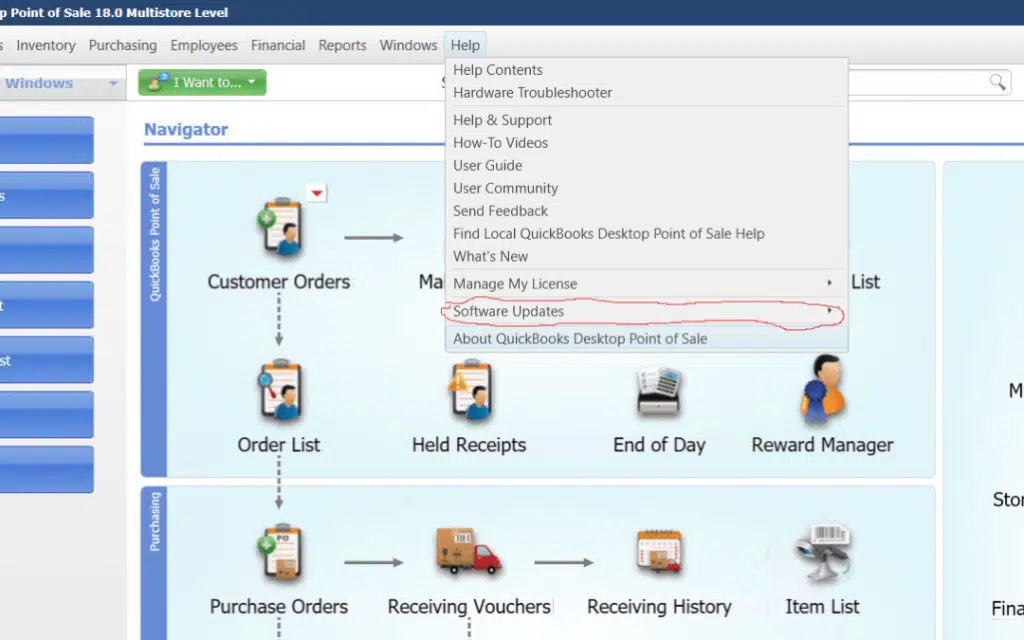
Update QuickBooks Point of Sale
Inside the QuickBooks point of sale, select the About QuickBooks point of sale tab under the Help tab.
And also, check if the installed version if QuickBooks point of sale 18.0, else perform the steps further.
Now hit a click on the Help menu once again and pick the software Updates tab.
Causes and Troubleshooting Steps to QuickBooks XML Errors in QuickBooks
QuickBooks POS xml errors can be triggered by a handful of factors, which we have discussed in this piece of writing, along with the necessary troubleshooting steps. Thus, head forward and unleash the secrets behind rectifying xml errors in QuickBooks.
Cause 1: Incomplete installation of QuickBooks point of sale
Solution: Repairing the QuickBooks desktop point of sale
In order to repair the QuickBooks desktop point of sale installation, It is supposed to ensure that point of sale is not running and also perform the discussed steps for the operating system. Let us explore the steps involved in here:
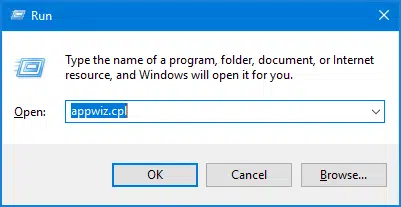
Herein, press Windows + E keys to open the computer Window.
Further, clicking on Uninstall or change a program is recommended. In certain versions of Windows, it might just say repair.
Moving ahead, pick the Version of QuickBooks desktop point of sale and then click on to Uninstall/change.
Next step is to click on Next in the point of sale Installation Window and then pick the repair Radio tab.
Now click on to the Next tab again and also click on Repair.
End the process by clicking on to Finish tab, and the installation of POS should be repaired.
Cause 2: QuickBooks point of sale entitlement client folder gets damaged
Solution 1: Eliminating files within the entitlement folder
Under this process, Press Windows + R keys to open the Search bar.
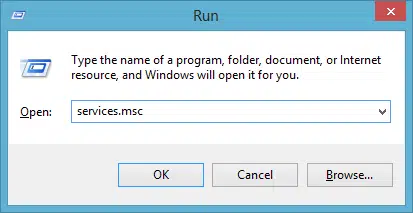
Further, in the search field, it is recommended to type in services.msc and hit Enter tab.
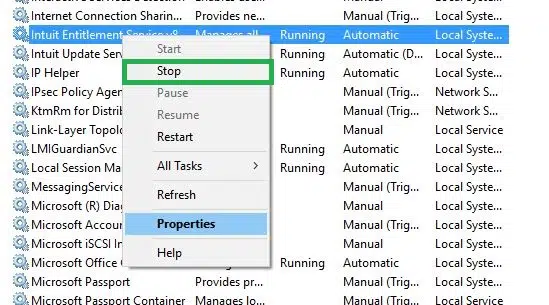
Now right-click Intuit Entitlement Service vX and choose the Stop option.
Next step is to close the window and head forward by performing the steps associated with Display hidden files and folders or searching for files using Windows.
Later on, you are required to ensure to select Show hidden files, folders, and drives, and also click to Clear hide protected system operating files checkbox.
Lastly, head to the C:ProgramDataIntuitEntitlement ClientvX, and also remove all the files within the folder.
In case the above causes and solutions didn’t work for your concern, then we highly recommend you to perform the below stated set of steps.
Solution 2: Change the name of the entitlement client folder
One can easily rename the entitlement client folder by first opening the Windows file manager.
And then heading to the address i.e. C:ProgramDataIntuitEntitlement Client v(xx)
Then simply required to rename the version 12.0 folder to v8, version 2013 to V8 and version 10.0 to V6
If none of the files are shown, then try unhiding the system files as shown above.
Cause 3: SessionData.xml file is damaged or corrupted
Solution: Renaming the session data files
In this particular case, it is supposed to press the Windows + R tabs and also type in services.msc
Furthermore, hit enter and look for Intuit entitlement services option.
Next step is to right click over it and select the STOP option.
Later on, head to this address C:ProgramDataIntuitEntitlement Clientv
Moving ahead, find the sessiondata.xml file and also right-click on the same.
Now pick the Rename option and then type in .OLD at the end of the file name.
The final step to be followed is to open QuickBooks point of sale again to check if the XML error still persist or not.
To wrap it up!
We sum up the segment over here, with the expectation that the above-stated steps would be more than enough to resolve the xml issues in QuickBooks POS. In spite of that, if you are unable to tackle the issue, then, in that case, our team of professionals will be there to rescue you. We have a team of technically sound accounting professionals who work day and night to cater the best possible services. You can ring up using our support helpline i.e. 1-800-761-1787, and let our QuickBooks enterprise tech support team resolve the issue for you.
FAQs
What is QuickBooks XML error?
This error is encountered when the XML file in the Entitlement Client folder is damaged.
What is XML file?
XML is the abbreviation for Extensible Markup Language. XML file represents a text file which can be saved with .XML extension.
How to import XML file into QuickBooks?
The steps for importing XML files in QuickBooks are:u003cbr/u003e1. Hit on the Gear icon, and then go to Tools.u003cbr/u003e2. Opt for the Import data option.u003cbr/u003e3. Herein, choose Sales receiptsu003cstrongu003e.u003c/strongu003eu003cbr/u003e4. Thereafter, go for previewing what's required to import sales receiptsu003cstrongu003e.u003c/strongu003e u003cbr/u003e5. Subsequently, hit on Browse.u003cbr/u003e6. Choose the CSV file to uploadu003cstrongu003e.u003c/strongu003eu003cbr/u003e7. Hit on Next tab.
Seeking for the process to add a user license to your QuickBooks accounting software? If yes, then your search ends over here. In this piece of writing, we will be talking about the entire step-by-step process to add a user license to your QuickBooks software. One can purchase the licenses if needs, especially when someone wants to simultaneously access a QuickBooks desktop company file. The most important thing to note here is that QuickBooks desktop premier software permits up to 5 users and pro allows up to 3 users to work in a company file at the same time. Similarly, the QuickBooks pro version permits 3 users to work at the same time. Whereas, the number reaches to 30 users in QuickBooks desktop enterprise solutions.
The number also depends upon the number of licenses one has. You can continue reading this piece of information, to unleash the process to adding a user license to QuickBooks desktop. Whereas, if you don’t want to invest your time in performing these steps on your own, then make sure to connect with our U.S. based accounting professionals right away.
Step 2: Find current pricing information for adding users to the license
If you want to find the current pricing information for adding users to the license, then the below stated set of steps would surely work.
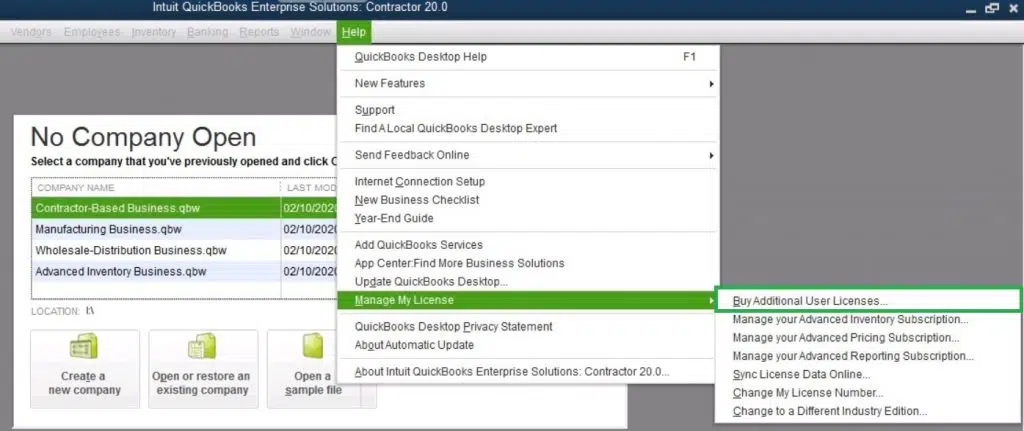
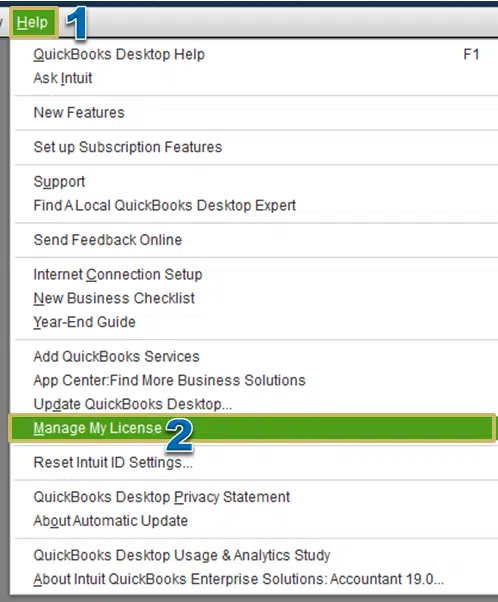
For finding the current pricing information, you are suggested to move to the Help menu in QuickBooks and then select Manage my license and then Buy additional user license.
And also, select the Add seats online link for current pricing.
Step 3: Purchase additional user licenses in QuickBooks
In case you want to purchase additional user licenses, then the below steps should be performed:
To start off with you should move to the Help menu in QuickBooks and then select Manage my license and buy additional user license. It should be noted that if the option “Buy additional user license isn’t available”, then the QuickBooks might already be at the maximum users permitted.
Furthermore, the page that opens will give you the option to Buy additional licenses online or by phone. In case you opts to use the phone option, then you will be given the phone number to contact intuit. In case you selected to use the online option, a new page will open allowing you to select the Number of licenses that are to be bought.
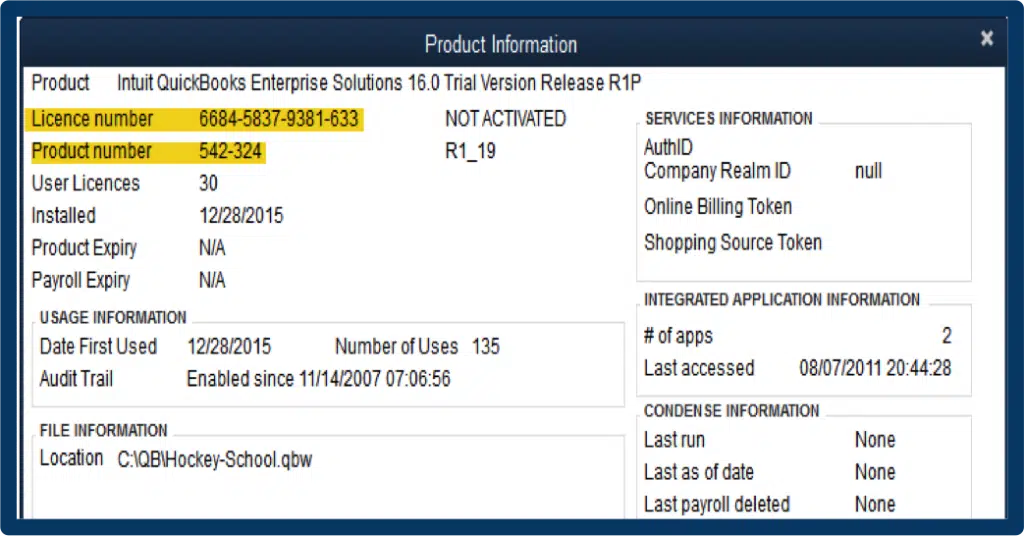
Next step is to install QuickBooks desktop on additional computers based on the number of licenses being purchases. It is suggested to Use the same license and product numbers that were used to originally install QuickBooks desktop.
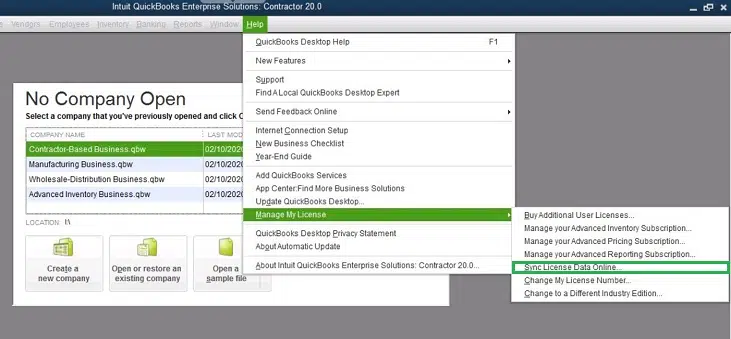
Once installing it, you are suggested to follow the prompts to activate QuickBooks desktop. You can also go to the Help menu and then opt for Manage my license and then Sync license data online to update new license information.
In case you are installing QuickBooks on a computer that doesn’t have internet access, then one can manually update the new license information by selecting the Help menu and then choose manage my license and buy additional user licenses. You can also use the phone option to enter the same validation code that was received when you have purchased the additional license.
Conclusively, it is believed that the above-stated steps are more than enough to add a user license to the QuickBooks software successfully. Despite the above stated steps, if you aren’t able to successfully add a user license to QuickBooks, then we recommend you to connect with our accounting professionals and tech geeks right away.
Our QuickBooks enterprise support experts will ensure to answer all your queries instantly, and make sure to perform the process successfully. You can use our dedicated customer support line i.e. 1-800-761-1787, and our team will be more than happy to clear all your clouds of confusion.
Learn how to Fix the error “No new transactions” when importing web connect file:
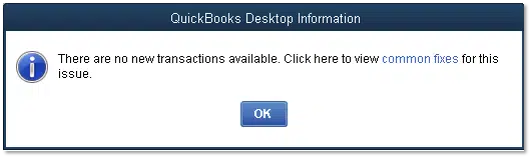
Often while importing the web connect file from the bank’s website, you might end up with an error message stating, “There are no new transactions available.” This error message might trouble you and end up hindering the smooth working process. In case you are also facing this sort of error, then need not worry anymore, as we have come up with this article, where we will be talking in detail about the causes and fixes of this issue.
Thus, ensure that you read this article carefully till the end. In case you need any technical assistance at any point in time, feel free to get in touch with our support team anytime. Help is available 24/7.
Factors triggering QuickBooks Web Connect Import Error “No New Transactions” message
QuickBooks users might land into such problem due to the following reasons:
In the case the web connect file doesn’t contain any new transactions.
Solutions to Error Message: "No new transactions" when importing web connect file
Well, now that you are aware of the factors causing the issue and other relevant information, below are some of the most pertinent solutions you need to carry out, to get rid of this issue.
Solution 1: Download a test company file
Making a test file and then downloading bank feed transactions basically helps in checking if the issue is with the company file, the bank account or with the web connect file. The steps involved in this process are as follows:
At first select the New company option from the File menu.
And then choose the Express start or Start setup.
Followed by, completing the Business information in the QuickBooks setup window, and also select Create company option.
Now choose the Start working option.
The next step is to Add to the chart of accounts the bank account getting the issues on the newly Created test company. This can be done by:
And then choose the Account drop down in the chart of accounts and then hit New.
Next step is to opt for the Bank for the account type and then hit Continue.
Followed by naming the account checking.
You will then have to select Save and close.
Also, set up the account for the Bank feeds.
Finally, download the Bank feed transactions to test the account.
Important points:
In case the new transactions download into the new file, then the issue is with the bank account or the company file, then the solution 2 will be of much help.
If the new transactions are now showing in the new file, then the issue is with the web connect file and it is recommended to opt for the solution 3.
Solution 2: Deactivating, creating new, merging and then reactivating
1: Deactivate bank feeds in QuickBooks desktop for windows
You need to move to the Lists menu and also choose Chart of Accounts.
Furthermore, Deactivate the account by right-clicking on it and select Edit tab.
You are then required to get to the Bank settings tab and choose to Deactivate all online services.
Hit OK tab to confirm, and then click on Save and close.
2: Deactivate bank feeds from QuickBooks from Mac users
You now have to move to the File menu and also click on Charts of Accounts.
Next, go for the Account and also click on the Pencil icon to hit the Edit tab.
You will now require to click on Online Settings.
Choose Not Enabled option from the Download transactions to the drop-down list.
Summarize the process by clicking on Confirm and Closewindow.
3: Make a new bank account
Under this step, you need to move to the List menu and choose the Chart of Accounts.
Heading forward, right-click anywhere in the Chart Of Accounts window and also click on the New tab.
Choose a bank for the Account type.
Moreover, write the bank name in the account.
Conclude the process by clicking on Save and Close.
4: Merge accounts
Herein, you are suggested to Rename the old account by simply right clicking on to it.
Furthermore, click on Edit tab.
Give the New account name in the Account name field.
Solution 3: Check the web connect download for errors
Another method to fix this issue can be to check the web connect download for errors. This can be done by carrying out the steps below:
Initially, download and save the .QBO file to the desktop.
And then edit the .QBO file, and also right-click the Open with and select Notepad.
Now check the download for possible errors.
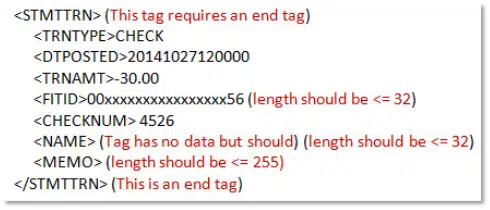
You need to remove the invalid characters. And also check if the file is having ampersands and other invalid character strings.
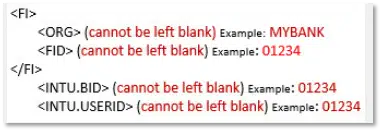
Followed by Adding or Editing missing data.
Also, ensure that all the tags are having the data.
If the payee NAME field exceeds the prescribed limit for the characters, then the other payee information might appear in the MEMO field. Moreover, it should be noted that the QuickBooks software cannot auto-match the payee information that appears in the MEMO field. Check the transactions manually and tally them. In case the QBO download file can’t be spotted, then the transactions might not be imported. For this, hit a click on the following steps:
Click on QuickBooks version to look for the Unique BID information for the bank.
You will also have to test importing the corrected .QBO file into the test file created.
Also, report the formatting errors to the bank for resolution in future downloads.
Solution 4: Checking the dates
Ensure that the date range for the imported Web Connect file is accurate and and is also not overlapping. To make it easy to understand, let us take an example: In case you have downloaded and imported the transactions for August 1-30 without any hindrance, then ensure that the date range for the current download is September 1 and later.
When none of the above methods work, it is recommended to move to the register mode. This can be done by carrying out the steps below:
At first, move to the Preferences from the Edit menu.
And after that, opt for checking and navigate to the Company Preferences tab.
Now, in the bank feeds selection, go for the Classic mode, which is the Register mode.
And lastly, hit Ok tab.
Miscellaneous steps to follow
If all of the above methods fail to fix the issue for you, then try fixing the issue with the steps below:
You need to speak to the bank
The bank is basically responsible for the .QBO download format and content. And in case the .qbo file is not formatted in a proper manner, then the import into QuickBooks might lead to unexpected results.
Moreover, the banks own a support channel
When you contact the bank, make sure to ask them to transfer the case to the bank representative familiar with the QuickBooks online banking and account activation.
Also, you might need to give the exact error message and a copy of the issue download file for review.
In case the error continues, then get your hands on the online banking log files and then speak to a technical support team.
By now, the error “no new transactions” while importing the web connect file might have been resolved successfully. But if the error continues to trouble you, feel free to connect with our professionals using our dedicated support line, i.e., 1-800-761-1787. We are a team of QuickBooks error support professionals, who do not leave any stone unturned in providing the best possible support services to all users. Feel free to call us at any point in time, we will be happy to help you.
FAQs
What does the error message "No New Transactions" mean in QuickBooks Web Connect?
The error message "No New Transactions" in QuickBooks Web connect typically infers that there are no new transactions available to import from the selected Web connect file.
Can I manually enter the transactions from the Web Connect file if I encounter the "No New Transactions" error?
Yes! If you encounter the "No New Transactions" error and there are indeed new transactions in the Web Connect file, you can manually enter those transactions into QuickBooks. Review the transactions in the Web Connect file and enter them manually in the appropriate accounts and categories in QuickBooks.
Are there any specific file formatting requirements for the Web Connect file to avoid the "No New Transactions" error?
Yes! The Web Connect file must conform to specific formatting requirements for successful import into QuickBooks. The correct file format is QBO or QFX.
Can a QuickBooks company file issue cause the "No New Transactions" error in Web Connect?
Data corruption in the QuickBooks company file can potentially trigger the "No New Transactions" error in Web Connect.
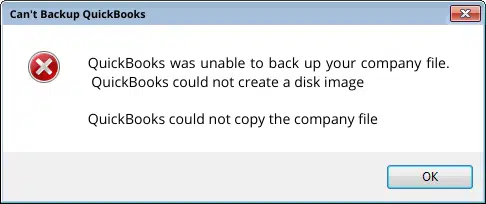
Need to backup company file, but unable to do it due to a warning message appearing on the screen? Well, in that case, you have landed on the right page, where you will get the most relevant information related tofixing backup issues in QuickBooks company files. You might come across messages related to the password or assisted payroll data, you can resolve these issues and successfully restore your data by performing a certain set of procedures. Backup related issues can be serious sometimes, and you can’t afford to ignore it.
This article is crafted especially for you with the aim to assist you in fixing the QuickBooks unable to backup company file error. Dive in deep to unleash the further process! When this error occurs, you may see the following error messages:
Error Message:
QuickBooks Unable to Backup Company File or Backup failed.
Error:
This QuickBooks file may be missing some of the payroll data that you have already sent to the Payroll Service. Before creating any new transactions, you need to restore the missing data by clicking Send Payroll Data from the Employees menu and then clicking the Send button.
Perform these quick steps given below, if you are getting the following error message:
You will have to go to the Employee menu and also select Send payroll data.
Now check the Items to send field. In case you are having 0 paychecks for $0.00, then it is recommended to select Send tab.
In case there are any of the transactions listed, then it is recommended to avoid selecting Send tab. You might create duplicate the transactions on accident.
Procedures you can implement to fix backup company file issues in QuickBooks
Now that you know the basic causes, you are all set to perform the necessary steps. Let us explore each of the methods one by one:
Cause 1: Incorrect admin password
One of the common causes behind the company file backup issue is providing an incorrect admin password. By resetting the password, you can fix this error. Follow the DIY solutions discussed below.
Solution: Resetting the password
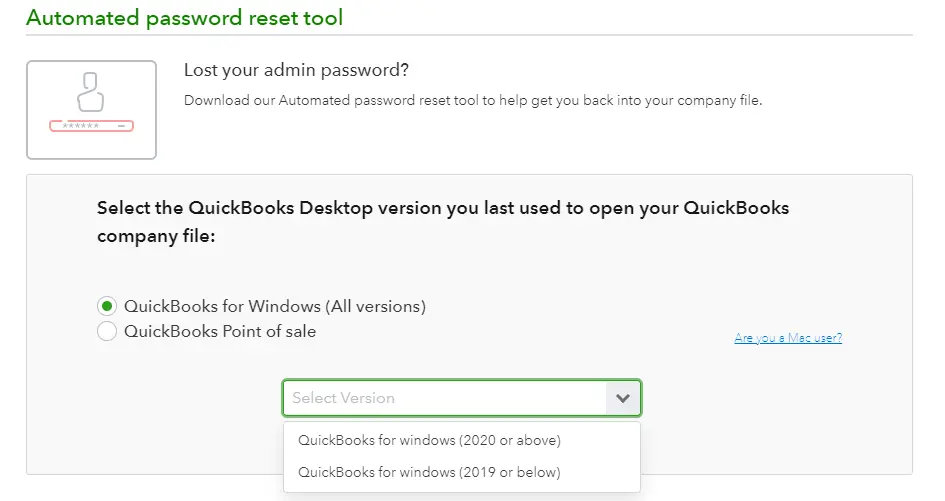
If you are facing an error message that states “Your data has not been restore if you failed to enter the correct admin password”, then you can follow the below given steps to use automated password reset tool. After resetting the password, you should restore the backup file once again. Follow the steps to use automated password reset tool:
Start off with downloading the automated password tool for QuickBooks Desktop. You can also use this for resetting the QuickBooks admin password in any version of QuickBooks Desktop for Windows.
Further, choose the Version of QuickBooks desktop.
It should be noted that the phone number should be 10 digits with no extension at the end. You should avoid using 1 (+1) at the beginnings. You can change the country by opting for select country tab and then manually edit the phone number and then click on Save.
Moreover, accept the License agreement.
Followed by, clicking on Save, if asked to run or save the file.
Now run the automated password reset tool and then enter the token number received on mail.
Once done, select the QuickBooks version from the QuickBooks Desktop products drop-down.
And further, click on Browse buttonfor company file and select the Company file you wish to reset the password for.
It should be noted that, entering the correct company file admin user name is recommended to avoid any issue.
Enter the New password and also confirm the New password and select reset and end the process.
The point to be noted here is to create temporary password only as QuickBooks will ask you to change the password again when you opens up the company file
Lastly, you need to select Reset password to end the process.
Cause 2: The backup is being restored by you over an existing company file
This error can also triggers, when you try to restore a company file backup over an existing company file.
Solution: Avoid overwriting an existing file
Under this process, you are supposed to Save the file on a location that can be accessed easily.
Just in case the file name resembles the other file name, then a message would appear on the screen “The file name exists. Would you like to overwrite this file?”
Cause 3: If the company file itself is causing error
Sometimes, certain issues related to company file itself may lead to backup related issues.
Solution: Backing up the company file to an external drive or flash drive
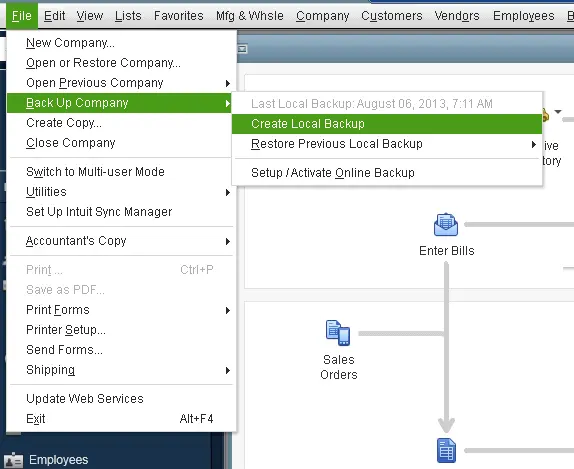
You are required to move the File menu and select the Save copy or backup.
After that, select the backup company and click on Next tab.
Followed by, pick the Local backup option and hit Next tab.
Then select Save it now, when asked, and hit the Next tab.
Once done, browse to a location on the Local drive and select on save tab.
Minimize the QuickBooks desktop and locate the backup file on the local drive.
Now hit a right-click on the file and select Copy tab.
Open the Windows explorer window.
The next step is to double-click the Driver letter that corresponds to the external drive or flash drive to open it.
End the process by right-clicking on the Empty space that is inside the window and hit the Paste tab.
Cause 4: Any special character in the file
The company file name might containing unnecessary blank spaces or special characters.
Solution: Renaming the company file and removing special character from the name
For this, you simply have to launch the QuickBooks desktop and open the company file.
And further, press F2 or Ctrl +1 key for opening the Product information window.
You are then supposed to note the Location of the company file listed in the file information field.
It is suggested, if the file name is too long, then it might appear with an Ellipsis.
You are then required to hover over the File name to display the Full name.
Heading forward, close QuickBooks desktop.
And head to the location of the company file.
Windows 11, 10, 8.1, and 8: You need to right-click the Windows Start tab and also choose File explorer.
Windows 7 and vista: In this scenario, you simply have to right click on the Windows start tab and also choose Open Windows explorer.
Now right-click on the File and go for Rename option.
As per your Windows folder options, you need to set to Show or hide extensions for known file types, the file name might appear as company name.qbw or just the company name.
You will then have to type in the New company file name and hit Enter tab.
Just in case the windows prompt to confirm the action, you are required to hit Yes tab.
In case the company file backup is saved in an external disk, then there is possibility for you to enter such an error Also, just in case the company file name is including any special character.
If the size of your company file is more than 3 GB.
Another reason can be if there is any other program that is running in the background.
Miscellaneous solutions to fix QuickBooks unable to backup company file error
Here are some miscellaneous solutions you can try to rectify this error:
Method 1: Backing up the company file to an external drive or flash drive
This error can be fixed by backing the company file to some external storage drive.
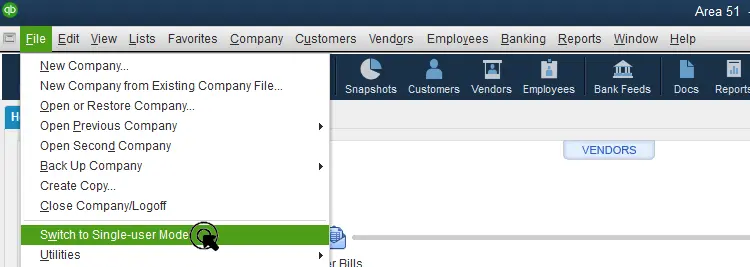
Under this step, you should visit the File menu and select the Switch to multi-user mode.
Moving ahead, select the Backup company or Save copy and select Next tab.
The next step is to pick the Local backup option and hit Next.
Further, select Save it now when asked and hit Next.
Browse to a location on the local drive and select Save tab.
Method 2: Running verify rebuild utility tools
One important in-built feature of QuickBooks is Verify and Rebuild utility. This utility lets you fix various type of company files issues. Checkout the following steps to run the utility:
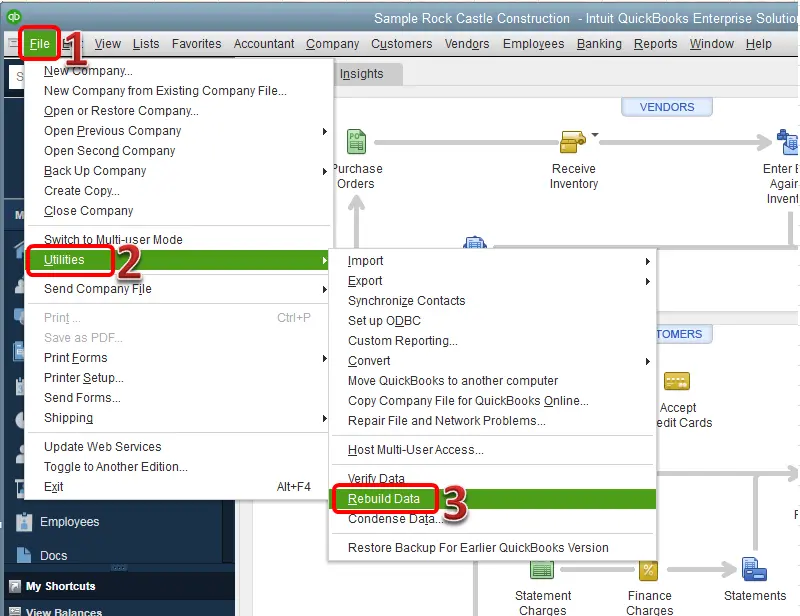
Manually repair QuickBooks file, by visiting the QuickBooks file menu and move to the Utilities tab and Rebuild data.
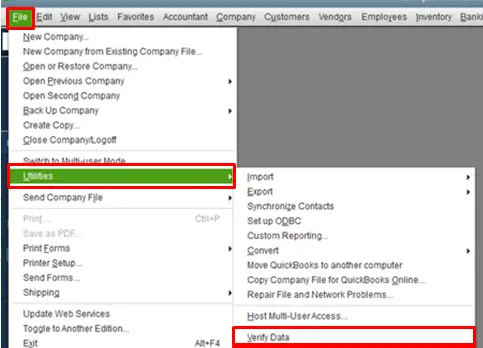
Visit the QuickBooks File menu and move to the Utilities and Verify data tab.
Method 3: Setting up QuickBooks desktop to use the new company file name
Herein, you simply need to click on open or restore an existing company file from the file menu.
Furthermore, go for Open a company file and hit Next.
Now choose New company file name and also click on Open tab.
Final Words..!
That was all you need to know about backing up issues in QuickBooks desktop company file or QuickBooks unable to back up company file issue. For any queries, concerns, or comments, call us at 1-800-761-1787! Our team of accounting experts will provide your business with the right QuickBooks enterprise support that it needs to eliminate errors and technical glitches, ensure success and save some serious money. We have the most relevant solutions to all your QuickBooks errors and other accounting software related issues.
FAQ's
Can I restore a backup from an older version of QuickBooks Desktop?
Yes! You can restore a backup from a previous QuickBooks version to a newer version.
Can I back up and restore only specific data or transactions in QuickBooks Desktop?
No! QuickBooks Desktop does not allow you to do that. You can backup and restore the whole company file.
Are there any precautions to take when storing QuickBooks Desktop backups in the cloud?
Yes, you need to take the following precautions: 1. Enabling the Encryption. 2. Turning on the two-factor authentication (2FA) 3. Updating the access permissions on a regular basis.