Converting an accountant’s copy to a regular company file doesn’t involve any rocket science. An accountant’s company is a sort of company file that lets your accountant to review the file and further make certain changes that are required. After your accountant has made the necessary changes, you can merge the changes without letting it overwrite the data. However, the point to be noted here is that the accountant’s copy is a .QBA or .QBX extension format file that has to be converted to a regular file to make it accessible.
And to help you in this conversion process about to convert an accountant’s copy to a regular QuickBooks company file, here we are with this piece of writing. Sharing the complete information that you need to make this conversion process, a smooth one.
What is an Accountant’s copy in QuickBooks?
Accountant’s copy allows for a seamless collaboration of the clients to the accountants and facilitates both clients and the accountants to work on the same company file simultaneously. It also discards the necessity for emailing bulk files, thereby reducing any confusion created due to several copies. However, the accountant’s copy has .QBX extension instead of a regular company file has .QBW extension.
Steps to convert an accountant’s copy to a regular QuickBooks company file
Converting an accountant’s copy involves some basic steps. Let us understand each of the steps and procedures in detail:
Step 1: To change your accountant’s copy to a company file
You simply have to double-click the Accountant’s copy and open the same.
Once done with that, save the data and prevent Data loss.
Furthermore, make a backup of the file before heading forward.
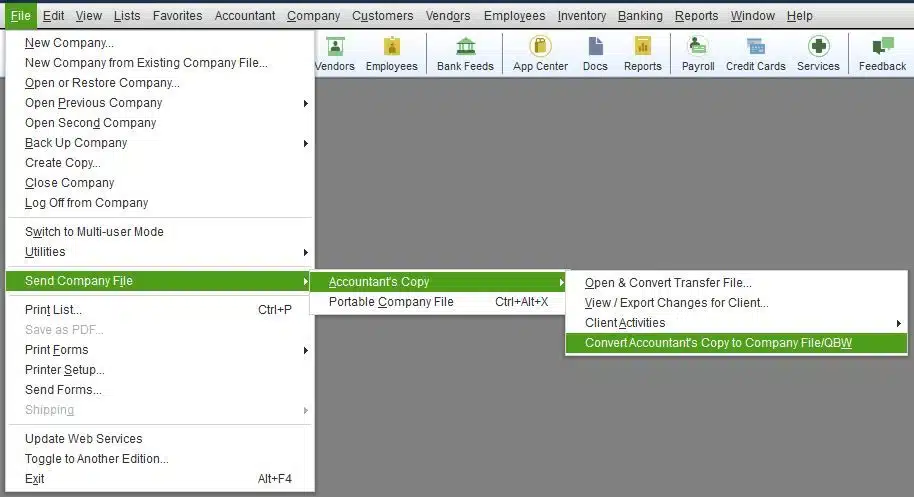
You now have to choose Send company file from the File menu.
The next step is to choose Accountant’s copy and further Convert accountant’s copy to company file/QBW from the dropdown menu.
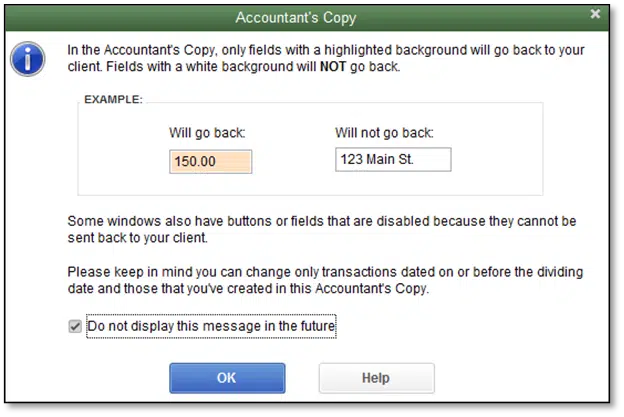
Heading forward, you need to confirm the procedure by clicking on the OK tab.
Followed by, selecting a location for the file to be saved.
After that, choose a folder and further rename the file depending upon your preferences.
The next step is to select the Save your file option.
And also click on OK tab.
A new file will be created and you can make necessary changes to it according to your convenience.
While converting the accountant’s copy to a regular company file, you should make sure to enter the changes that were made to the original company file while creating the accountant’s copy.
Step 2: Change the accountant’s copy to a normal file
Under this process, you need to choose the Accountant’s copy from the File menu.
Furthermore, choose Convert the accountant’s copy to a company file.
After that, a new window will open after you go for the Convertor option.
You now have to spot and Open accountant’s copy file you want to convert.
Followed by, clicking on ok after ensuring you have opted for the right file.
The next step is to select a Location where you want to save the newly converted file and further Rename the chosen file.
After that, under the save as type option, you need to choose QBW as the file extension.
Followed by, clicking on Save.
After the file gets converted, you will receive a notification regarding the same.
Now, click on the OK tab.
Moreover, you will have a QBW file that you can use normally.
Step 3: Changing the accountant’s copy as Accountant’s changes .qby
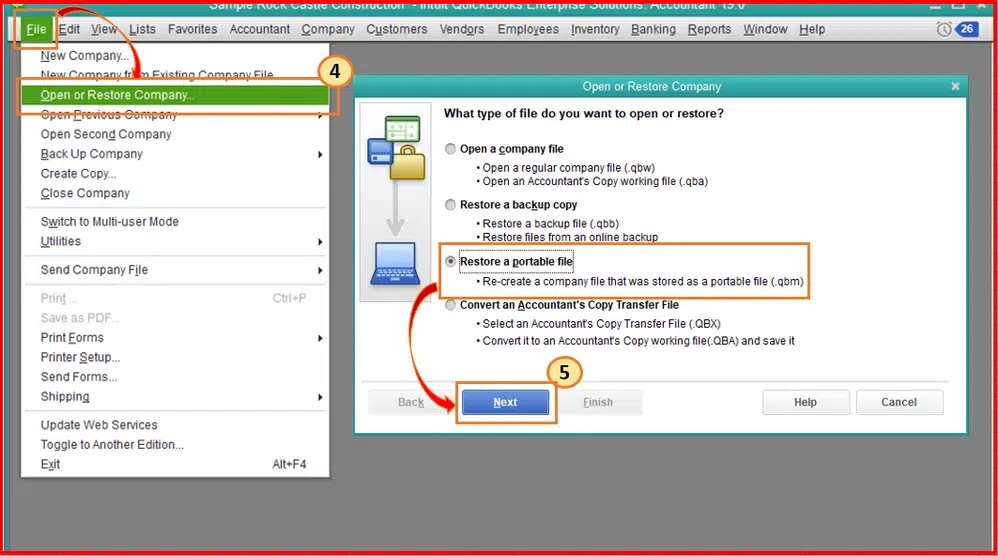
Here you need to head to File menu.
Followed by, selecting Open or restore company from the dropdown.
The next step is to choose Next tab after selecting Convert an accountant’s copy transfer file.
You now have to choose the Convert accountant’s copy transfer file option.
And then, click on Next.
This will give you an overview of the file you opted to ensure you made the right decision.
Furthermore, click on Next tab.
And also, find the Accountant’s copy file.
After the accountant’s copy file is opened, click on Confirm and further assign a name to the file.
Now, it is time to Save the file.
And you can make use of the qby file after the conversion ends.
Conclusion!
Converting QuickBooks accountant’s copy to company file might seem to be quite a tedious task but in actual it isn’t. However, if you still find it a bit difficult and need any sort of technical support and guidance, then reaching out to our QuickBooks desktop support professionals at 1-800-761-1787 is what we recommend. We are a team of certified ProAdvisors who ensure that all your queries are addressed immediately and resolved in the best possible way. For any issues related to QuickBooks, call us today!
Trying to open the QuickBooks Desktop company file and stumbled upon a warning message stating:
We’re sorry. QuickBooks couldn’t open your company file. We’ll try to fix the problem. Click start to begin. If the problem continues, contact support for assistance and report the error code Missing Name List problem.
Well, this isn’t a commonly faced problem. The QuickBooks missing name list problem is a QuickBooks internal database error that causes failure to open a file in QuickBooks. As a result of this issue, you might notice that the names, items, or accounts can be missing or you can see a blank space in various places in the company file such as, company reports, business transactions, centers predefined reports, etc. Dealing with the QuickBooks missing name list problem is definitely possible and to help you with that, here we are with this segment sharing the complete details on how to do that.
Major causes leading to QuickBooks Missing Name List Problem
Some of the important causes that may cause this error are as:
Important files related to the Windows registry, Microsoft components, or QuickBooks desktop might be damaged.
The system may be infected by a severe virus.
The Missing Name list problem may also appear due to an incorrect or incomplete installation of QuickBooks.
You may accidently deleted some of the important QB files.
Now, send the damaged company file to the data recovery team.
After that, finally finish repairing the data of the tool and this will fix the issue.
You will further have to verify the information being restored. Check the address details of vendors, employees, customers, and so on. And then, try resolving the data damage on the company file.
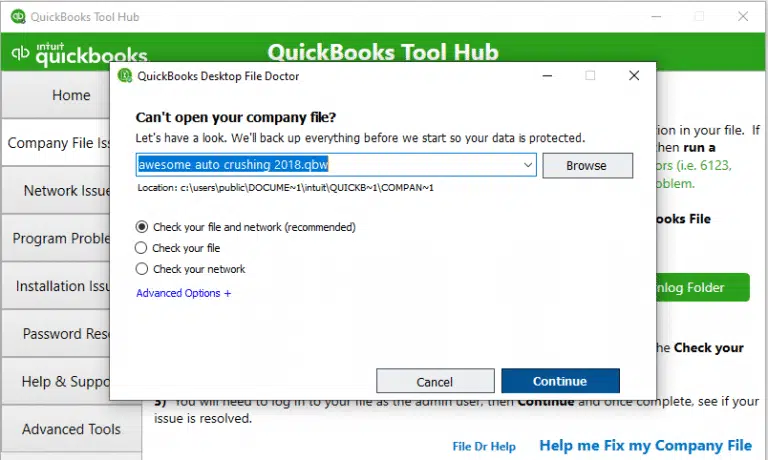
Solution 2: Use the QuickBooks File Doctor from tools hub program
QuickBooks tool hub is a one stop solution to fix the issues that can be faced when working on QuickBooks. You can try fixing the missing name list problem by performing the below stated steps:
The very first step is to open QuickBooks and the company file.
After that, press F2 key.
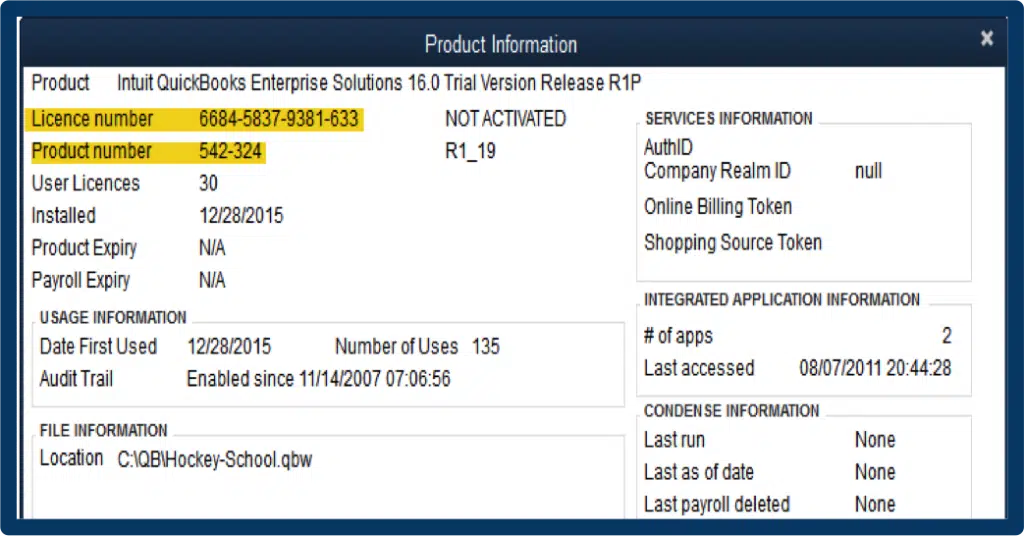
And also, open the Product information screen.
On the versions used on the file section, you will see Find the RB Tag (Rebuilt) that shows when the file was rebuilt.
Now, after the rebuild date and time has been determined, you have to restore the backup file that has been made just before to that rebuild.
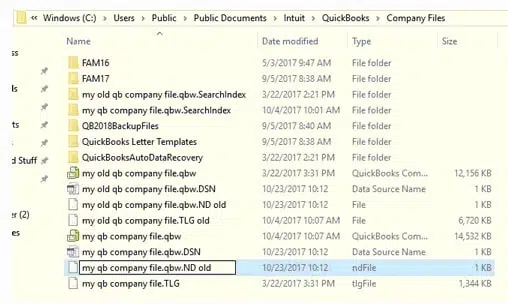
If you are unsure about when the backup file is located, then you will have to refer to the display hidden files folder. You can also find the files using windows for assistance in searching for QBB files.
If you are unable to locate the RB in the file versions, then this indicates that the file hasn’t been rebuilt.
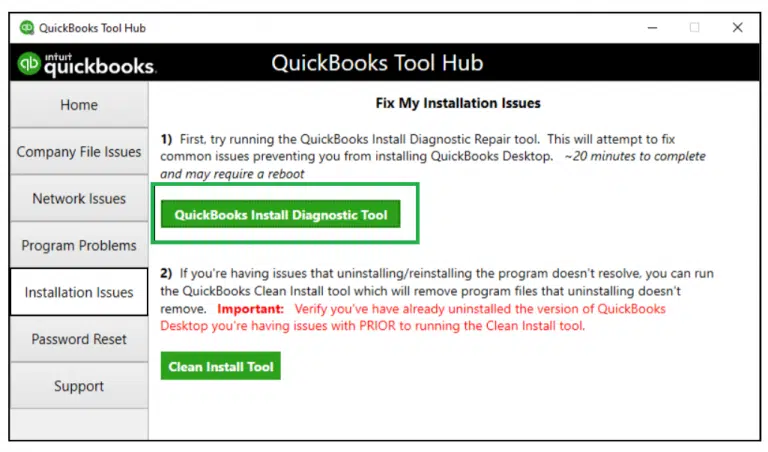
You need to head to QuickBooks Tool Hub program and select Company File issues.
If none of the above methods helped, you can try to restore the previous backup file. Try to re-enter transaction entries into the file to keep it updated. The backup can be a few days older and the volume of the transactions can be way too much.
Conclusion!
This drives towards the end of this segment, and we believe that one might be able to resolve the QuickBooks missing name list issue after performing the set of steps discussed below. Just in case you fail to do so, then contacting our QuickBooks desktop support experts professionals at 1-800-761-1787 is recommended. We have a team of certified QuickBooks ProAdvisors, who can help you in fixing a bunch of issues.
Did you just see an Error in reload.sql at line XXXXX Sybase Message when trying to open the portable company file? Well, need not to worry, this error is a bit unique yet easy to fix. You can come across the error in reload.sql in QuickBooks for Windows when you open an accountant’s copy transfer file (QBX) in QuickBooks for Windows. The error in reload.sql has different Sybase error messages and in this article we have discussed all about them accordingly, along with it's solutions. Thus, make sure to pay a keen attention till the end of this blog.
What are the different forms of Error in reload.sql in QuickBooks for Windows?
The error appears at line XXXXX Sybase Message and can appear in assorted forms of error messages. These include:
Message
Error in reload.sql at line 29886. Sybase message: can’t convert hex string to varbinary
Message
Error in reload.sql at line 25514. Sybase message: Right truncation of string data
Message
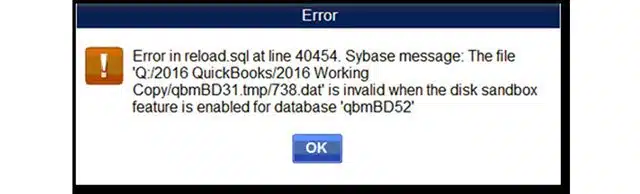
Error in reload.sql at line 40454. Sybase message: The file 'Q:/2016 QuickBooks/2016 Working Copy/qbmB31.tmp/738.dat is invalid when the disk sandbox feature is enabled for database 'qbmBD52'
Error
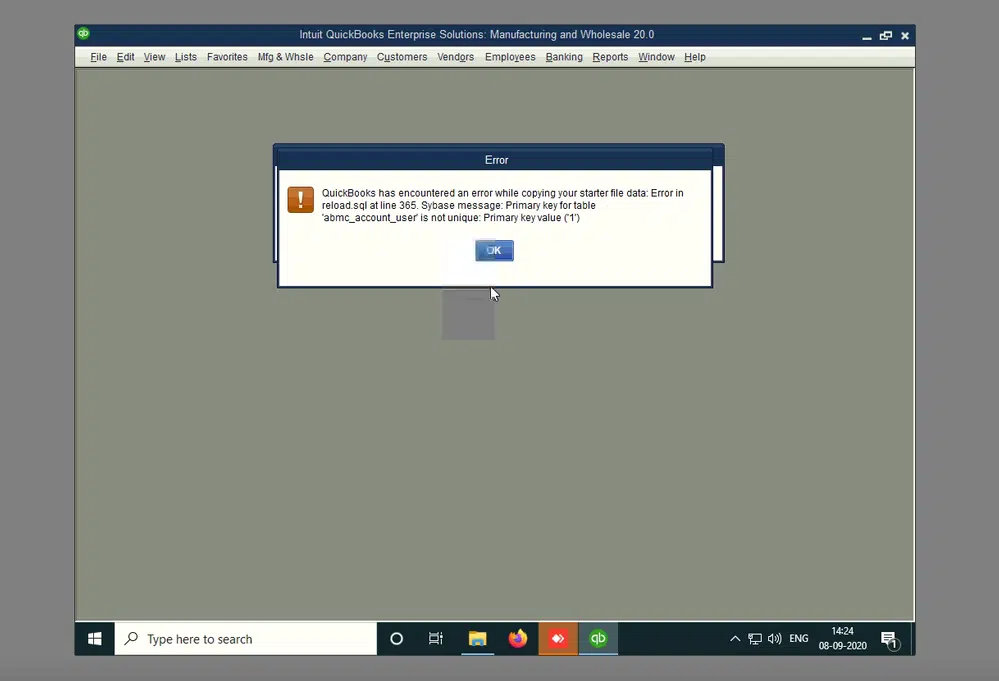
QuickBooks has encountered an error while copying your starter file data: Error in reload.sql at line 365. Sybase message: Primary key for table 'abmc_account_user' is not unique: Primary key value ("1")
One can experience this issue when the portable company file, or accountant’s copy transfer file is greater than 3MB and you try to open it across a network. It further shows up with a message: Error in reload.sql at line 40454. Sybase message: The file [file_name] is invalid when the disk sandbox feature is enabled for database '[database]’. Fixing this issue requires you to just move your file to the system where you use QuickBooks. To help you in eliminating this complicated issue, we have drafted this segment. To find out the fixes, let us have a look:
Primary causes that lead to Error in reload.sql in QuickBooks
This error may occur due to different reasons given below:
Still facing the issue? You can try repairing QuickBooks and get rid of the Error in reload.sql in QuickBooks. The steps involved in repairing the QuickBooks software are:
Step 1: Rebuild company
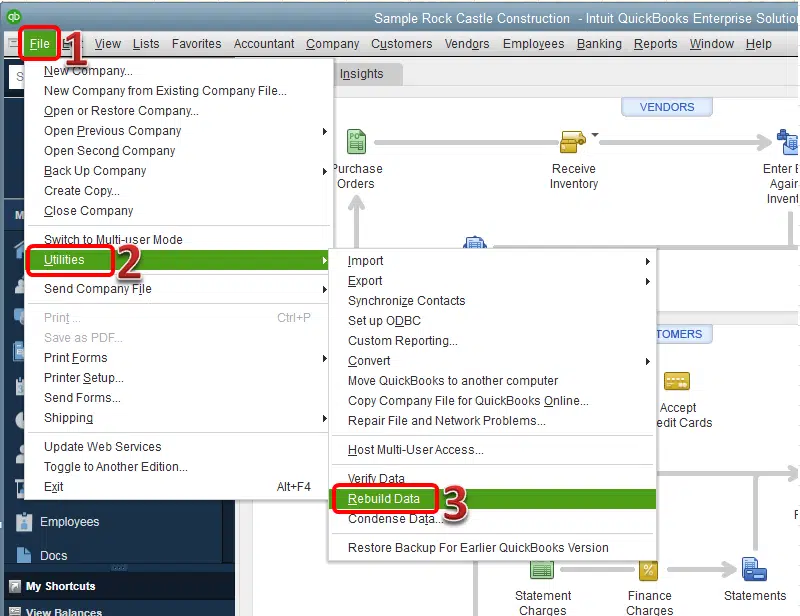
The very first step is to close QuickBooks.
Head to the file menu and hover over Utilities tab.
Choose Rebuild data.
Now, on QuickBooks information window and hit OK tab.
Let the tool repair your file.
The next step is to choose OK tab.
And also, select the File menu.
Let the tool check the file for data issues.
Step 2: Repair QuickBooks installation
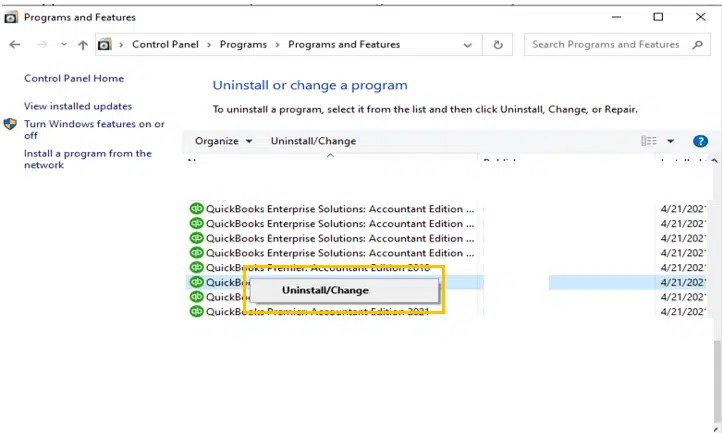
Click on the Start and type Control Panel.
After that open Programs and Features tab.
Here you need to select QuickBooks and click on Change/Uninstall.
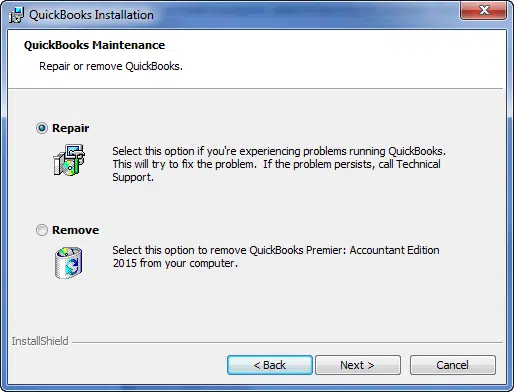
Click on Uninstall/Change and then choose Repair option.
Now follow the onscreen instructions.
Once the repairing process completes, try to run QuickBooks and restore the accountants copy again.
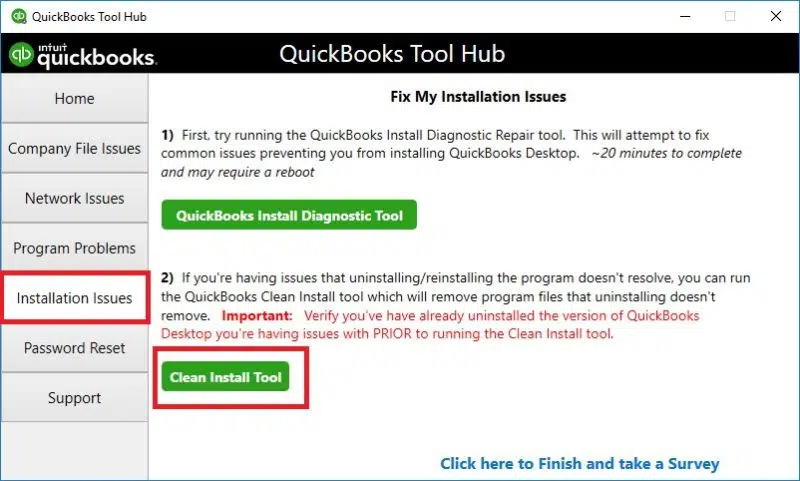
Solution 4: Clean Install QuickBooks
Often a mere reinstallation can help you fix the errors that you experience in QuickBooks The steps to reinstall QuickBooks desktop are as follows:
You need to first close QuickBooks.
After that, uninstall and then re-install QuickBooks.
Hit on Start button and move to Control Panel.
Go to Programs and Features.
After that, scroll down the list and select QuickBooks.
Now, click on Uninstall/change and then hit on Uninstall option.
Error in reload.sql in QuickBooks for Windows can be successfully resolved once you perform the set of steps we have enumerated above. However, if you stumbled upon the same issue again and again or if you have any query that needs to be addressed immediately, try contacting our technical support team at 1-800-761-1787, and they will definitely help you with your issues. Our QuickBooks error support experts know how to resolve the error permanently.
Check-out these quick solutions to troubleshoot the QuickBooks file isn't marked as Read-Only issue:
Is your QuickBooks showing read-only file, when you open it and not letting you make changes? Well, don’t worry, this is a basic glitch that you can see due to a bunch of reasons. One of the basic reasons for this is the nature of the medium in which the files are stored. The QuickBooks ready-only error usually permits you to read a certain file and is not permitted to make any changes. This error can further show up when a file cannot exit ready-only mode despite quality changes and replacement with a portable or backup file.
The QuickBooks read-only error might pop up on the screen with the following warning message:
Error Name:
Error Description:
Read Only Error
“[Company_Name].qbw This file is set to read-only. Try again with a different file name.”
Just in case you are experiencing the same issue, then we can help you with it. We have drafted this segment just to help you with QuickBooks read-only error. Just scroll through and understand the causes and fixes to this error.
Factors causing QuickBooks Read Only Error
Some of the most common causes that instigate the read only error in QuickBooks are:
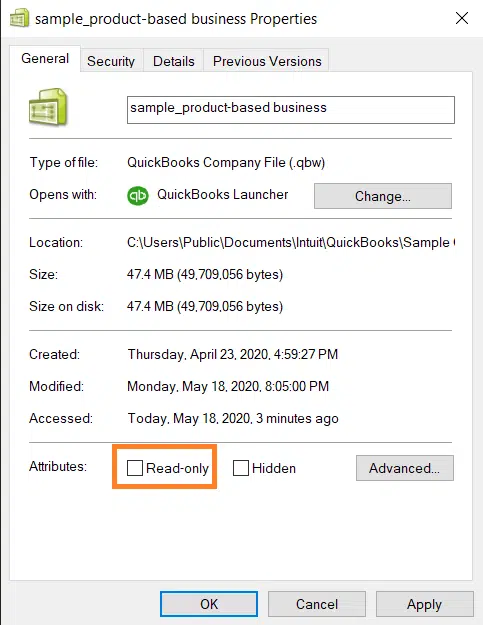
In case a file is configured to block all changes by setting it to read-only, then such an error can be experienced.
Or if QuickBooks unintentionally downloaded payroll updates and didn’t delete them using Windows user control or permission settings.
Another reason can be if read-only was set as the default status when you copied the file from the CD-ROM.
Moreover, if any former user has added this status to the file, then such an error might show up.
Important Points to Consider
There are a few pointers that you need to consider before you proceed to the steps to fix the error. Let us have a look:
You are supposed to verify the status of your Windows system’s updates.
And then, opt for a backup of QuickBooks company files.
Also, ensure that the required drivers are updated.
Another essential point is to avoid missing to check the QuickBooks Program’s Status as Active.
Further head to the installation of the most recent version of QuickBooks.
And verify that your QuickBooks is not being interrupted by antivirus.
Towards the end of this segment, we believe that you might be able to successfully get rid of the QuickBooks read-only issue. However, if you weren’t able to deal with it even after performing the steps above, then in that case, feel free to contact our QuickBooks desktop error support experts team at 1-800-761-1787, and they will help you with all your queries immediately.
FAQ's
What is meant by the read only error in QuickBooks?
This error indicates that the company file which you are trying to open cannot be modified as it has been configured to be viewed only and not edited or modified.
Does it indicates a damage in the QuickBooks company file?
This issue doesn't always indicate a company file damage since a minor change in the settings can fix this issue.
Can I use QuickBooks File Doctor to fix the Read only error in QuickBooks?
Yes, QuickBooks File Doctor Tool is an effective tool provided by Intuit that can fix different technical issues related to the company files.
Here you know how to rectify the QuickBooks error 195 when taking a back up of a company file:
Did you just stumbled upon QuickBooks Error 195 and have no clue how to deal with it? Well, QuickBooks error code 195 is an error that you might often experience due to misconfigured system files in the Windows software. You can further experience this issue when trying to verify and rebuild the company files. It can further show up when you have deleted bank accounts. The error 195 in QuickBooks is a technical one, where an invalid account or routing number in the accounts has a bank feed connection.
Not just that, you might come across such an error when a Windows system file gets broken. If you are experiencing this issue, then we can help you with that. This segment is curated to help you with the fixation of QuickBooks error code 195 in the best possible way. Let us find it out:
What leads to QuickBooks error code 195?
A bunch of factors can lead to QuickBooks error code 195. Here are the most common factors:
In case the application wasn’t properly installed. And not just that, but a certain hardware wasn’t properly removed from the system, then such an error can be seen.
Also, if the Windows registry is outdated or corrupted.
You can further come across this issue, if any adware/spyware/virus might have intervened the process of installation.
Moreover, if your system wasn’t shut down properly.
Another possible reason for the occurrence of this issue can be if you have a corrupt registry affecting other files. Or some relevant files are missing leading to poor performance.
Solution 3: Automated Solution Novice System User Resolution
The very first step is to download the repair utility tool.
Once done with that, you need to install the program and further click on Scan tab.
The next step is to click on fix errors after the scanning process is complete.
And towards the end, all you need is to reboot the system.
This tool usually scans the issue and then fixes the error easily. It further repairs the system and register structure using manual and automatic tools.
Solution 4: Manually fixing the error with Advanced System Restore
Here you simply need to Start the system.
And then, log in as Admin.
Once done with that, head to the Start tab.
And also, select All programs.
Once done with that, head to the Accessories and then the System tools.
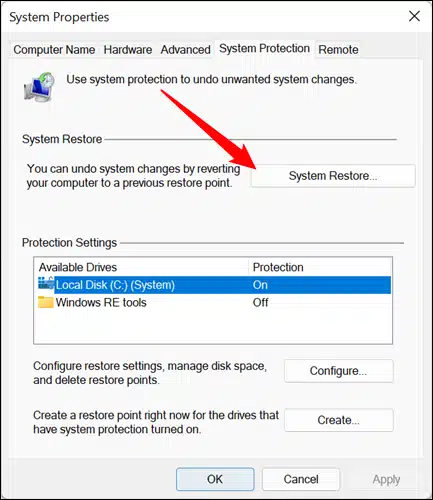
Now, you need to press System restore option.
And then, a replacement window will show up in which, you need to click on Restore my laptop to an earlier time and then click on Next tab.
After that, from on the list option, pick the Restore system to an earlier time option.
The next step is to click on Restore point list and further go for Next tab.
And then, click on Next tab on the confirmation window.
The last step is to reboot the system after the restoration is complete.
Wrapping it up, we believe that by now you might have understood what it takes to eliminate QuickBooks error code 195 successfully. However, if for some reason you are stuck or facing any issue, or need any sort of technical assistance, then feel free to contact our QuickBooks error support experts team at 1-800-761-1787, and let them help you with your queries. Our technical QB ProAdvisors will ensure that all your queries are addressed immediately.
FAQs
What is QuickBooks Error 195?
This error in QuickBooks usually encounters due to some misconfiguration of the Operating system files. It may also be a possibility that QuickBooks files are damaged, which can also include the company files.
Can System File Checker fix this error?
Yes! You can go for SFC/scannow command in the Command Prompt in order to fix this issue.
Request a Call Back and get instant assistance from certified QuickBooks experts. Our support team is available between 8:00 AM to 8:00 PM EST to ensure your issues are resolved without delay.