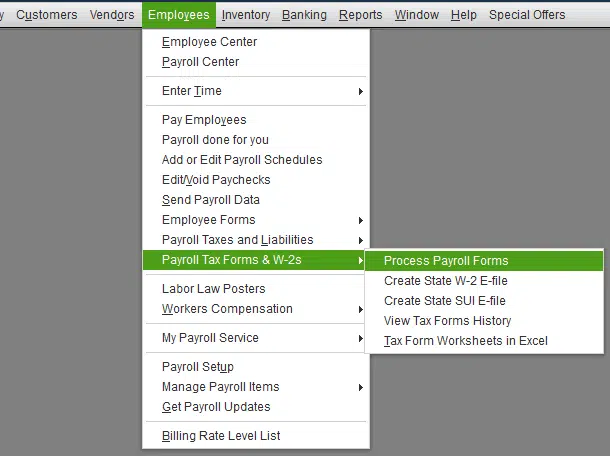
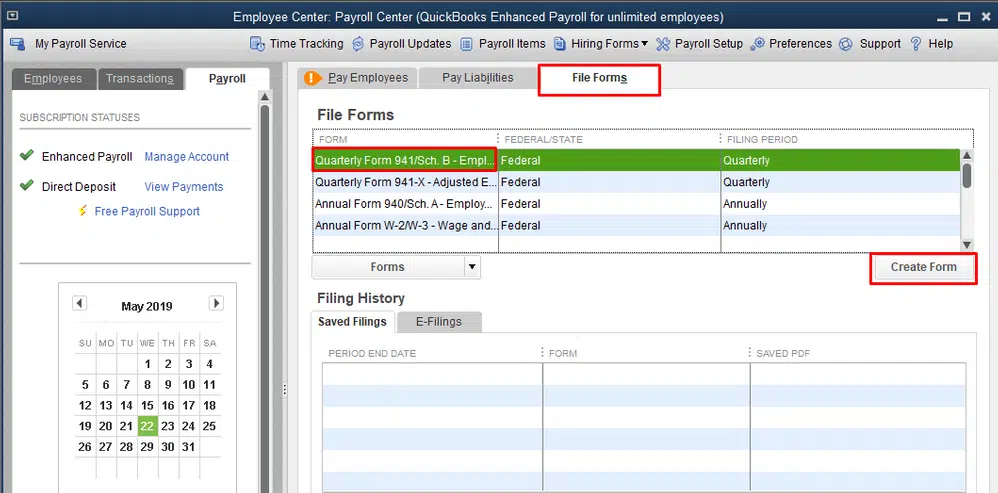
Printing W-3 forms in QuickBooks Desktop and Online isn’t that difficult, especially when you have the right steps in handy. You might require to print W-3 form in QuickBooks desktop and online if you send paper copies to your accountant. The print process of W-3 forms involves some basic set of steps, which we will be discussing later in this piece of writing. To find out the steps to print W-3 forms in QuickBooks desktop and Online, make sure to keep scrolling this piece of writing.
Steps to print W-3 form in QuickBooks Desktop and Online
The steps for QuickBooks desktop and online differ. Thus, you need to choose the steps accordingly.
Steps to print W-3 form in QuickBooks Online Payroll
There are two different scenarios that you can expect. Let us evaluate each of the situations and the steps to be followed accordingly.
Condition 1: When Intuit Payer and file W-3 form for you
Here, the form will be emailed to your employees starting January 16-31. You will have to reprint them. The steps shown below are for the current year:
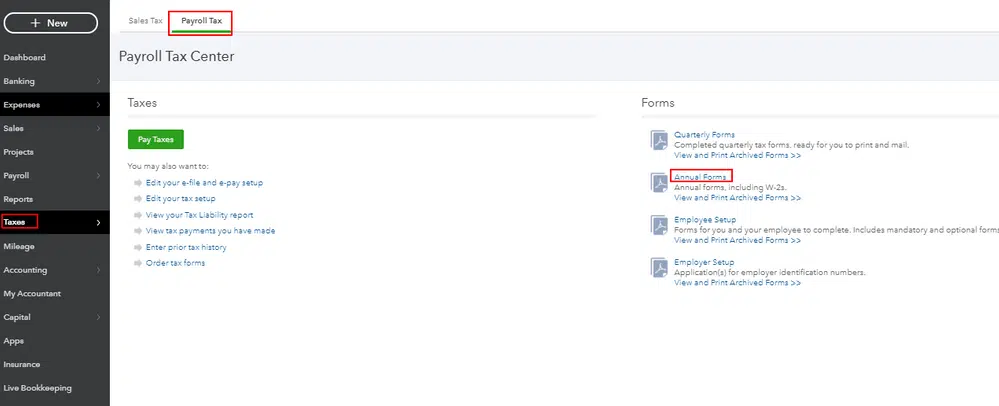
Start by heading to the Taxes option in QuickBooks online account.
Now, you need to click on Payroll tax.
The next step is to choose Filings.
Once done with that, you need to go for Print both Employer and Employee copies of W-3 form.
After which, you need to select Transmittal wage and tax statements.
Later on, you will have to click on View tab.
If you see a question asking if you or your employees contributed to a retirement plan outside of QuickBooks, then go for Yes or No.
Lastly, you need to click on print tab on the adobe reader toolbar and also select Print tab.
Condition 2: If you pay and file manually or electronically
In this condition, you need to first head to Taxes menu.
After that, click on Payroll tax.
The next step is to choose Filings.
Go for print both Employer and employee copies of W-3.
Now, you need to select Archive or View on transmittal of wage and tax statement.
You will see a question about your employees or your contribution to a retirement plan outside of QBO, then you need to select Yes or No tab.
Towards the end, you need to select Print icon on the adobe reader toolbar and go for Print again tab.
Condition 3: If Print W-3 forms in the automated method of Tax filing
The first step is to go to Taxes and choose Payroll Tax option.
After that, select Filings.
Subsequently, hit on Annual Forms option.
At this point, you need to choose whether to print W-3 forms copies for both the employee and the employer.
Now select Filing period.
Once done, click on the opt to View the Form in Adobe Reader.
You are then required to click on Print.
After that, you need to hit on Print one more time.
This process will print W3 Form.
Ensure to type REISSUED STATEMENT the next time to try to reprint the W3 Form.
Condition 4: Printing W-3 forms if automated Taxes and Forms feature is turned off
Go to Taxes and choose the Payroll Tax option.
After that hit a click on Filings.
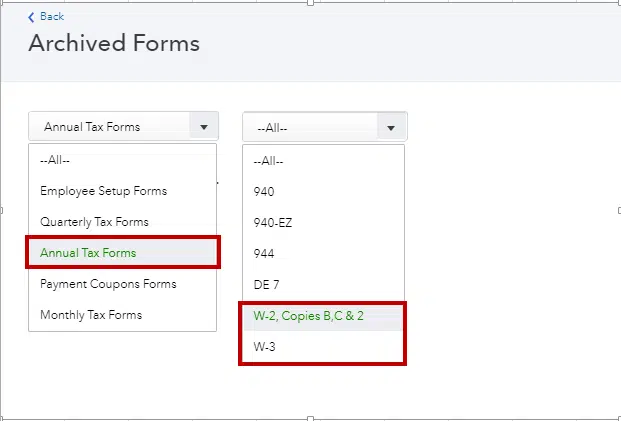
Then click on Archived Forms.
Now, use Select the Period against the correct year.
Here select a opt between Employee Copies and Employer Copies.
Then, hit on View to open form in Adobe Reader.
Lastly, click on Print, and then again click on Print to start the printing process.
Printing W-3 forms in QuickBooks desktop and QuickBooks online isn’t that difficult, all you need is the right knowledge. Hopefully, reading the steps above might have helped you in printing the W-3 forms successfully. On the contrary, if you require any technical assistance in dealing with the W-3 forms in QuickBooks desktop and Online, then all you need is to dial our customer support helpline i.e., +1(800)761-1787, and your queries will be immediately taken care of by our tech support team. Get answers to all your queries right away with our QuickBooks desktop support experts team.
FAQs
What is W3 form?
Form W3 is a tax form for reporting employee income to the Internal Revenue Service (IRS) and Social Security Administration.
What is the cause of W3 form not printing in QuickBooks?
Printing problems may pop up when installing W3 forms due to incorrect driver installation, printer not set up properly or some corruption in the driver files of the printer.
How to fix data overlapping issues when printing W3 forms in QuickBooks?
This issue can be rectified by making changes to the printer layout settings, and by checking the margins and scaling in Printer Setup.
Can System Restore help in the resolution of the W3 form printing issues?
Yes! In certain cases, the printing issues can be resolved by rolling back the changes being made to the files by going for a System Restore.
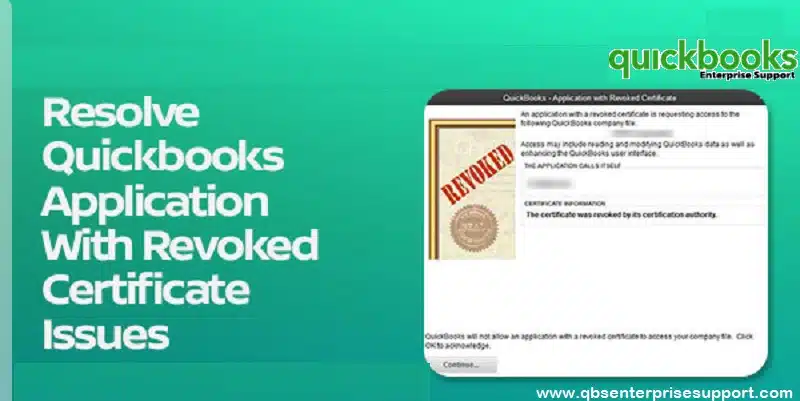
Getting through errors in QuickBooks isn’t that challenging, especially when you know the error in detail. An outdated or expired digital signature certificate could lead to the various errors in QuickBooks program. One such error that is highlighted in this quick guide is QuickBooks Error - Application with Revoked Certificate. When one tries to sync QuickBooks with Intuit apps or with third party app, a digital certificate is basically used to show the apps are secure. In case you get a certificate error, then you might fail to sync the data or open the file. This basically happens when there is a Symantec root certificate was revoked that made some certificates show up as invalid. Microsoft might agree to re-enable these certificates temporarily, so you can sync the data or open the file. However, this might take some time to automatically take effect on the system.
To help you fix the QuickBooks application with revoked certificate warning, we have come up with this informational blog sharing the complete details. Make sure to scroll through the article carefully and you will be able to get back your QuickBooks in active mode.
What is QuickBooks Application with Revoked Certificate Error?
This error usually occurs when syncing QuickBooks desktop with third-party applications, including Intuit applications like Field Service Management or Statement Writer. Mostly, it indicates issues with the digital signature certificate. Most of the time, it encounters due to expired certificate or there might some compatibility issues with the operating system. QuickBooks Application with Revoked Certificate problem is usually encountered while syncing QuickBooks with 3rd party applications or QuickBooks Web Connector digital certificate is expired.
What causes QuickBooks Application with Revoked Certificate?
You can see the QuickBooks application with revoked certificate due to the following reasons:
You can come across the issue when the synmatec root certificate is cancelled or revoked.
Or if the signature certificate of the application is having an old digital signature certificate set up.
Another cause can be if there is an old digital signature certificate for QuickBooks present.
Methods for Fixing QuickBooks Application with Revoked Certificate Error
Checkout these DIY methods in order to resolve error “QuickBooks - Application with Revoked Certificate warning”.
Method 1: Set up digital signature certificates for third-party application and QuickBooks
Set up digital signature certificates for third-party application and QuickBooks. You need to create digital signature certificate for QuickBooks using the steps below:
Setting up digital signature certificate for QuickBooks
To start with, you need to head to QuickBooks icon.
And then, click on Open file location.
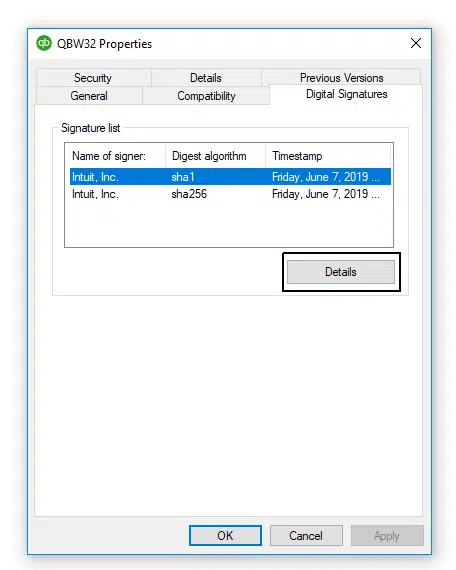
Now, right-click on other applicationname.exe extension or the QBW32 option.
After that, choose the option and then go for Properties.
Now, in the properties tab, right-click the tab for Digital signature.
Once done with that, in the signature list, you need to highlight the name Signer.
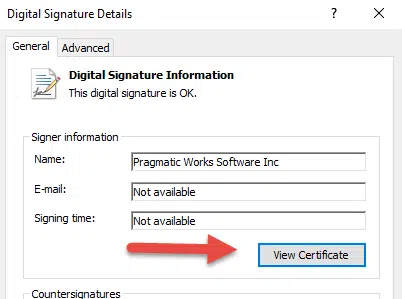
Choose Details tab.
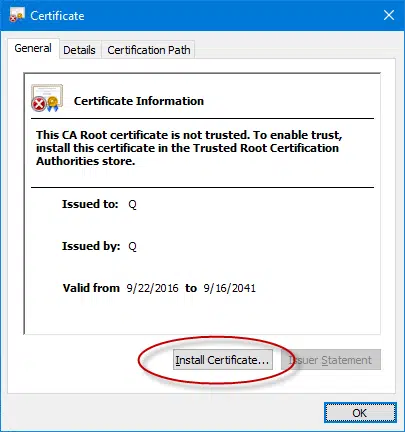
Also, press the option View certificate. And then, head to General tab.
Click on the opt for Install certificate.
Lastly, hit a click on Finish tab and then go for OK tab.
Create digital signature certificate of the application
After QuickBooks is installed, you need to install the current digital signature certificate for third-party program.
Start off with, you need to head to the Installation directory of the application.
Also, right-click on the available .exe icon.
Now, choose Properties and then click on the Digital signature tab.
You now have to press the option, and Name of the signer and also click on Details tab.
The next step is to click on the opt stating View certificate, from General tab.
And then, review the Valid from dates.
In case the digital signature date expires, then you need to get the current certification for any particular third-party application.
The last step here is to hit OK tab and close the screen.
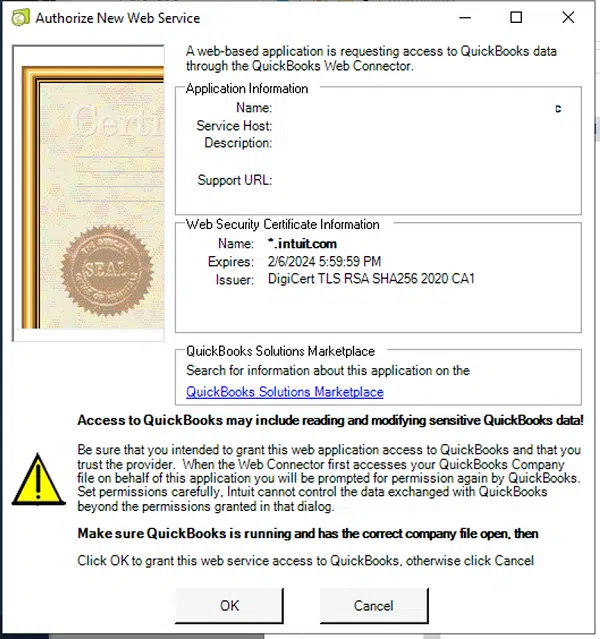
Method 2: Check QuickBooks Web Connector version
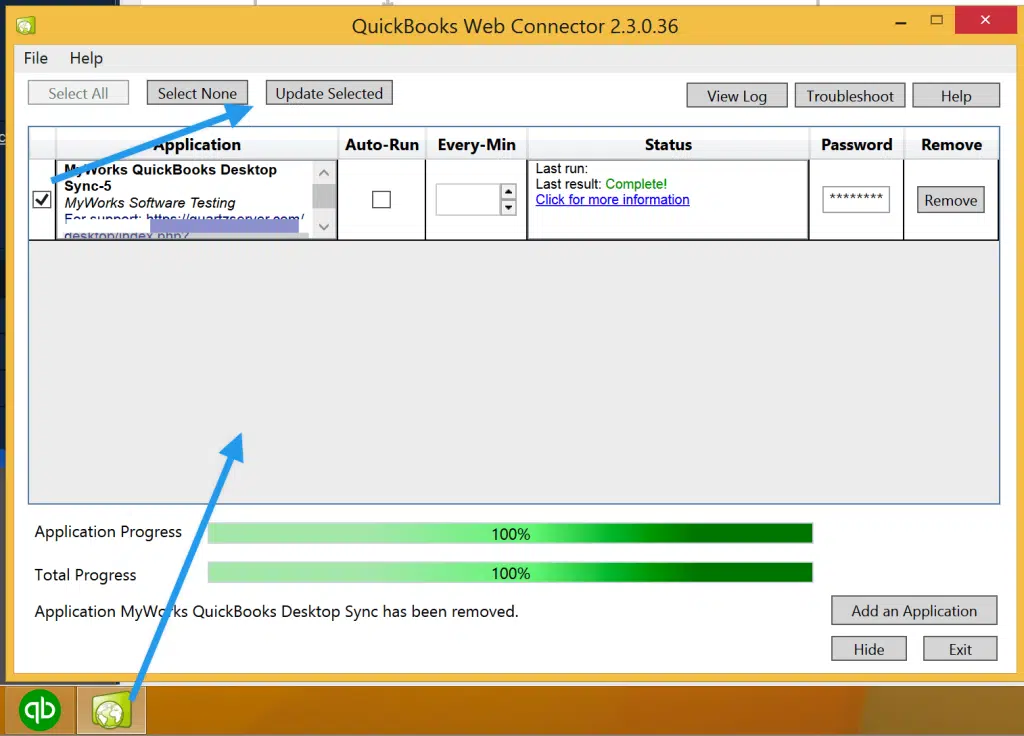
Press the Windows start button and search Web Connector in the search bar.
After that click on Help and navigate to About QuickBooks Web Connector option.
This will show the version of web connector.
If the program is not updated to the latest version, you should set up the latest updates for the program.
Method 3: Fixing the error while syncing with and without Web Connector
Case 1: Sync QuickBooks without Web Connector
Well, in case you find the issue when trying to sync QuickBooks with a third party app without using web connector, then simply try to update the third-party app and further sync with QuickBooks.
And proceed to the downloads folder or the zip file saved location and further extract the certSync.bat file.
You also have to right-click the certSync.bat and choose Run as administrator.
The very next step is to wait for a few minutes to let it run.
And avoid closing the command prompt window till the certutil: - verifyCTL command completed successfully shows up.
Once all this is complete, you need to close the window and further start using the third-party app with QuickBooks.
Also: Note that if you continue to face the issue, then you need to contact your third-party app developer.
Case 2: Sync QuickBooks with Web Connector
Just in case you see the error when trying to sync QuickBooks with a third-party app with web connector, then all you need is to update QuickBooks to the latest release.
You will first have to open QuickBooks and head to Help menu.
Now, choose Update QuickBooks desktop.
And also, choose Update now tab and also opt for Get updates.
You need to close and reopen QuickBooks to install the update again.
Now, try to sync QuickBooks with the 3-rd party application again.
In the next step choose your version to download the QBWebConnector.exe.
If in case you have more than one installed version then you need to download for the latest version.
How to Fix Revoked Certificate Error in QuickBooks with Intuit Field Service Management (IFSM)?
To fix this error with Intuit Field Service Management, go with the following steps:
At first, close your QuickBooks.
After that download QbEventsShim.exe file.
Ensure to get it replaced in C:\Program Files (x86)\Intuit Field Svc. Integration or C:\Program Files (x86)\Corrigo Integration folder
Once done, run QB Desktop again and try using the IFSM again.
Final Words!
QuickBooks Application with Revoked Certificate error can be a bit too complicated for someone who isn’t a QuickBooks dedicated user. If that is the case with you, then you can simply seek for professional assistance by our QuickBooks error support professionals using our toll-free customer support number i.e., 1(800)-761-1787, and our Certified ProAdvisors will ensure that your issue gets resolved in no time.
Learn how to rectify the QuickBooks crash error while sending an email:
Trying to send emails in QuickBooks, but the software crashed? QuickBooks crashing can be one of most annoying issues one might come across. The QuickBooks feature that lets you manage basic and advanced accounting also allows you to send emails without any issue. However, due to some unwanted reasons, your software might crash when sending emails. To help you tackle through this error, here we are with this segment sharing the quick fixes of QuickBooks crashing error when sending emails. Thus, keep read on...!
Why QuickBooks Desktop Crashing when Sending Emails?
According to experts, QuickBooks crashing when sending emails is not a random issue. It generally encounters when there is a conflict between QuickBooks and your email configuration. Another reason can be if there is any permission problem or damaged file. This error usually appears at the time you are trying to send invoices, reports or any transactions.
Situations when QuickBooks may crash while sending Emails
You may experience the QuickBooks crashing issue while you attempt to send your invoices and transactions over email. However, this error may also come up in the following instances:
When attaching a company file to your email
You attempt to use the Send Forms function in QuickBooks.
What factors lead to QuickBooks desktop crashing when sending email?
Here are a few factors that can trigger QuickBooks desktop crashing when sending email. Let’s understand the exact reasons behind it.
In case QuickBooks is showing a connection issue with the email server, you might come across crashing issue.
In case there are any conflicts with Windows or Email Settings.
If there is damaged Microsoft Windows components, then experiencing the same issue is possible.
If there are third-party applications causing the connection breakage to the email server.
In case the firewall or antivirus running the background is disturbing the connection.
You need to use secure webmail within QuickBooks using the steps below to ensure that the error gets resolved.
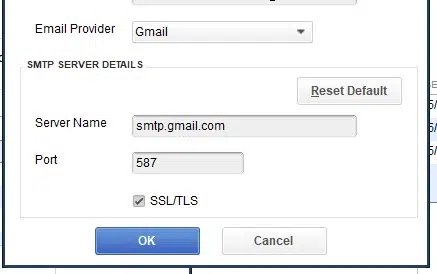
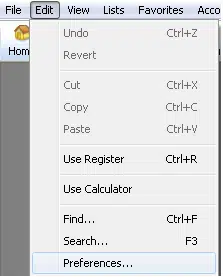
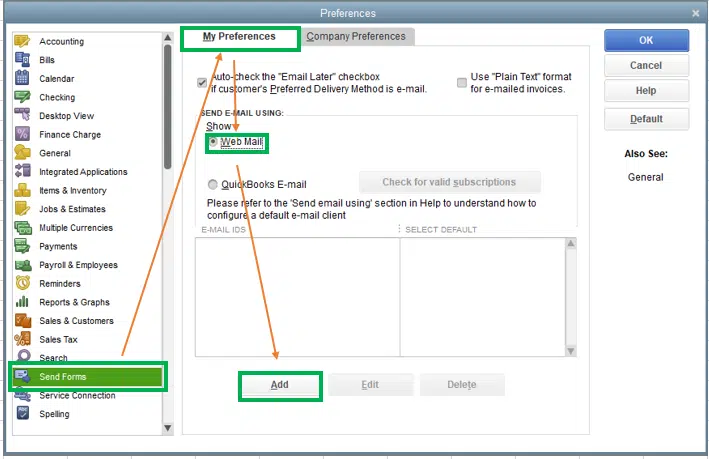
To start with, open QuickBooks and move to Edit menu.
Go for Preferences tab and then proceed to Send forms.
Next step is to choose Webmail.
Once done click on Add tab and further choose Email service provider from the list.
Next step is to enter the Email address carefully.
Ascertain to select Use Enhanced security.
Maintain Secure email configuration.
Now hit on OK tab.
The last step is to reopen QuickBooks and further log in with the correct email credentials.
Fix 4: Configure Firewall settings
You need to configure the Firewall to make sure that it is not causing the crashing of QuickBooks desktop. The procedure for the same is given as follows:
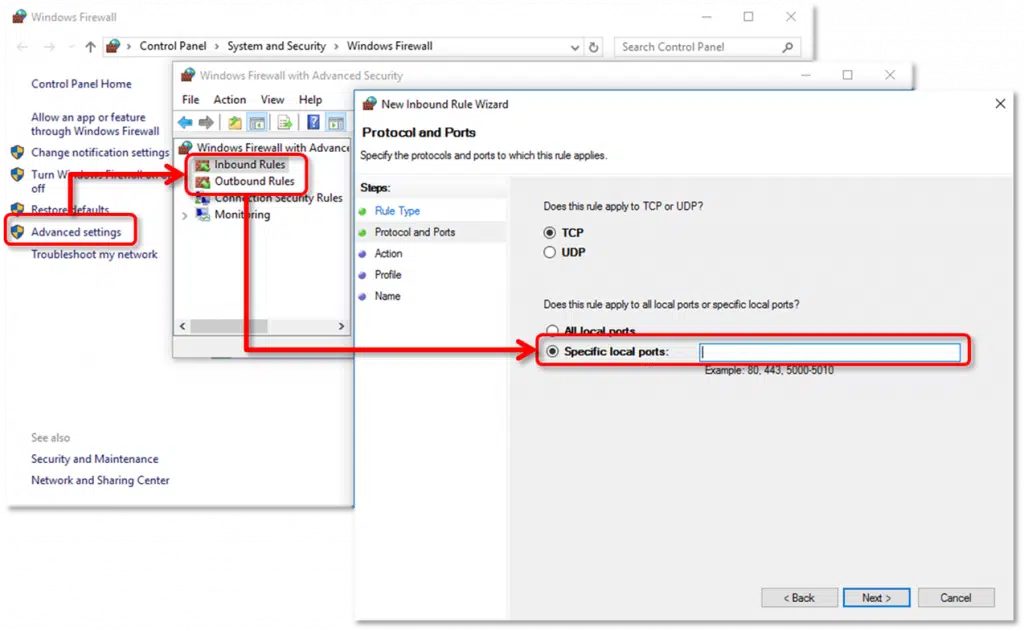
First of all, Add QuickBooks in the Firewall Exceptions.
Then, set up QuickBooks and Add QuickBooks port exceptions in the Firewall.
If the above steps didn't fixed the issue, try to Temporarily disable the Firewall.
Close all open programs that are running on the background.
Head to the Windows Start menu and further enter File explorer to open it.
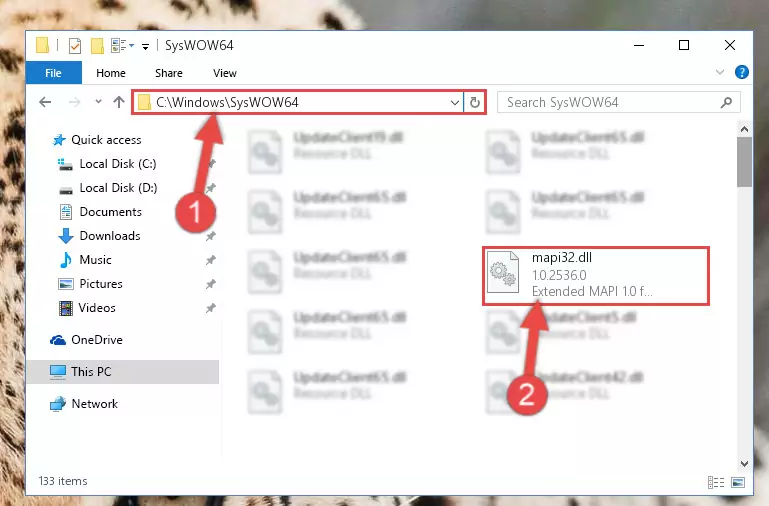
Now go to C:\Windows\System32 folder.
Next step is to find and rename the current MAPI32.dll file to .old.
Also rename the file and reboot the system.
Once done, your Windows will automatically detect the missing file and further try repairing it and creating a new MAPI32.dll file.
Once the system restarts, open QuickBooks and also try to send an email to test.
In case the issue continues, you will have to reinstall the MAPI32.dll from the original source or restore it from the installation disk.
Fix 6: Work on QuickBooks Repair
If none of the above steps helped in fixing the QuickBooks crashing error when sending emails, you can try fixing the error using the steps to repair QuickBooks.
Start by login to Windows as System admin.
Then backup the QuickBooks data files.
Once done, enter Control panel and find Program and features there.
Move to QuickBooks in the list of programs.
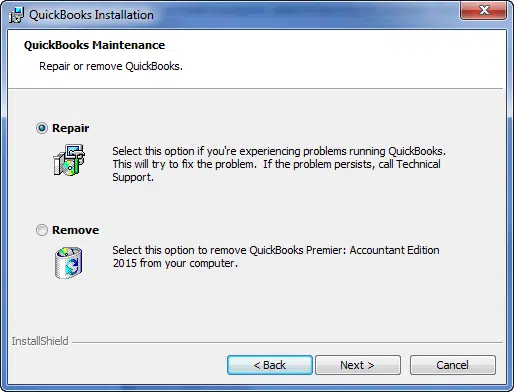
Hit a click on Uninstall/change and then go for Continue tab.
The next step is to choose Repair tab and also click on Next to begin the repair process.
The last step here is to reboot the system.
Final Words
QuickBooks crashing issue while sending emails usually linked to email integration issues or system conflicts. In most cases, this error can be traced back to settings like email configuration, MAPI file damage or lack of system admin permissions.
I hope by using the methods shared above helped you in fixing QuickBooks crashing error when sending emails. But if not, then in that scenario, you need assistance from someone who understand the core of the QuickBooks software. And thus, you can simply dial our customer support assistance i.e., +1-800-761-1787, and get assistance from our certified ProAdvisors immediately. Our QuickBooks error support team will ensure that your issue gets resolved easily and immediately.
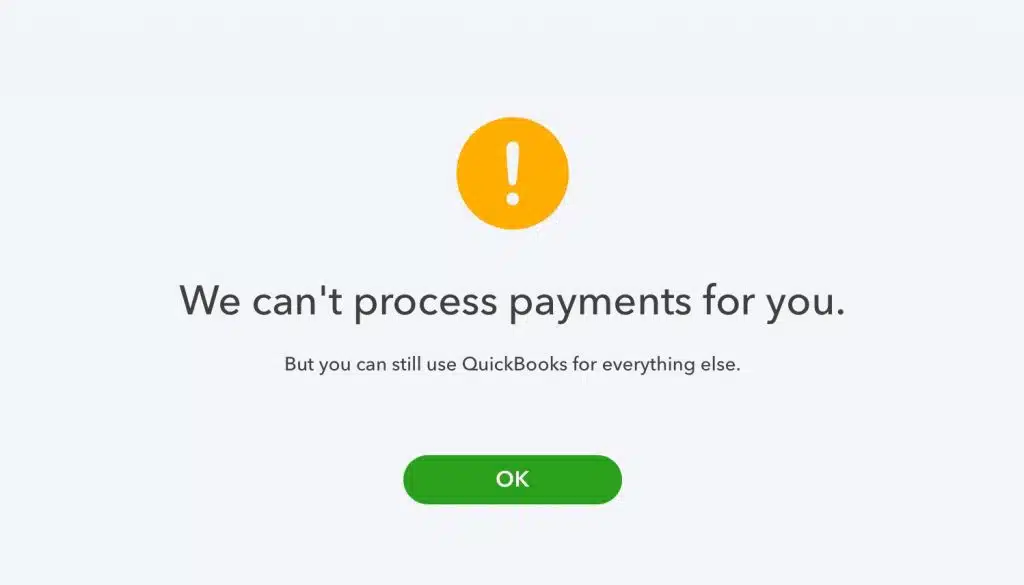
Your internet connection isn’t working properly in QuickBooks payments? Well, we are here with all the information you need to change your internet connection settings so QuickBooks payments work properly for QuickBooks desktop for Windows. Often when you see blank pages, missing data, or errors when you sign, create invoices, or process payments, it indicates that there is some issue with the internet connection in QuickBooks payments.
You need to fix the internet connection problems in QuickBooks payments so that QuickBooks payments can connect to our services online. To learn the troubleshooting steps, stick to this segment till the end.
Quick Note: In case you find the same error in other areas of QuickBooks and not just the payments, then you need to check for other connection issues.
Effective Solutions to fix Internet Connection Problems in QuickBooks Payments
Fixing the internet connection problems while processing the payments in QuickBooks isn’t that tricky, all you need is to perform some quick solutions enumerated below. So, keep stick to the solution steps in the same order as discussed.
Method 1: Clear cookies and cache
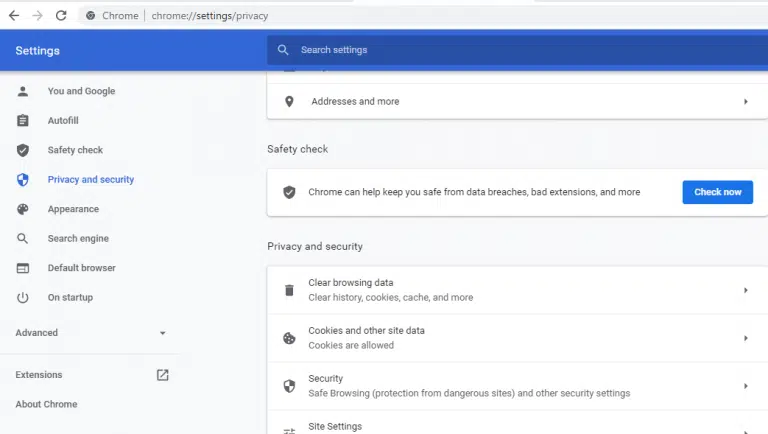
You need to clear cache and cookies in the internet explorer to ensure that there isn’t any issue due to accumulated cache.
The very first step is to open the Internet explorer.
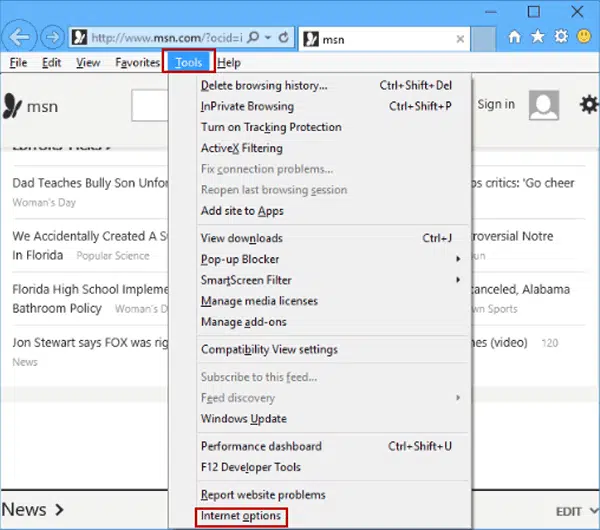
Now, you need to go for the Tools icon.
And then, go for the Alt tab on the system to bring up the menu bar.
And also, choose Tools menu.
The next step is to go for the Internet options from the menu.
Followed by, heading to the General tab and from the browsing history, select the Delete option.
You also have to choose the following to delete:
Choose temporary internet files and website files.
Delete cookies and website data.
Clear history
Go for passwords
Now, choose Delete or Clear data tab.
And then, close the internet options window.
You also have to close internet explorer.
Try accessing QuickBooks payments again.
In case you do not see Internet Explorer in Windows 10:
You will have to perform the steps through Microsoft Edge.
To start off with, you need to open Microsoft Edge.
Also, choose the tab with Three dots.
And then, choose open with Internet explorer.
And perform the steps to Clear cookies and cache.
Lastly, restart QuickBooks and try to process your payments once again.
Method 2: Changing compatibility view settings in Internet Explorer
Another option is to change the compatibility view settings in Internet Explorer, as the settings will help web pages to display properly. You can change the settings for internet explorer using the steps below:
To begin with, you need to open Internet explorer.
Now, go for Tools icon.
And then, press Alt key on the system to bring up the menu bar.
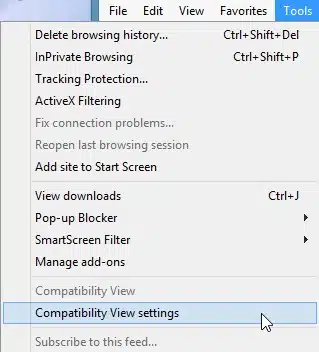
Once done with that, go for the Tools menu.
Also, opt for the Compatibility view settings from the menu.
Herein, you are need to click on Add this website.
The very next step is to enter *.intuit.com and choose Add tab
Repeat the same steps for both intuit.net and quickbooks.com and click on Add.
Now, go for Close tab to save the changes.
And find out if the error continues to trouble you.
Well, you can change these settings directly in internet explorer, but it is often recommended to do it in QuickBooks desktop. This ensures that the new settings work properly in QuickBooks. The steps you have to follow to configure internet connection settings are as follows:
To start off with, all you need is to open QuickBooks desktop.
Furthermore, you will have to head to the Help menu.
And then, you need to choose the Internet connection setup.
Followed by, opting for Use my computer’s internet connection settings and further choose Next tab.
You now have to go for Advanced connection settings and this will open the Internet options window where you can change the settings mentioned below:
You need to add Intuit as a Trusted site.
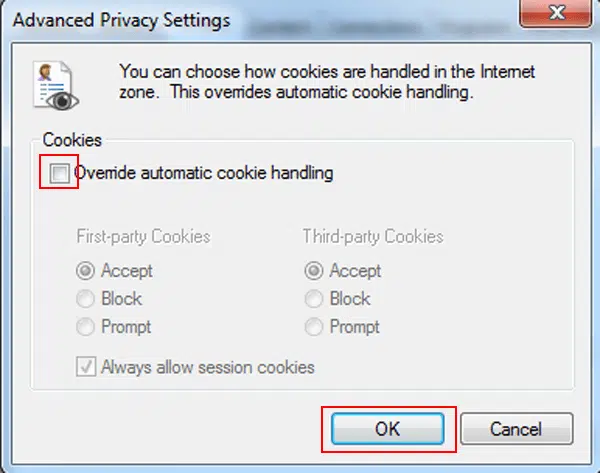
Furthermore, change Cookie settings.
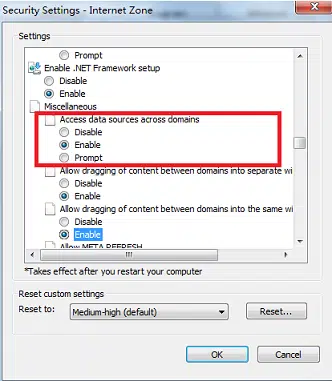
And then, change ActiveX control settings.
Also, update Trusted sites settings.
You also have to change the Advanced security settings.
And further go for changing pop-up blocking settings.
Lastly, choose restart.
Method 6: Change the settings related to Trusted Sites
At first, go to Security tab and then move to Trusted Sites section.
After that go to Security level and select Custom level option.
Open your browser and go to Internet ConnectionSetup from the Help menu.
After then, click on Advanced Connection Setup.
Herein, make sure to uncheck the opt to Do not save encrypted pages to disk box option.
Now, select Use TLS 1.2 box.
Then, hit on Apply and then Ok to save the changes.
Method 8: Disabling the pop-up blocker
Start the process by visiting to the Privacy tab and select Advanced Connection Setup.
After that, click on Privacy.
Now, you need to un-check the box net to Turn OFF the pop-up blocker.
Lastly, click on Ok to save changes.
Method 9: Changing firewall and security software settings
You are required to changing the settings for firewall or security. And similar to other web-based credit card processing software, QuickBooks payments will need a secure, uninterrupted connection to send and receive data.
Fixing to the internet connection problems in QuickBooks payments can be a bit challenging, especially if you aren’t that versed with QuickBooks technicalities. Therefore, it becomes crucial for you to get through the issue by simply connecting with the technical professionals. You can connect with the experts and your issue will be resolved by QuickBooks error support experts within a few minutes. For more information, dial our toll-free and directly connect with the professionals.
FAQs
What are some common internet connection problems that can affect QuickBooks Payments?
QuickBooks payments can be severely impacted due to the following reasons: 1. Slow internet connectivity 2. Network-related disruptions. 3. Firewall or antivirus may be preventing QuickBooks Payments
Are there any specific ports or protocols that need to be allowed for QuickBooks Payments?
Yes! QuickBooks Payments requires port 443 (HTTPS) corresponding to outbound connections.
Can temporary network disruptions or maintenance affect internet connectivity in QuickBooks Payments?
Yes! Temporary network disruptions can instigate internet connectivity issues in QuickBooks Payments.
How can I check if my internet connection is causing the issue?
1. Open a web browser and try visiting several websites. 2. If you can't access other sites, the problem is likely with your internet connection. 3. Restart your router or modem and reconnect to the internet.
Are there specific ports or settings QuickBooks Payments needs to access the internet?
1. Yes, QuickBooks requires access to certain ports and websites. Make sure the following ports are open: 80 (HTTP) 443 (HTTPS) 2. Add QuickBooks and its components as exceptions in your firewall and antivirus settings.
Can browser settings affect QuickBooks Payments?
Yes, if you are using QuickBooks Online, browser settings, cache, or extensions can interfere. 1. Clear your browser’s cache and cookies. 2. Try accessing QuickBooks Payments in a private/incognito window or a different browser.
Getting interrupted by some unwanted errors in QuickBooks can be extremely annoying, especially when you are performing an important update for the software. One such error that you might come across can be QuickBooks error code 1317, which usually appears when you try updating QuickBooks or installing the same. Ending up with such an error can be due to a bunch of reasons. From insufficient permissions to damaged installation file, there can be a huge list of reasons. In order to help you with such error, here we have drafted this segment that discusses the causes and fixes of this error. Thus, keep scrolling to find the right solutions.
What is QuickBooks Error Code 1317?
QuickBooks Error Code 1317 is an installation or update error that generally encounters when the software attempts to create a directory during the installation or update process. In simple words, this error is a permission related error that prevents QuickBooks from writing files to your system. Also, this error is often related to insufficient permissions or conflicts within the system. When this error occurs, an error message usually states as:
"Error 1317: An error occurred while attempting to create the directory..." Drive Name:/Folder [directory path].
This indicates that QuickBooks doesn’t have the required permissions to create or modify a folder during installation or update.
What causes QuickBooks error 1317?
QuickBooks error 1317 is mostly triggered due to system level restrictions. Here are a few reasons causing this error:
Just in case you have insufficient RAM and hard disk memory, then you might end up with error 1317.
If the system files got corrupted somehow.
Or if the system files are corrupted or Windows registry entries are damaged.
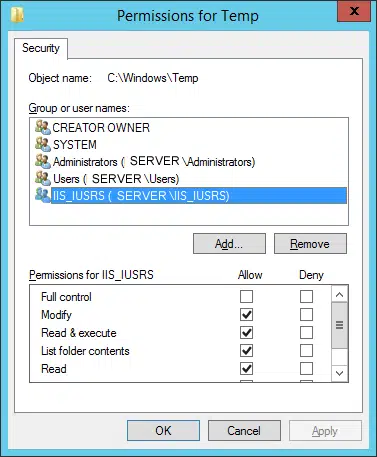
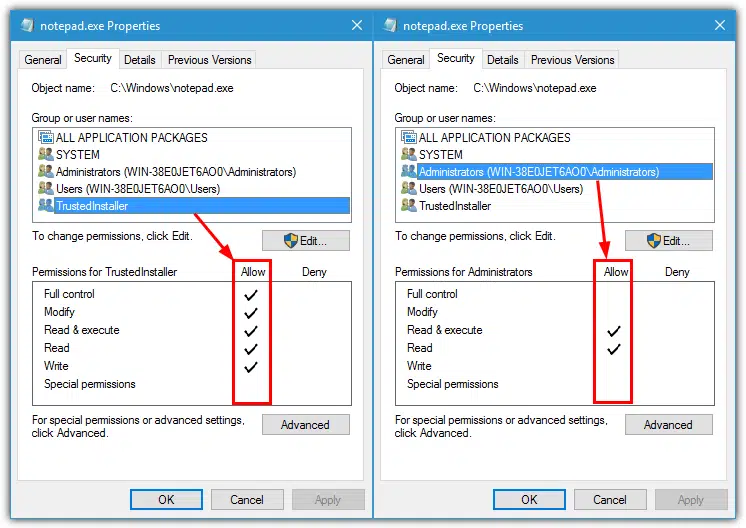
You can further end up with such error, if the Windows Installer does not have sufficient permissions to modify a specific file.
If there is a third-party program set up on the system.
Any interference from third-party software or antivirus programs can lead to such errors.
The system account lets visual studio 2005 is having access to the drive.
Uncover Different Methods to Resolve QuickBooks Install Error code 1317 on your System
You can perform a bunch of solutions to eliminate QuickBooks error code 1317 from its root cause. Let us understand each of the solutions one by one and find the right fix for the error.
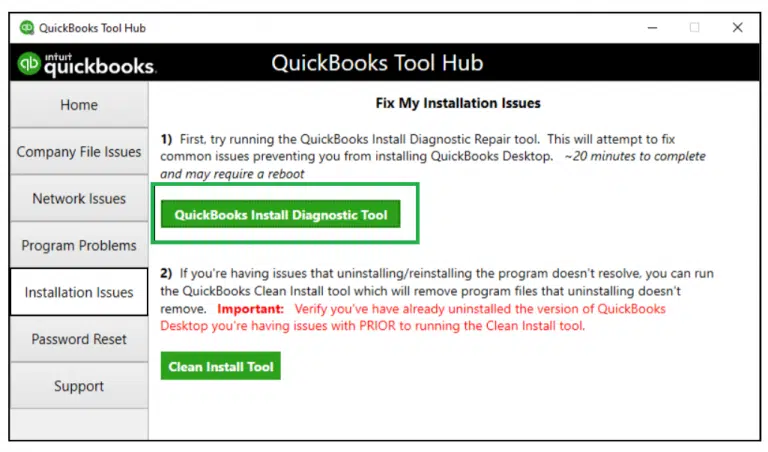
Solution 1: Run QuickBooks install diagnostic tool
Tools in QuickBooks makes dealing with issues way simpler. One such tool you need to get a grip of is QuickBooks install diagnostic tool. Here are the steps that would work:
Close your QuickBooks software.
Make sure that all the programs running in the background are closed.
If you are reading this segment, then you have reached the end of this segment and we expect that you will be able to tackle through the QuickBooks installation error 1317 successfully. However, if the case is different, you still have unaddressed queries regarding the error, then reaching out to our dedicated QuickBooks error support team at +1-800-761-1787 is all that we suggest. Our experts will ensure that your issue gets resolved within no time and you get immediate assistance for all your QuickBooks problems.
FAQs
Can restoring my computer fix Error 1317?
Restoring your computer to a previous restore point can sometimes resolve Error 1317 by undoing recent changes that may have affected permissions or system settings. Always ensure you have administrator access before performing a system restore.
Is there a way to determine if QuickBooks Error 1317 is caused by a specific file or folder?
The error message typically mentions the specific file or folder that Windows Installer is unable to modify. The message can be used to determine the source of the error.
Can disk space or drive permissions cause Error Code 1317 in QuickBooks?
Yes! Insufficient disk space or insufficient drive permissions can lead to such install errors.
Does Error 1317 affect my QuickBooks data?
No, Error 1317 does not harm your company files or QuickBooks data. It only prevents installation or updates until the issue is resolved
Tips to Prevent QuickBooks Error Code 1317
1. Always install or update QuickBooks as an administrator. 2. Ensure your system has sufficient memory and disk space. 3. Keep your antivirus and Windows updated, but temporarily disable security software during installation. 4. Regularly back up your system and registry before making major changes