Checkout the new and improved features of QuickBooks Desktop 2022 and QuickBooks enterprise 22.0
Planning to switch to QuickBooks desktop 2022? Dicey whether the new upgrade is worth the switch? Well, no worries at all. This write up is going to brief you with the features and functionalities that might come hand in hand with QuickBooks desktop 2022. Before proceeding ahead, the most important point to note here is that Intuit will now only be selling its Pro, Premier, and Mac products, as Pro Plus, Premier Plus and Mac Plus subscriptions. Whereas, the QuickBooks desktop enterprise has been a subscription offering for a few years. Having said that, QuickBooks desktop 2022 has rolled in with several features to assist in automating and streamlining and simplifying your daily accounting tasks.
To unleash the new and updated features of QuickBooks desktop 2022, simply go through this write-up. Or you can simply connect with our support personnel at 1-800-761-1787 and let them brief you with the information in detail.
Newly launched features of QuickBooks desktop 2022
Below we have tried to jot down, some of the newly launched QuickBooks desktop 2022 features. Check out what’s new in QuickBooks desktop 2022:
Intuit account required for QuickBooks
An Intuit account gives you a single login to secure all of Intuit's robust offerings, including the renowned QuickBooks Desktop software, along with its connected services. Every user needs an Intuit account with admin credentials to use QuickBooks Desktop. It includes QuickBooks Desktop Pro Plus and Premier Plus, Accountant Plus 2021, and all editions of Desktop Enterprise 22.0.
Pay bills with Melio
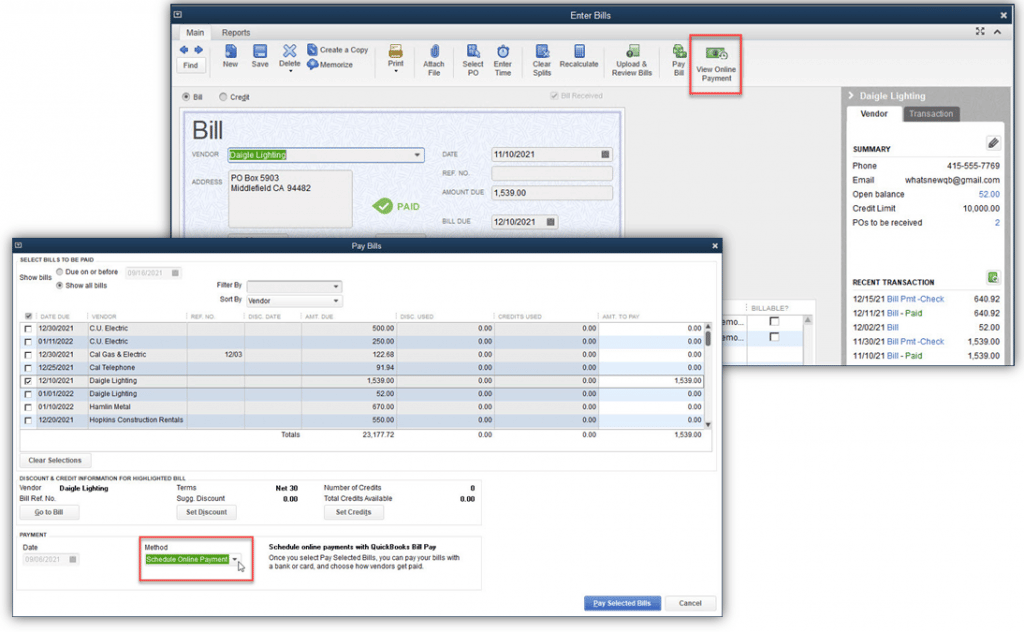
This is the first feature you can explore in QuickBooks Desktop pro plus, premier plus, accountant plus 2022, and all editions of desktop Enterprise 22.0. In order to find this feature, you would have to head to the menu bar, followed by choose vendors and pay bills. Optionally, from a displayed vendor bill, choose schedule online payment from the top right of the main ribbon.
It should be noted that, if you are paying a vendor bill with a payment type that include a separate processing fee, then the QuickBooks accounting software will create a vendor named Melio and these charges will be added as a vendor bill. The charges are deducted from the funding source, the software will record the fee bill as paid. Another option can be to select sync online bill payments from the menu bar to sync these details with the QuickBooks company file.
Perks of using pay bills with Melio
Using this feature can help in scheduling vendor payments online from within QuickBooks. One can also assign a specific day for the payment to be processed and send. Moreover, QuickBooks users can go for the option to pay their vendor bills by ACH, debit or credit card.
You can also opt for how the vendor will get the payment, either as deposit in their bank account or as paper check. It should be noted that the vendor payment details are securely recorded with Melio and not in QuickBooks desktop company file. After the payment gets processed, the QuickBooks marks the bill as paid, for visual confirmation.
Add on e-Commerce integration powered by Webgility
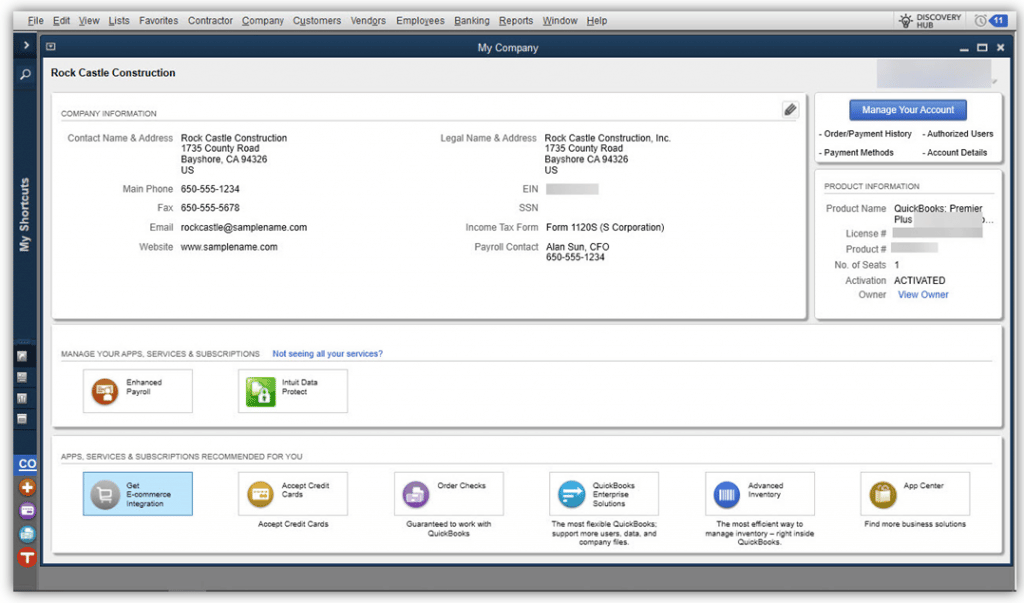
This particular feature is included with QuickBooks desktop pro plus, premier plus, accountant plus 2022 and all editions of QuickBooks desktop enterprise 22.0. To find it, you can see the add on, which might take additional fee. From the menu bar, choose company and then my company option.
What does it offer?
This particular feature is great for QuickBooks desktop users with an online storefront presence. Webgility integrates with QuickBooks, which makes e-commerce management easy. You can go for any of the three packages available: core, classic, and deluxe. It provides an e-commerce integration with online stores, such as Shopify, WooCommerce, big commerce, Magento, and other online marketplaces like eBay, amazon, and Walmart.com. Moreover, it gives an option to add new product listings and also update the inventory management details for their channels.
Discovery hub
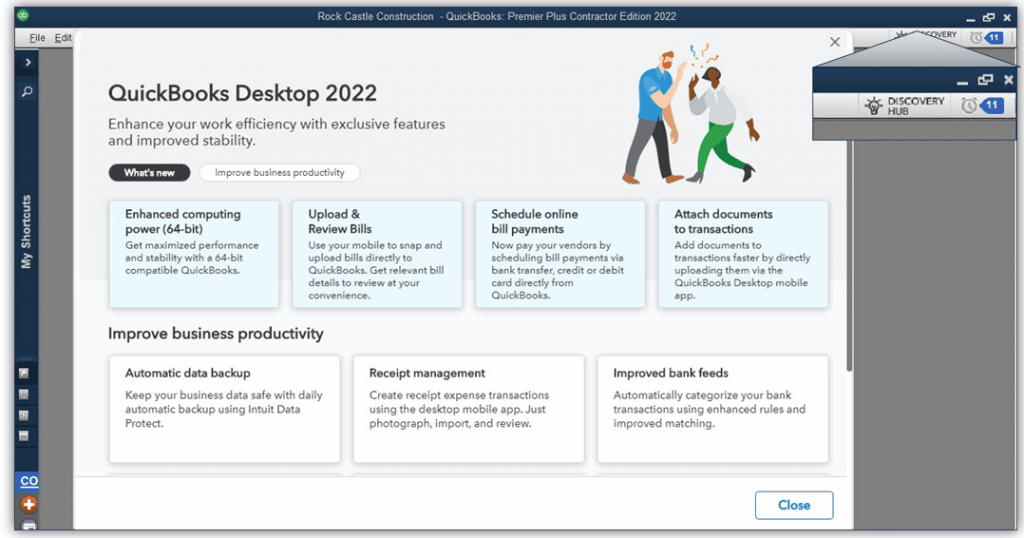
This is included in QuickBooks desktop pro plus, premier plus, accountant plus 2022 and all editions of desktop enterprise 22.0
You can find it from the top right on the menu bar and choose discovery hub.
What are its benefits?
This is simply a preview of new features included with the release of QuickBooks desktop plus 2022.
Customize and email vendor bill payments stubs
This one is included in QuickBooks desktop pro plus, premier plus, accountant plus 2022, and all editions of QuickBooks desktop enterprise 22.0
You can find it from the menu bar and choose lists tab. After that go for templates and choose bill payment template. Another option is to select manage from the displayed vendor bill payment transaction on the formatting ribbon. Now, print the newly customized bill payment stub from the payment summary window or from the menu bar choose file and print forms option and also the bill payment stubs.
What it offers?
You can make use of email customizable bill payment stubs to vendors and also modify the bill payment stub to include their business logo, along with the details of the payment made in QuickBooks.
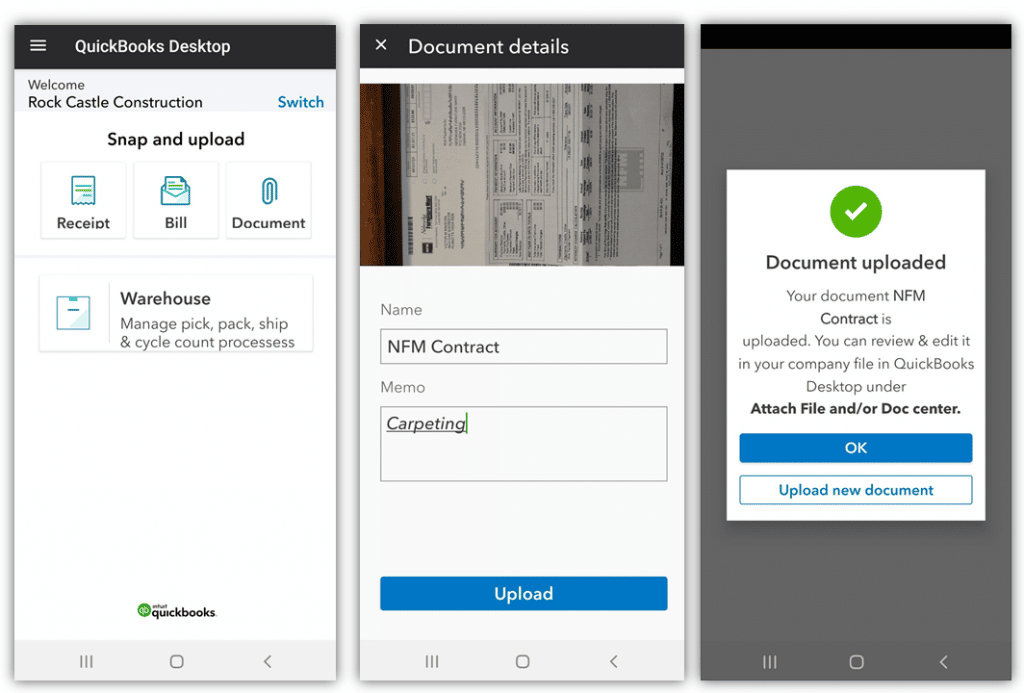
This feature comes with QuickBooks desktop pro plus, premier plus, accountant plus 2022, and all editions of desktop enterprise 22.0. The QuickBooks desktop is available for android and apple mobile devices.
You can try to access this feature from a mobile device and then try to log into the QuickBooks desktop app and choose a document.
What it has to offer for users?
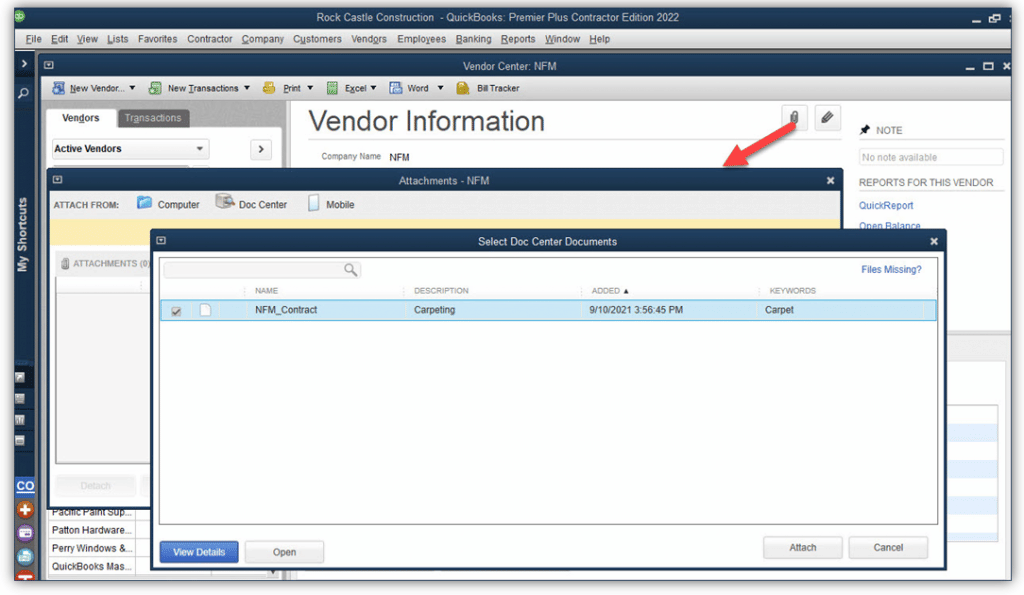
Majority of the QuickBooks users can snap a picture of a document with the free QuickBooks desktop mobile app, with this feature. Or can scan documents into the QuickBooks desktop attachment center. After that attach these documents or transactions or records, so as to avoid the need to keep paper copies.
Payment links for customer pre-payments
This particular feature is included in QuickBooks desktop pro plus, premier plus, accountant plus 2022 and all editions of Desktop 22.0 with an active QuickBooks payment account.
This feature can be accessed from the menu bar and then choose customers, payment links or optionally from the home page and also the payment links.
What it offers?
The users can request money from the customer as a deposit for services not yet provided without sending an invoice. The user can email the link to customers for them to process the payment without having to receive an invoice. Moreover, the users can track the payment links sent in QuickBooks. When the payments are received, the software will record the payment as an unapplied customer credit in the accounts receivable account.
This feature is included in QuickBooks desktop pro plus, premier plus, accountant 2021 and desktop enterprise 22.0. Maintenance release 5 and newer with an active QuickBooks payments account.
To find this feature, you need to select customers from the menu bar and choose customers and billing solutions, and then go to download payments. There are multiple access points in QuickBooks desktop. The setup needs only debit card details and a one-time verification.
What it offers?
Merchant payments can be deposited into the business bank account. The users can easily review the instant deposit details and accept the deposit in one step.
64- bit advanced processing power
The complete capability of a 64-bit processor can be used with QuickBooks desktop 2022. You can accomplish your accounting tasks faster with a quicker, more reliable QuickBooks.
That was all about QuickBooks desktop 2022 and its newly launched features. Make the best out of this QuickBooks version and get it today. For any query or concern, connect with our 24/7 QuickBooks desktop support professionals using our helpline i.e., 1-800-761-1787.
Learn how to repair and uninstall your QuickBooks Desktop for Windows:
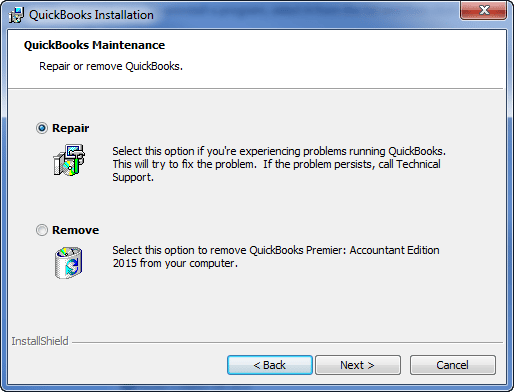
Every year, Intuit, the developer of QuickBooks, rolls in with a new and upgraded version of QuickBooks that adds to the ease of accounting. The same goes with the QuickBooks desktop 2023 & 2024. This is the latest release by Intuit, and it is a subscription-based model that has a lot to offer. Having said that, this version of QuickBooks might also be accompanied by some sort of setbacks. Getting a repair message with QuickBooks desktop is a prevailing glitch reported by many. In such a situation, opting for the next tab to begin the repair process is suggested, and also it is recommended to complete the process by hitting finish.
Avoiding these steps would land you in a warning message that would talk about missing installation files. If you chanced upon a similar hitch, then scrutinizing this write-up will surely be of some assistance to you. You can further interact with our tech wizards using our support line, i.e., 1-800-761-1787.
Steps to be performed to uninstall QuickBooks desktop
Initially, you need to open the Start Menu and type Apps and Features on the search bar.
Now from the list of installed programs, search QuickBooks in the list and click on it.
The next step is to click on Uninstall, so you can initiate the uninstallation process.
Steps to be Performed to Repair QuickBooks Desktop
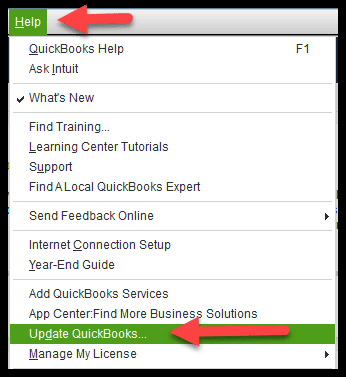
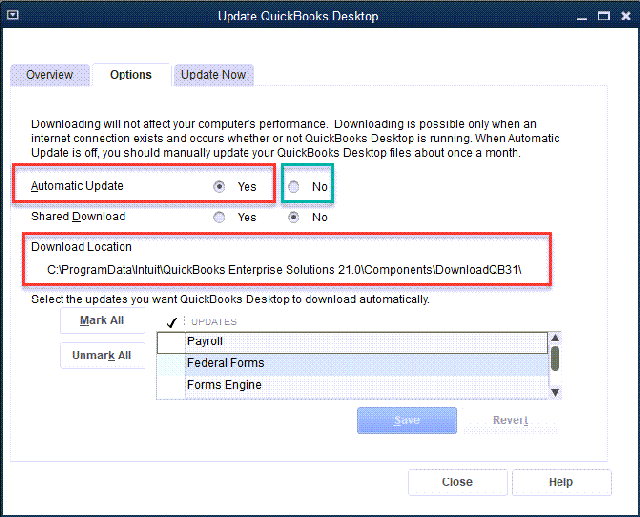
Before heading forward with any of the steps and procedures, it is very much essential to note that only a Windows admin can repair QuickBooks Desktop. When you perform the steps to repair QuickBooks, it basically resets QuickBooks desktop to its default installation state without any added updates that arose later. In the event of automatic updates being turned on, QuickBooks accounting software will reinstall current updates. Otherwise, you would have to start the updates manually.
You would then have to reboot QuickBooks when the download process ends.
Is there any need to uninstall the current or previous version of QuickBooks?
This is one of the basic questions that need to be answered before heading forward. 64-bit systems have been in the market for a while now, and they definitely work smoothly with the 32- bit versions of QuickBooks. Regardless of this, you might be stuck on a question in context to running previous versions along with QuickBooks desktop 2022. The answer to this query of yours is that you can still install multiple QuickBooks desktop versions on one computer. It is possible to install Enterprise 24.0 and either QuickBooks pro or premier 2022. On the contrary, if you wish to uninstall QuickBooks desktop 2022, then things might get a little tricky, and keep the earlier version or the other way around.
To understand it better, let us take an example. A user might have a 32-bit version of QuickBooks and then choose to uninstall the 64-bit QuickBooks desktop; then, some of the files might be affected.
In the event of having a 32-bit version of QuickBooks Desktop and need to uninstall QuickBooks desktop 2022
Well, herein when the uninstall process ends, you would be asked to repair the older QuickBooks version. Furthermore, go for the finish option and let the uninstaller complete the repair of the 32-bit version of QuickBooks. A warning here is that do not cancel the repair or the next time when you will open QuickBooks, you might get a waring message about missing installation files.
The point to be noted here is that if you have automatic updates turned off, then you will have to manually update after the repair.
Just in case you keep QuickBooks desktop 2022 and eliminate a previous 32-bit version of QuickBooks desktop.
Once you are able to uninstall the older QuickBooks version, then you should open QuickBooks desktop 2022.
You would then have to repair QuickBooks and also go for the Continue tab to proceed with the QuickBooks desktop 2022 repair.
One of the most important points to note here is that if you have automatic updates turned off, then you would have to manually update after the repair.
How to Repair or Uninstall QuickBooks Desktop Manually?
For repairing/uninstalling QuickBooks Desktop manually, users should perform the below-mentioned steps:
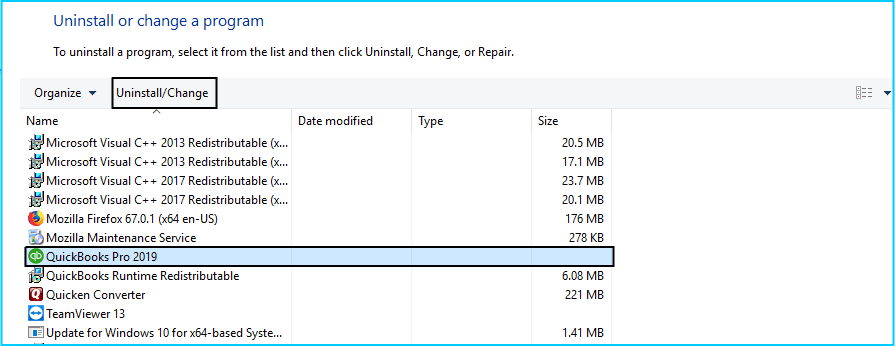
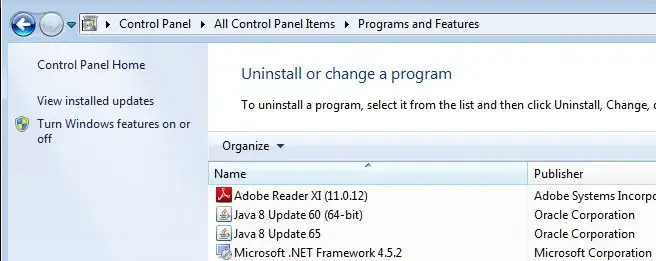
To start, click on Start menu and open the Control Panel.
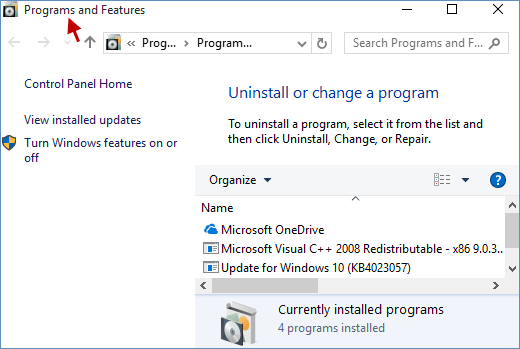
After that head to Programs and Features option.
Then, you need to select QuickBooks Desktop.
And click on Uninstall/Change tab.
If you want to uninstall QuickBooks, hit on Uninstall. Otherwise, click on Repair.
Follow the on-screen commands to finish the process.
Lastly, restart your computer.
For technical help, reach out to our experts
The process to repair or uninstall QuickBooks desktop ends over here and we believe that the information discussed in above would be of great assistance in successfully performing the steps. For any queries related to the same, do not hesitate in connecting with our 24/7 QuickBooks technical support professionals using our support line i.e., 1-800-761-1787.
Check the minimum system requirements for the latest QuickBooks desktop 2022:
Planning to upgrade to QuickBooks desktop 2022? Well, before you start with the upgrade process, it becomes very much essential to ensure that your system is all set to handle this new version. One of the major considerations is that, each and every version has its own requirements to run perfectly. This is why it is very much important to check the system requirements and check if the system is ready to work with the new version of QuickBooks smoothly.
Go through this write-up and find out what your system requirement for the best experience in QuickBooks desktop 2022. Or else, you can also consult our tech support geeks for any further assistance via our support line.
Basic system requirements to run QuickBooks desktop 2022 smoothly
Below is the list of the system requirements that you should consider for the QuickBooks desktop 2022.
Database servers
Windows natively installed
Microsoft Windows Server 2019, Standard and Essentials
Windows Server 2016, Standard and Essentials
Microsoft Windows Server 2012 R2, Standard and Essentials
Windows Server 2012, Standard and Essentials
Windows 10
MS Windows 8.1
Linux (When making use of QuickBooks enterprise solutions database server only installation)
OpenSuse Leap 15.1, 15.2
Fedora 31, 32
Red Hat Enterprise 8 (RHEL 8)
It should be noted that the Windows 10 S mode isn’t supported.
Hardware and operating system requirements
Well, talking about the hardware and operating system requirements, the QuickBooks desktop 2022needs a 64 bit Windows Operating System and won’t run on 32-but.
Processor- It should be at least 2.4 GHz
RAM- The minimum suggested is 8GB for 64-bit. However, 16GB would be a better recommendation.
Server RAM requirements- This goes like:
8GB RAM for 1-5 users
12GB RAM for 10 users
16GB RAM for 15 users
20+ GB RAM for 20 users
Screen resolution- Here the display optimized for 1280 x 1024 screen resolution or higher with up to 2 extended monitors. Also, the best optimized for Default DPI setting for a given computer.
Optical drive- A 4X DVD ROM drive is needed for physical CD installations.
Windows
US version of Windows
Regional settings are supported when set to English
North American version of Windows.
Admin rights needed for the server system when hosting multi user access.
Natively installed and doesn’t need to run in a virtual environment or emulation software.
Disk space
2.5 GB of disk space is the basic requirement and additional is required for data files.
Additional software: 60MB for Microsoft .NET 4.8 Runtime, provided with the installation files.
Additionally, there are a few requirements for Intuit data protect in QuickBooks connected services offerings:
Minimum 4.0 GB RAM
Twice the size of the largest file set to back up + 100MB or twice the size to restore. The space is only needed from the work folder localapplicationdata+ “Intuit\Intuit Data Protect”
It should be noted that for best performance, you should store the QuickBooks data file on a solid-state drive.
Operating systems
Microsoft Windows 10, all editions including 64-bit, natively installed
Windows 8.1, all editions including 64-bit, natively installed
Windows Server 2019, Standard and Essentials
MS Windows Server 2016, Standard and Essentials
Windows Server 2012 R2, Standard and Essentials
MS Windows Server 2012, Standard and Essentials
Browser requirements
It should be noted that QuickBooks desktop 2022 demands internet access and internet explorer 11 (32-bit)
In case you use the warehouse manager in QuickBooks desktop mobile, then here is the supported devices you can use:
Zebra TC20/TC25/TC51 Mobile Computer is recommended (Android 4.4 & above)
Zebra MC40 Mobile Computer (Android 4.4 & above)
QuickBooks desktop enterprise 22.0 also supports:
Honeywell Voyager 1602g Pocket Barcode Scanner
Socket Mobile CHS 7CI
Symbol CS3070
Software compatibility
Microsoft Office:
Office 2019
Microsoft Office 2016 (including Outlook 2016) both on 32 and 64-bit.
Office 2013 and 365 (including Outlook 2013) both on 32 and 64-bit. Note: Microsoft 365 is only supported when it's locally installed, not the web version.
Email estimates, invoices, and other forms with Microsoft Outlook 2016-2019, Microsoft Outlook with Microsoft 365, Gmail, Yahoo Mail and Outlook.com, other SMTP-supporting email clients.
Preparing letters requires Microsoft Word 2019, 2016, 2013, or Microsoft 365 (includes 64-bit).
Exporting reports requires Microsoft Excel 2019, 2016, 2013, or Microsoft 365 (includes 64-bit).
Contact Synchronization with Microsoft Outlook requires Outlook 2019 (32-bit), 2016, or 2013.
Other software's
QuickBooks Point of Sale V19.0, and V18.0.
TurboTax 2021 (Personal and Business).
Lacerte 2021.
Pro-Series tax year 2021.
Quicken 2021, 2020, 2019, 2018, 2017, and 2016.
QuickBooks Desktop for Mac 2022, 2021, 2020, and 2019.
Adobe Acrobat Reader: Business Planner, Payroll, and viewing forms require Adobe Acrobat Reader 9.0 or later.
Payroll and other online features and services require Internet access with at least a 56 Kbps connection speed (1 Mbps recommended).
Gmail, Yahoo Email, Windows Mail, Hotmail and AOL (i.e., Mozilla Thunderbird Email Client which supports the plain text version).
Internet Explorer 11
Anti-malware and antivirus software compatibility
QuickBooks desktop pro and premier 2022 and enterprise 22.0 is tested with the following antimalware and antivirus programs. You might require to adjust some settings in these programs, simply to get the best QuickBooks performance.
Antivirus software
McAfee
Avast
Bitdefender
Norton
Kaspersky
Trend Micro Security
Webroot
ESET
Panda Dome
Sophos
Avira
Symantec
F-Secure
Antimalware software
Bitdefender
AVG
Malwarebytes
Spybot
Emsisoft
McAfee
Avast
Webroot
ZoneAlarm
Kaspersky
F-Secure
It should be noted that QuickBooks will work with systems running RAID (Redundant array of inexpensive disks) but it is not suggested, as it might lead QuickBooks to slow down. QuickBooks desktop 2022 demands internet security protocol TLS 1.2 for connected services to work properly.
These were all the system requirements for QuickBooks desktop 2022. Now that you are well versed with the information, make sure to perform the steps required to make your system compatible for QuickBooks desktop 2022. On the contrary, if you have any doubt remaining, then connect with our QuickBooks technical support professionals using our dedicated helpline i.e., 1-800-761-1787, and they will guide you with the right process.
Here is how you can find or open QuickBooks Desktop 2022 after installation
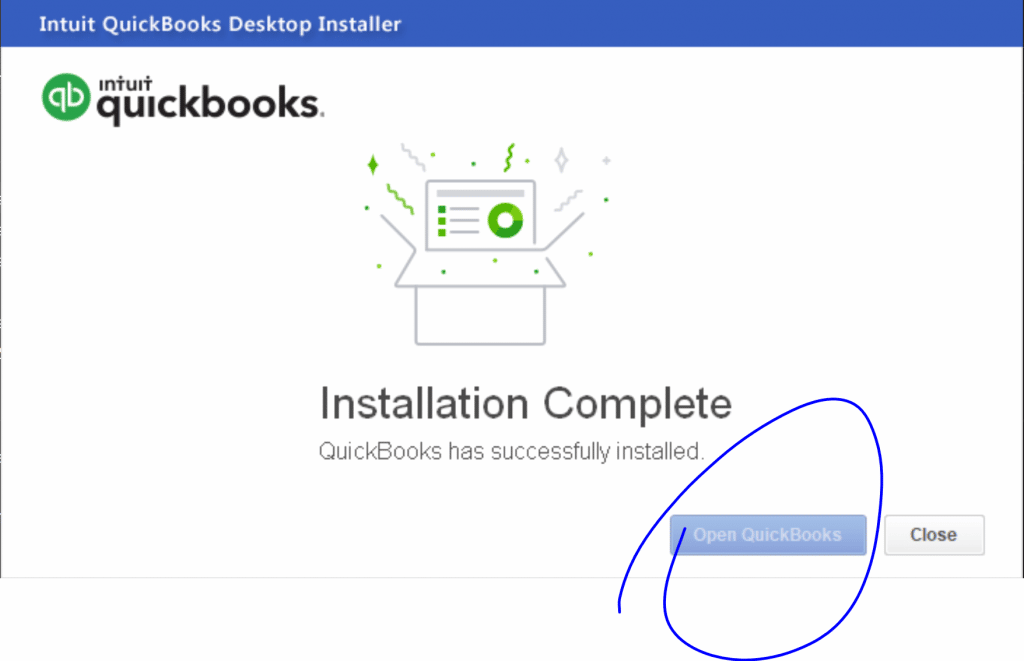
Made up your mind to switch to QuickBooks Desktop 2022 and downloaded the newest version, but still can’t spot it even after installation? Recently launched QuickBooks Desktop 2022 has been reported with this glitch. The Intuit product development team has mentioned that there is an issue with the QuickBooks express install method. The situation might be that the desktop app doesn’t install, but the server only component does. The Intuit team is working to fix this snag from its root cause, and in the meantime, it is suggested to perform the steps discussed later in this write-up.
Steps to perform to fix unable to find or open QuickBooks desktop 2022 error after installation issue
You would have to perform the steps below to successfully resolve can't find or open QuickBooks Desktop 2022 after installation. Go through the steps and implement them one by one:
Step 1: Check out QuickBooks server 2022 on the system
Herein, you would have to open the Windows start menu.
Furthermore, type in Control panel into the search bar and open Control Panel.
You would now have to head to Programs and Features.
Now, from the Uninstall or Change a program list, you need to look for QuickBooks Server 2022.
In the event you are able to find it, but you aren’t able to spot QuickBooks pro, premier, or enterprise 2022 on the list.
Step 2: Uninstalling QuickBooks Server
After performing the steps above, you need to choose QuickBooks Server 2022 from the uninstall or change a program list.
You further have to choose uninstall/change option and hit next.
To sum up, choose the Remove tab to uninstall QuickBooks Server 2022.
Step 3: You need to run the downloaded QuickBooks Desktop 2022 install again
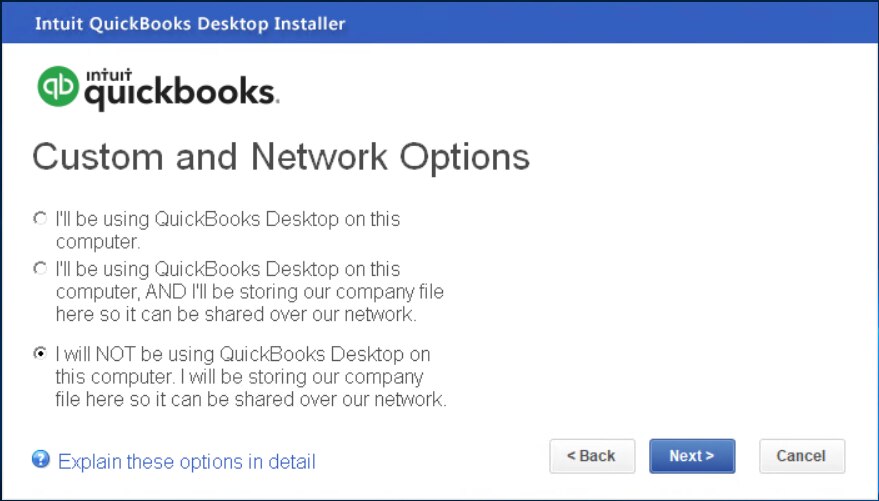
Once you are done with the steps above, you need to go for custom and network options from the install wizard when prompted instead of express. Hit Next.
Moreover, go for any of the below options:
I’ll be using QuickBooks desktop on this computer.
I’ll be using QuickBooks desktop on this computer, AND I’ll be storing our company file here so it can be shared over our network.
Coming to the last step, you would have to choose the Next tab to complete the installation.
Step 4: Run Quick Fix My Program using Tool Hub program
Firstly, close your QuickBooks.
After that, download the most recent version (1.5.0.0) of the QuickBooks Tool Hub and save the file somewhere you can easily find it.
Hit twice on QuickBooksToolHub.exe file.
Now follow the on-screen instructions to install and agree to the terms & conditions.
When the install completes, double-click the icon on your Windows desktop to open the QuickBooks tool hub.
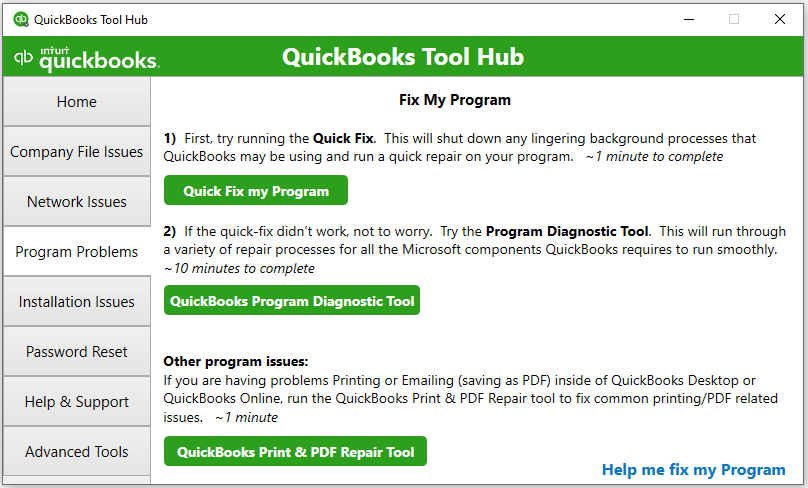
Next, open the Tool Hub program and choose Program Problems.
After that, select Quick Fix My Program.
Lastly, start QuickBooks Desktop and open your data file.
To check the components are properly updated and working, you need to restart your computer after running the tool.
We hope you find the information provided in this post helpful. In case you are still unable to locate or open QuickBooks Desktop 2022, please feel free to contact a QuickBooks error support team of certified accounting experts.
FAQs
Can I encounter "Unable to find or open QuickBooks Desktop" error when updating to a new version of QuickBooks?
Yes! In some cases, it is possible to encounter this error during the update process.
Can third-party applications or integrations cause the "Unable to find or open QuickBooks Desktop" error?
Yes! Certain unauthorized third-party applications can instigate this QuickBooks desktop error.
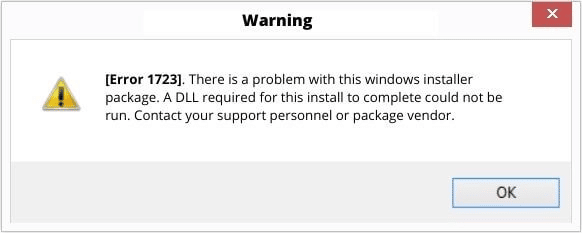
QuickBooks Error code1723 is an installation error that usually appears when the users try to installing or uninstalling QuickBooks software. This installation error is quite common and usually points to a problem with your system’s Windows Installer package. This particular error is usually seen when working with the software. Error code 1723 can be seen with an error message that states, “There is a problem with this Windows installer package. A DLL required for this install to complete could not be run.”
You might face this issue if the Windows installer is damaged. However, this type of errors needs to be fixed at the earliest to avoid any further issues. To get more information related to this installation problem, make sure to read this article ahead, or contact our tech support team at 1-800-761-1787 for further assistance.
What leads to QuickBooks error code 1723?
You might come across the QuickBooks error message 1723 due to the following reasons:
A damaged installer package
Damaged QuickBooks setup file.
If the temp folder permissions are not configured in a proper manner.
In case of the QuickBooks files in the installer are missing
You can also get stuck in such an error if the system configuration is not met by QuickBooks.
Methods to follow to fix the installation error 1723 in QuickBooks desktop
You can perform the below methods and learn how to resolve the error 1723 while installing or uninstalling QuickBooks desktop. Let us have a look:
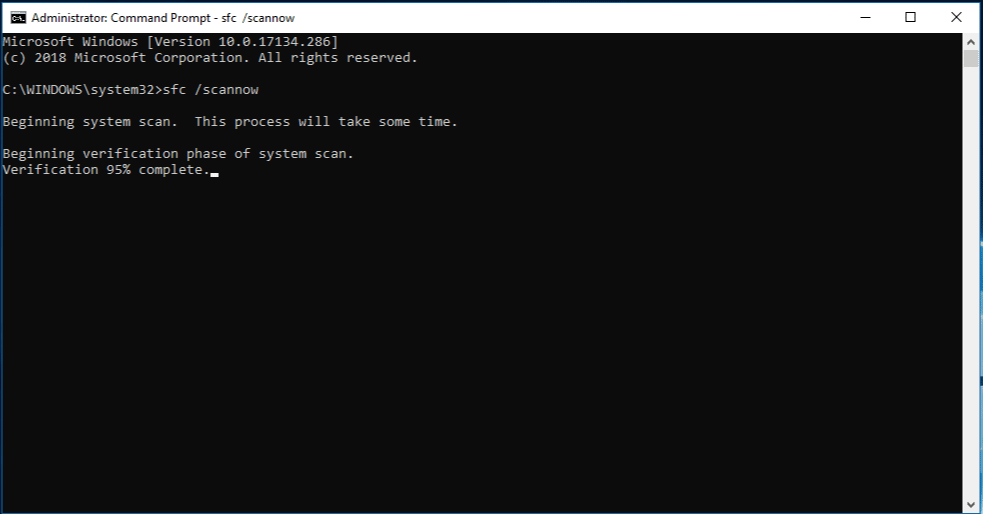
Method 1: Use the System File Checker tool
The first method that you can go for is to use the system file checker tool. The steps to be followed herein are as follows:
First step is to hit a click on to the Start tab.
After that, type in Command prompt in the Search bar.
The next step is to right-click on Command prompt.
Select Run as admin, as the admin, in case required to Enter the password.
Type in SFC/scannow in the command prompt window and hit Enter key.
The system file checker tool will scan and repair the corrupted files.
Lastly check if the error is resolved or not.
Method 2: Change the permissions of the Windows %temp%folder
In this method, you need to press Windows key.
Type in '%temp%' in the search bar and hit on Enter key.
Next step is to open up the Windows temp folder on the screen:
Now head to Properties.
In case you are making use of Microsoft Windows 11, 10, or 8 then you need to navigate to the Home menu in the menu bar of the Windows temp folder and click on Properties tab.
For the Windows 7 users, it is suggested to navigate to the Organize drop-down and click on Properties tab.
Now look for the Security tab.
Click on the same and hit Edit tab
Now look for the Windows username and highlight it.
Ensure to put a checkmark against Full Control in the Allow column.
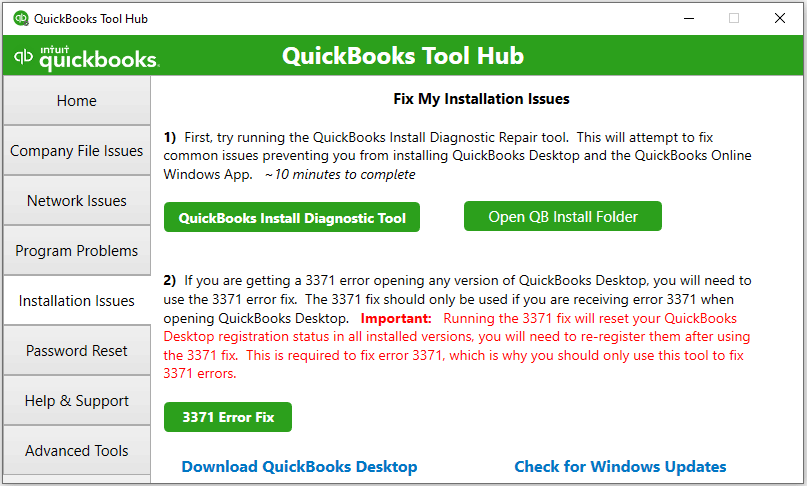
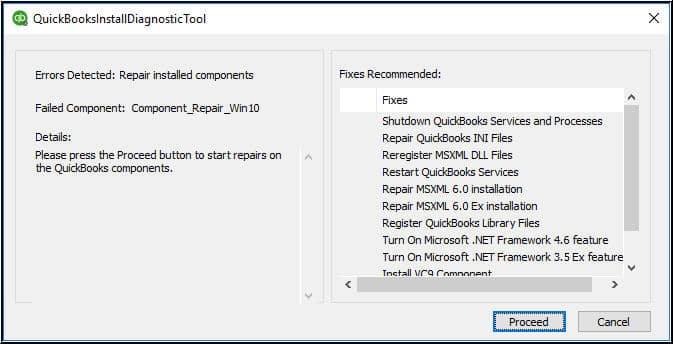
Here you need to select QuickBooks install diagnostic tool from the options.
It will take some time to scan the damaged file and fix the issue shortly.
Old method
In this process, you need to download the install diagnostic tool from the Intuit website.
Save the QBInstall file that would be a .exe file on the desktop.
If there are any opened programs, the you would have to close them.
Run the downloaded QBinstall.exe file. This might take some time upon the internet speed and pc’s performance.
After the tool is installed, you will have to reboot the system and ensure that the components have been updated.
Last step is to check if the error is fixed or not.
Method 4: Run QuickBooks component repair tool
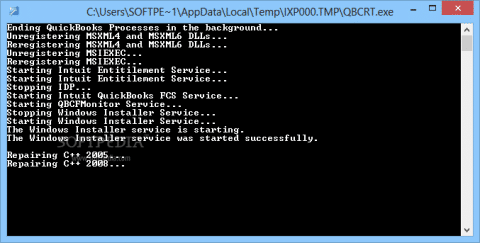
In case you are unable to fix the error even after following the steps above, then you need to run QuickBooks component repair tool. This can be done as follows:
It is believed that following the methods entailed by this article helped you in fixing the QuickBooks error 1723 - Windows installer package problem. However, in case of any queries, then it is recommended to contact our QuickBooks installation error support professionals at 1-800-761-1787. Our team will ensure to provide you with immediate accounting-related assistance.
Few FAQs related to Error 1723
What is error code 1723 in QuickBooks desktop?
Error 1723 is an installation error in QuickBooks that occurs when the Windows Installer package or system permissions are damaged. It usually pops up during installation, update, or uninstallation of QuickBooks desktop.
Does install and uninstall a program can fix Error 1723?
Yes, installing and uninstalling a program can fix this error in some cases.
What is QuickBooks Install Diagnostic Tool?
QuickBooks install diagnostic tool is an inbuilt feature within the QuickBooks tools hub. This tool can diagnose a vast array of installation-related error codes.
How does QuickBooks Error 1723 appears?
This error generally appears in the form of the following message“There is a problem with this Windows installer package. A DLL required for this install to complete could not be run.”
Does repairing Microsoft components help in fixing this error?
Yes. since QuickBooks depends on .NET Framework, MSXML, and Visual C++, repairing or reinstalling these components can often resolve installation errors like 1723.
Is Error 1723 a permanent issue?
No. It is an installation-related issue and can be fixed by correcting system settings, repairing components, and reinstalling QuickBooks properly.