QuickBooks is known as one of the most popular accounting software that is being used by small and medium businesses. It has many efficient features that brings great productivity for the organizations. No matter how great is this software, it often get some technical errors. Payroll errors in QuickBooks are quite common, especially when a user try updating or installing the payroll software. One such error that occurs when updating payroll is QuickBooks error 15276. This error comes in 15XXX series of errors and usually pops-up when QuickBooks is unable to verify and install the update completely. Due to this, the update process may stop midway and payroll services may become inaccessible. The possibility of experiencing this issue increases when you update your QuickBooks payroll software and there is some sort of internet issue.
Getting rid of the payroll errors becomes easy, once you have a grip onto the right set of solutions. To help you get rid of the QuickBooks error code 15276, here are a bunch of solutions shared in this segment that you can implement and turn down the issue permanently.
What is QuickBooks error code 15276?
According to experts, QuickBooks error code 15276 is a payroll and update related issue that usually appears when a user try to download a payroll update or install a QuickBooks maintenance release. This error code mainly encounters, when one of the important files required for the update process is being used by another application or you may get this error when QuickBooks is unable to verify and install the update completely. You might see a warning message on the screen stating:
| Error | Description |
|---|---|
| Error 15276: | The payroll update did not complete successfully. One of the files to be updated was in use and could not be replaced. |
| Error 15276: | QuickBooks update failed. The update cannot be completed successfully. |

Assumptions
You have an active QuickBooks payroll subscription.
What leads to QuickBooks payroll error 15276?
You can end up in QuickBooks update error 15276 due to a handful of reasons. Let us understand what can actually cause the issue.
- If the mapping of the shared download drive isn’t correct.
- If a core component of the software is damaged for some reason.
- Or in case the configuration of the internet explorer isn’t done properly.
- Not just that, but if the firewall settings are blocking the software.
- You may not have an active subscription to QuickBooks Payroll.
- Another possible cause can be if the file copy service is deactivated in QuickBooks.
- Another trigger can be if the latest Tax tables may not be set up on your system.
- The latest digital signature certificate may not be installed on your system.
You might see also: Steps to fix QuickBooks Payroll Error 15107
Easy Solutions to Resolve QuickBooks Error 15276 Like a Pro
Now that you are well versed with the reasons causing the error, it is time for you to implement the solution steps to fix error code 15276 in QuickBooks payroll.
Solution 1: Run Quick Fix my Program Feature of the QuickBooks Tool Hub
- At first, you are required to download the latest version of QuickBooks Tool Hub from Intuit website.
- After that press CTRL+J keys to open the download history.
- Hit a click on QuickBooksToolsHub.exe file .
- Select all the positive options to Agree the terms of the license and click on Next.
- Followed by click on Install.
- Once the installation process done, click on Finish.
- Now run the QuickBooks tool hub program.

- Go to Programs Problems tab and select Quick Fix My Program.

- The program will take sometime to scan the file and rectify the problem.
Solution 2: Update QuickBooks and tax table
You can try to download the latest update for QuickBooks and tax table on your system with the help of the steps below and this would resolve the issue up to certain extent.
- The very first step is to exit all the company file.
- Then hit a right click on QuickBooks icon and choose Run as admin.
- After that, go for Yes tab when it asks Do you want to allow this program to make changes to your computer.
- The next step is to choose Help menu in QuickBooks.
- Followed by, opting for Update QuickBooks desktop and then click on Update now.
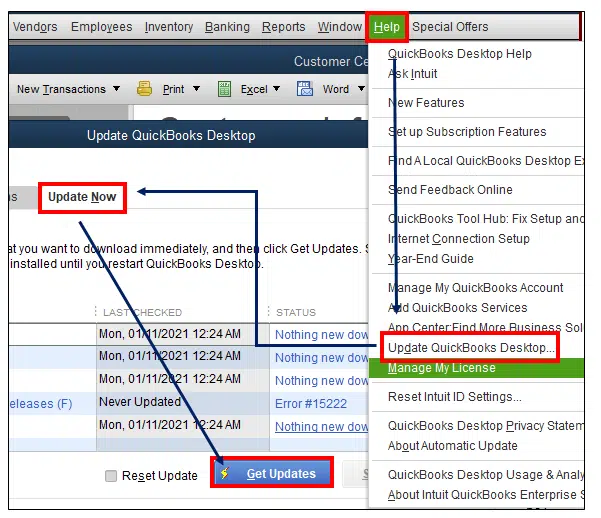
- After which, click on Get updates and then let the updates download and install quickly.
- The next step is to launch QuickBooks and head to Employees.
- Also hit a click on Get payroll updates.
- Followed by Download entire payroll update.
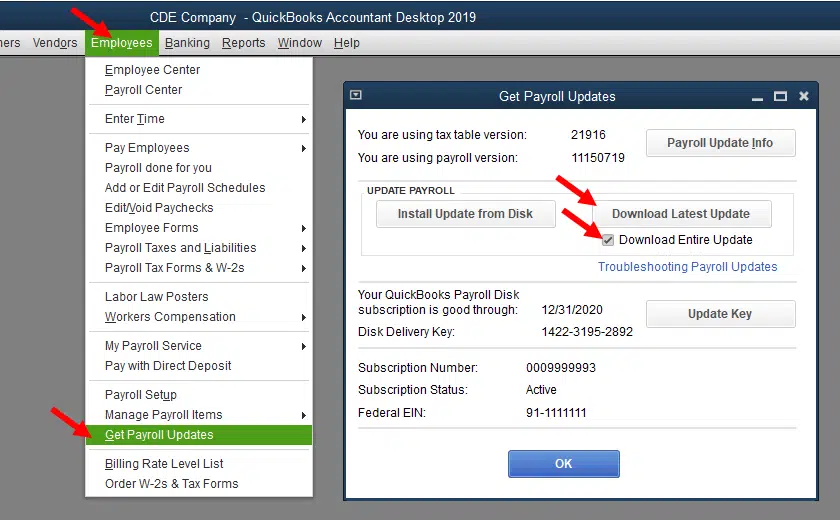
- Now select Download latest updates.
- Towards the end, finish the update download and installation.
- The last step is to finish the update download and installation. Followed by rebooting the system and opening QuickBooks.
You may see also: How to Fix QuickBooks Error Code 15227?
Solution 3: End Qbwebconnector.exe service
Important Points:
- Check the payroll subscription is active.
- Reset the QuickBooks Desktop Update.
- Re-check the payroll service key is accurate.
To end the Qbwebconnector.exe service, checkout these steps carefully:
- Close your QuickBooks and all the background running apps.
- After that open the Task Manager by pressing CTRL+SHIFT+ESC keys.
- Then move to Processes tab and search for QBwebconnector.exe.file from the list.
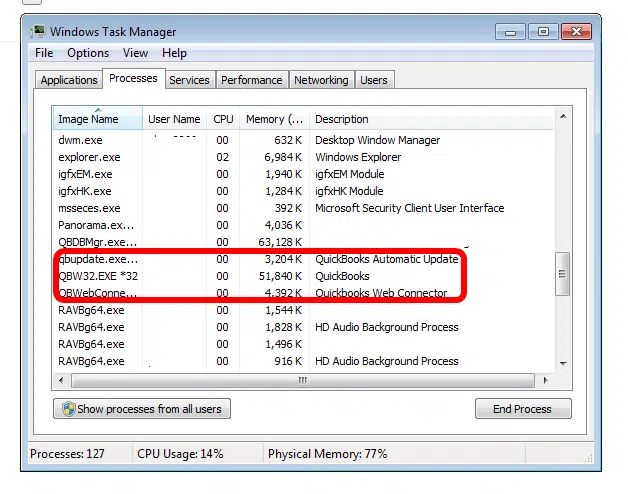
- Now click on End Process.
Solution 4: Install Digital Signature Certificate
- First open Windows explorer tab, and then head to C:\Program Files \ Intuit \QuickBooks.
- After that search for QuickBooks executable file and right click QBW.exe file in QuickBooks.
- And then choose Properties tab and click on Digital signature.
- The next step is to check if the Intuit.inc is opted and then click on Details tab under the digital signature.
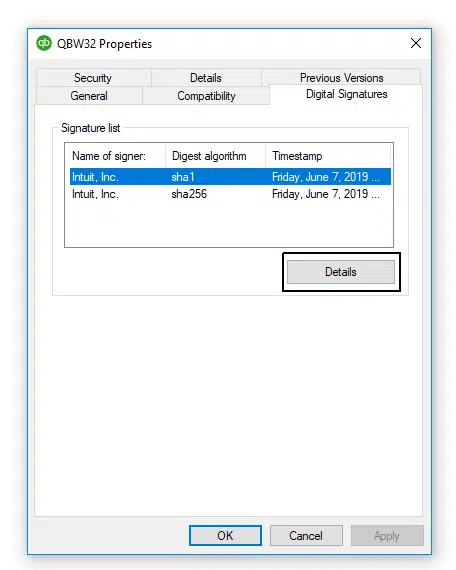
- In next step is to hit a click on View Certificate
- Then click on Install certificate and then click on Next tab.
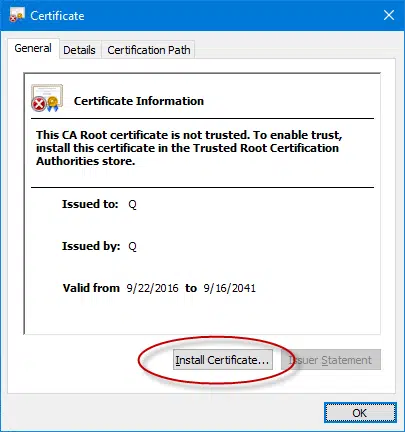
- The last step here is to click on Finish and open QuickBooks and try updating the app again.
If still the issue persists after following the above solutions, the it's better to move to the next solution.
Read Also: How to Resolve QuickBooks Sync Manager Not Working Problem?
Solution 5: Reinstall QuickBooks
You need to remove and reinstall QuickBooks desktop and try fixing the QuickBooks error 15276. Here are the steps that you can follow:
Step 1: Uninstall QuickBooks desktop
At first, delete the QuickBooks software by heading to the control panel and the continue with the steps below:
- Choose Programs and features.
- Then go for Uninstall a program.
- Followed by searching for the QuickBooks from the list of programs on the screen.
- Moving ahead, select Uninstall/Change option.
- And then perform all the instructions on the screen in order to delete the QuickBooks desktop.

Step 2: Reinstall QuickBooks
You need to reinstall QuickBooks from the official Intuit website or use the installation CD to successfully install the software. You will require your license and product keys for registering and activating QuickBooks.
Solution 6: Manually resolve this error
To manually resolve this error, you can follow these steps:
Step 1: Make Microsoft edge as default browser
- Press the Windows/Start button on your system.
- After that search Set as default app on the search bar.
- Now click on it to open.
- Here you need to search Edge from Search apps bar.

- Lastly select Set default option to make Microsoft edge as default browser.
Step 2: Check time and date in is correct on system

- In the system double click on the Time Display
- In the Date and Time Window, make necessary changes if required.
- Set it the correct Time Zone.
Read Also: How to Terminate the QuickBooks Error 15103 Completely?
Conclusion!
Technical errors like QuickBooks payroll error 15276 can be tricky to handle, especially if you are a newbie. But, keeping that in mind, the above methods are designed in a way that you can simply fix the error on your own. However, if you still have some queries that needs to be addressed immediately, then reaching out to the QuickBooks error support professionals at 1-800-761-1787 is all we suggest. Our QuickBooks ProAdvisors will ensure that your queries are solved quickly.
FAQ’s
What does QuickBooks Error 15276 states?
The error message states as:
"The payroll update did not complete successfully. One of the files to be updated was in use and could not be replaced."
How can I fix Payroll Error 15276?
To fix this error, you should follow the given steps:
1. Use Quick Fix My Program from tools hub program.
2. Also, install the latest Tax Table.
3. End the Qbwebconnector.exe service from task manager.
What may lead to such errors?
An inactive subscription of QuickBooks Payroll or an outdated digital signature certificate may encounter this error 15276.
Similar topics you may like:
How to Resolve QuickBooks Error Code 15222?