Reasons & solutions for Crash Catcher issue when using QuickBooks for Mac:
Often experiencing issues in QuickBooks can be very much annoying. One such error can be crash catcher issue QuickBooks is a robust accounting and bookkeeping tool known for its user-friendliness. Using this program is so easy that anyone with even little or no knowledge of accounting can use it to run their business. It’s available for both Mac and Windows operating systems. Today in this blog post, we’ll discuss an unexpected issue faced by QuickBooks for Mac users – the QuickBooks Crash Catcher error. If you have received this error, you can follow the steps provided in this post.
What Triggers QuickBooks Crash Catcher Error?
When the crash catcher issue appears, you receive the following message on your computer screen:
"An error has occurred, and QuickBooks must quit."
One or more of the following reasons may trigger this error:
You haven't updated your QuickBooks application for Mac for a long time.
Non-possession of admin privileges may also encounter the crash catcher error in QuickBooks.
Your company file is damaged.
Some conflicting third-party applications running in the background may also lead to this QuickBooks error.
You must fix the QuickBooks Crash Catcher error as soon as you receive it to avoid further complications, such as data loss. If you know what triggered this issue in your QuickBooks for Mac, you can perform the troubleshooting steps for particular reasons or try them all in the sequence as provided below.
Troubleshooting Crash Catcher Error in QuickBooks Desktop
The crash catcher error shows up when QuickBooks encounters an unexpected issue. You need to follow these given solutions in order to fix and prevent the issue from recurring.
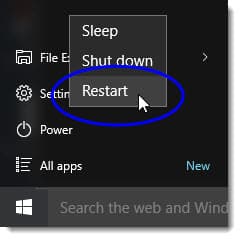
Method 1: Restart your computer
Many of the software issues may be fixed by just restarting your computer. QuickBooks desktop functions sometimes get stuck, and restarting the computer can give it a fresh start.
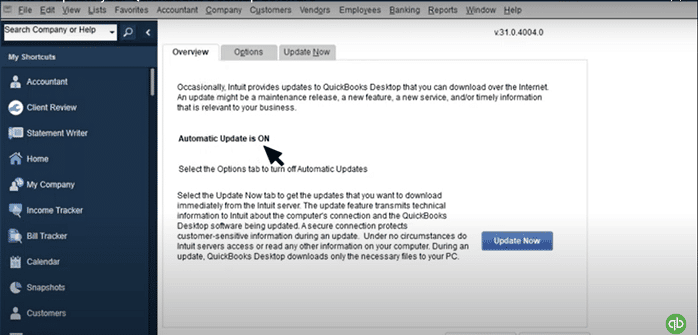
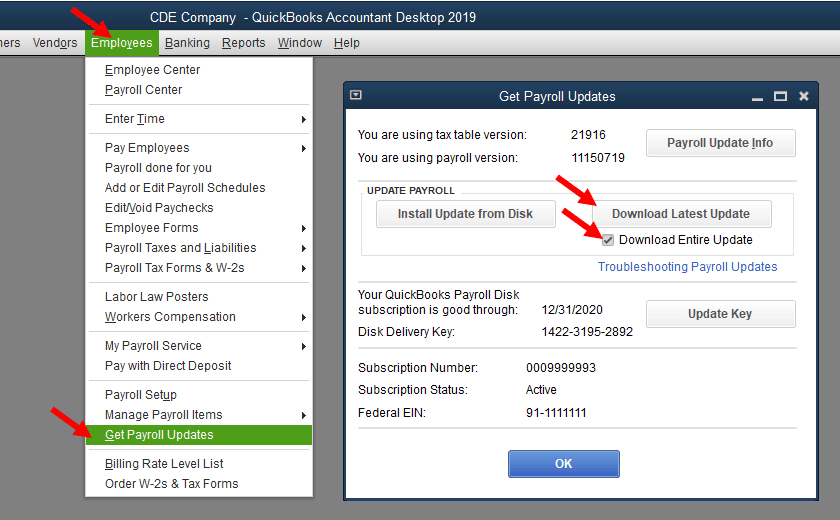
Method 2: Update your QuickBooks desktop
Perform this step if you haven't updated your QuickBooks for Mac for a long time.
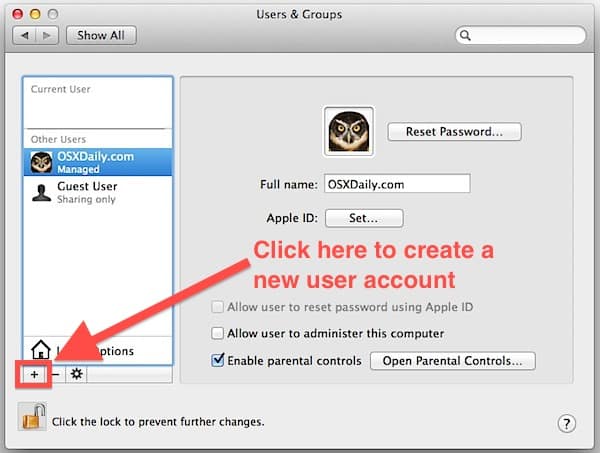
The Crash Catcher issue in QuickBooks is sometimes triggered due to the limited permission or accessibility given to a user. You can follow the steps as given below to create a New Mac OS user.
Hit a click on the Apple menu and select System Preferences.
Next, select the Users & Groups icon and press the + button to add a new user with Administrator permissions.
Now sign in with the new credentials.
Open QuickBooks and resume your work.
Method 6: Delete .plist files
Removing the existing .plist file for QuickBooks is essential, in order to create a newer one. This process of deleting the files ensures that the file is not damaged, and also removes all the preferences that you might have set up earlier. The steps to be performed therein are as follows:
Step 1: Delete User .plist files
Head to the desktop at first.
Opt for go option in the finder menu.
Keep pressing the Option key.
You now have to choose the library option and select the preferences folder.
Furthermore, look for the .plist files with QuickBooks and the version in the name.
Delete the files and move them to the trash.
Clear the trash after you are done with moving the files.
Step 2: Delete System .plist files
You need to open finder and go for Macintosh HD
Keep a note that if you are not able to find the Macintosh HD, then you would have to enable it in preferences. Choose the finder and also the preferences.
Choose a library and select the preferences folder.
You now have to find the .plist files with QuickBooks and the version in the name.
You need to move the files you found to the trash.
Also, empty the trash when the moving procedure is complete.
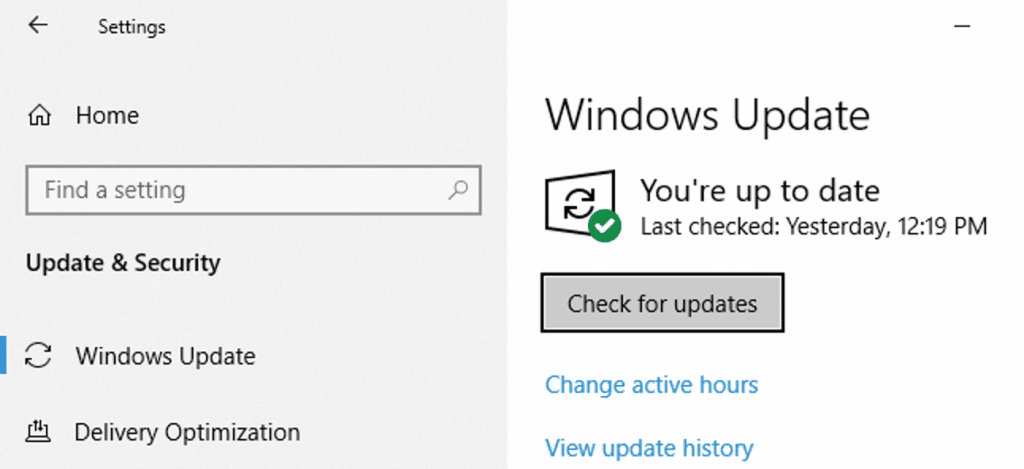
The final step requires users to get their Windows operating system updated to the latest available release. For that, proceed as per the instructions given below:
Press the Windows start key from your keyboard and then type in Update in the search box.
You will get Windows Update or System update option on the screen, just tap on it.
Now click on Check for updates option.
Perform a system restart once the installation finishes.
Wrapping up!
We have created this post after consulting our experts and listed the best possible solutions to the Crash Catcher issue in QuickBooks for Mac. We hope that you find it informative and helpful! In case the issue persists, or you need any assistance with QuickBooks for Mac - feel free to contact our certified QuickBooks desktop support experts at 1-800-761-1787.
Are you experiencing payroll error code 2002 and don’t know what is to be done? Well, we have got you covered. This segment is going to brief you with the right steps to eliminate the QuickBooks error code 2002. You might experience such an error when you or any other user try to create a new data file but fail to do so during payroll due to some or other issues. When using QuickBooks payroll, you might get a prompt to provide a PIN, and Error 2002 might appear if you enter a wrong PIN.
Scroll through this segment to find out the right set of steps to implement to get rid of QuickBooks payroll error 2002. However, if you aren’t interested in implementing the steps manually, then in that case, you can connect with our tech personnel using our helpline number.
Why you land into QuickBooks error code 2002?
You can land into such an error due to the following factors. Let us have a look:
Just in case you have entered an incorrect PIN, when asked to using QuickBooks payroll.
If there is any issue with the data file.
Entering incorrect EIN (Employer Identification Number) or payroll subscription information can also lead to such error.
QuickBooks company file has been damaged or corrupted.
A poor or unstable internet connection can cause the error while updating payroll.
The computer's network settings are incorrect or misconfigured.
If QuickBooks payroll might not be updated to the latest version.
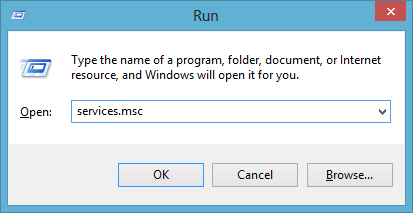
QuickBooks Database Manager service is not running properly.
Your firewall settings may block QuickBooks from connecting to the server, causing the error.
It's essential to identify the root cause of the error to fix it properly. Moreover, if you're unsure about the cause or you require any technical assistance, you can connect with payroll support team immediately.
Important points to kept in mind
You are recommended to keep the below pointers in mind, before you head with the set of steps to fix the QuickBooks error code 2002:
The PIN should be between 8 to 12 characters.
The Pin should be a combination of at least one letter and one number.
Also, note that the PIN is case sensitive therefore check caps lock as well as the num lock keys, when entering the PIN.
Easy Resolutions to Troubleshoot QuickBooks Payroll Error 2002
Resolving the QuickBooks error message 2002 becomes easy once you scroll through the below-stated set of steps. Let us explore each method one by one:
Fix 1: Re-entering the correct PIN
You might land into such an error due to an incorrect pin being entered when using QuickBooks payroll. Thus, we recommend you retype the PIN correctly or create a new PIN to overcome the issue. Also, while entering your PIN, you should ensure that the case is case-sensitive and characters within the PIN should be between 8 to 12.
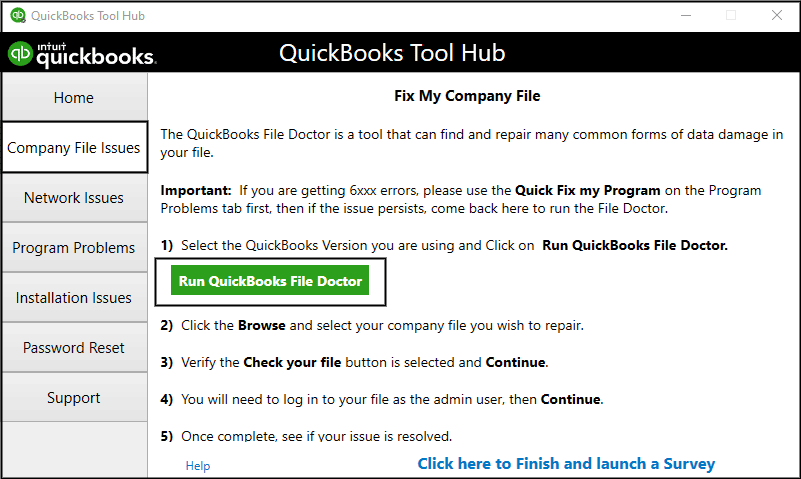
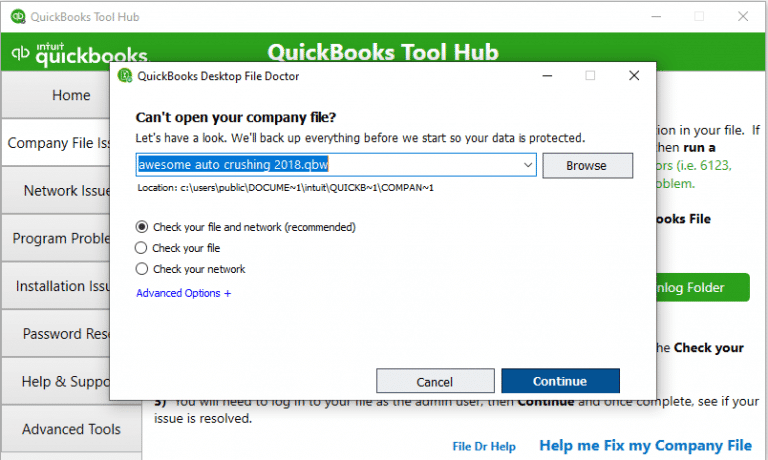
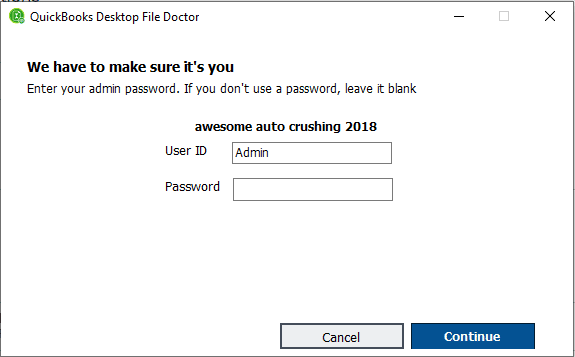
Fix 2: Making use of QuickBooks File Doctor Tool
You need to first shut down your QuickBooks desktop.
Then download the latest version of QuickBooks tool hub program from Intuit official site..
Also, save the tool on download folder.
Once the tool downloaded, open the file named as QuickBooksToolHub.exe
Now follow the on-screen set of instructions to install the program and agree to it's Terms and conditions.
Once done with the above steps, open the tool hub.
Coming to the end of this article, now we can expect that the process for fix QuickBooks error code 2002 might be a little easy, once you implement the steps we have discussed above. Whereas, if you continue to face the same issue again and again, then, in that case, connecting with our QuickBooks payroll technical support team is recommended. You can directly contact to our tech geeks using our helpline, i.e., 1-800-761-1787, and our team will ensure to assist you with the right set of steps.
FAQs
What causes Error 2xxx series errors in QuickBooks payroll?
Entering an incorrect PIN, corrupted company file data, outdated Windows or QuickBooks software can be primary reasons behind to such errors.
What is QB Error 2002?
This error is payroll update related error in QuickBooks. It usually occurs, when the connection to the server was lost during the update process.
How to fix QuickBooks Error 2002?
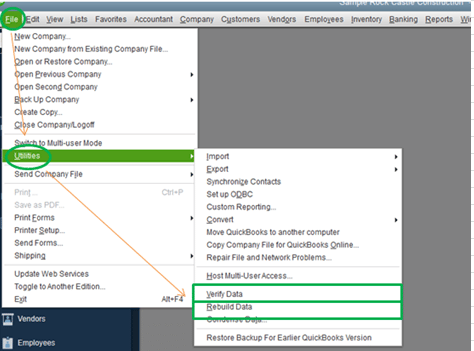
The methods to fix this error are as: 1: You need to try to Enter the correct PIN. 2: Also, run the QuickBooks File Doctor Tool from tool hub program. 3: To get resolve this error, use the verify and rebuild repair utility.
Get easy solutions for QuickBooks Error code 6209 when you're unable to open your company file:
Crashing into error code 6209, 0 can be quite problematic for you, but after you go through this segment, you will be able to chuck off the QuickBooks error code 6209, 0. It is a common issue that comes across during the installation process or when you are trying to update the Windows or when you're unable to open your company file in your QuickBooks Desktop. This error message appears on the screen with a warning message that says:
Warning
Description
Error 6209
A problem occurs when a company file cannot be accessed by QuickBooks
Error Message
QuickBooks encountered a problem when opening the company file.
This error code doesn’t permit you to access the company file. This might also slow down the working of the system. To know what takes to fix the QuickBooks error code 6209: unable to open the company file, make sure to scroll through this segment with much care. Or connect with our tech personnel using our helpline at 1-800-761-1787 and let them resolve the issue for you.
What are the signs to QuickBooks error code 6209, 0?
Below are the signs and symptoms of error code 6209. Let us have a look:
In case the running program window corrupted with the issue.
If the Windows running slow down or respond slowly to the input devices like the mouse.
Another sign can be if the system ends up in crashing, each time the same program is used again.
Or if the error code itself displays on the screen.
You experience unprecedented system freezes.
What causes QuickBooks to encounter error 6209, 0?
Getting rid of the error becomes easy, once you are well versed with the triggers for the same. Below are the triggers to the QuickBooks error code 6209, 0. Let us have a look:
Just in case when the QuickBooks desktop files are corrupted/damaged.
Another valid reason causing such an error can be, a corrupt download of QuickBooks
Another reason can be if the system stuck due to wrong booting.
You can also experience such an error if the malware and virus are present in the system.
In the event of any program maliciously deleting the QuickBooks related files, you might come across similar issue
Methods to Troubleshoot the QuickBooks Company File Error 6209, 0
Performing the below stated set of steps can be of great assistance in fixing the QuickBooks error code 6209. Let us explore together:
Method 1: Repair the Microsoft .Net framework
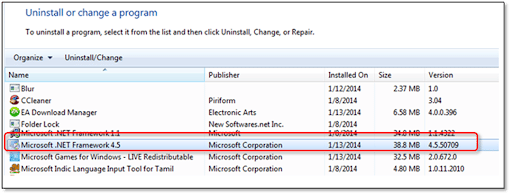
Microsoft components are very useful for the effective functioning of QuickBooks. The following steps should be followed to repair .NET Framework if the same got damaged/corrupted for certain reasons.
You need to proceed to Start button or click on the Windows icon.
After that press Windows + R keys and open Run window.
Type in the Control Panel and hit press Ok tab.
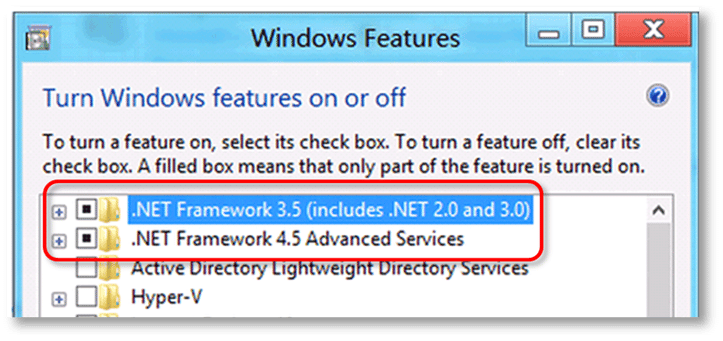
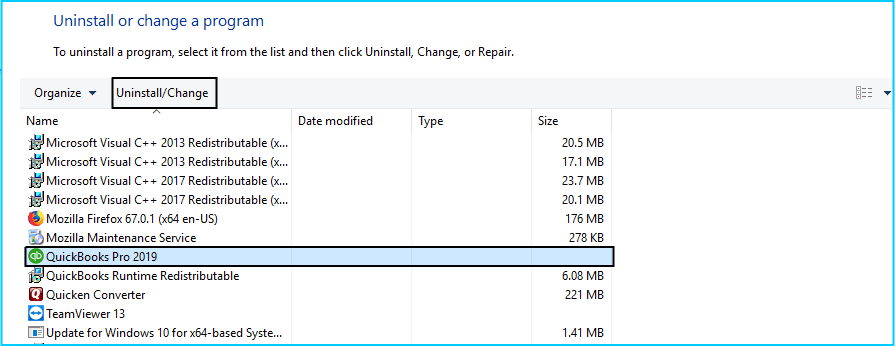
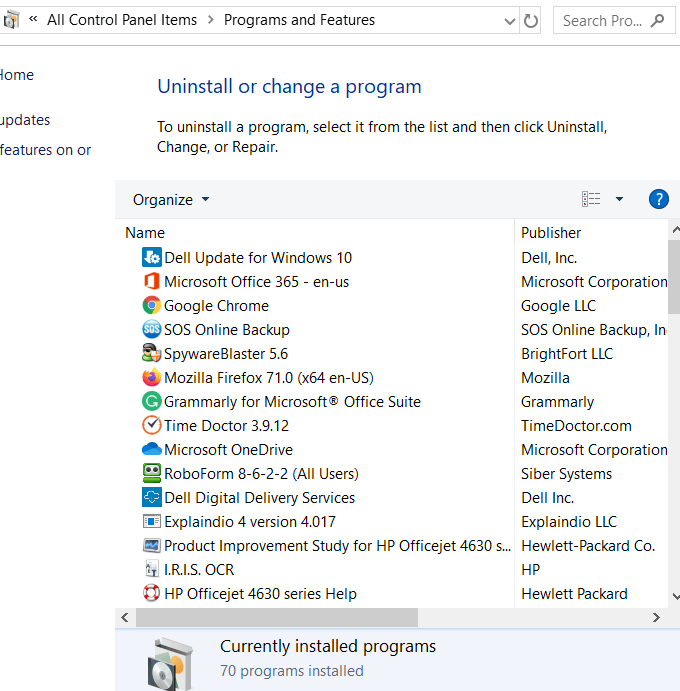
Choose Uninstall a program and click on Turn Windows showcases on/off.
Furthermore, click on OK tab to close the Windows feature window.
Reboot the system.
Re-enable .Net framework 4.5 after the restart.
Now again reboot the system.
Check .Net framework 3.5 SPI is enabled or not.
Enable it by clicking on the box beside it (if not enabled).
Also, click on the OK tab to close the Windows Features window.
Reboot the system.
Also, re-enable the .Net framework 3.5 SP1 and also reboot the system.
Method 2: Running system file checker for Windows
Herein, click on the Start button.
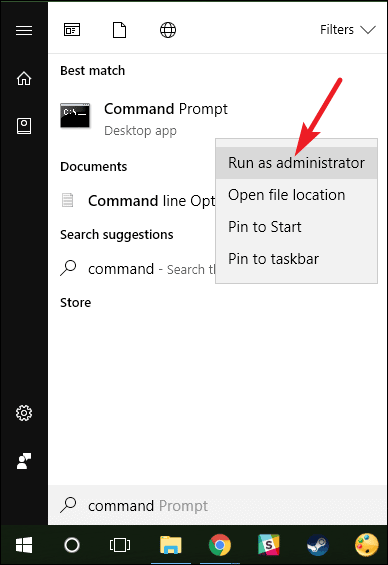
Type command in the Search box, and avoid pressing Enter key.
Furthermore, in the search result, you need to right-click on Cmd and choose Run as admin.
Hold Ctrl and Shift keys simultaneously followed by pressing Enter key.
A dialog box will appear on the screen, after which you would have to complete the step by pressing Enter.
A black window will then be seen on the screen along with a flashing cursor.
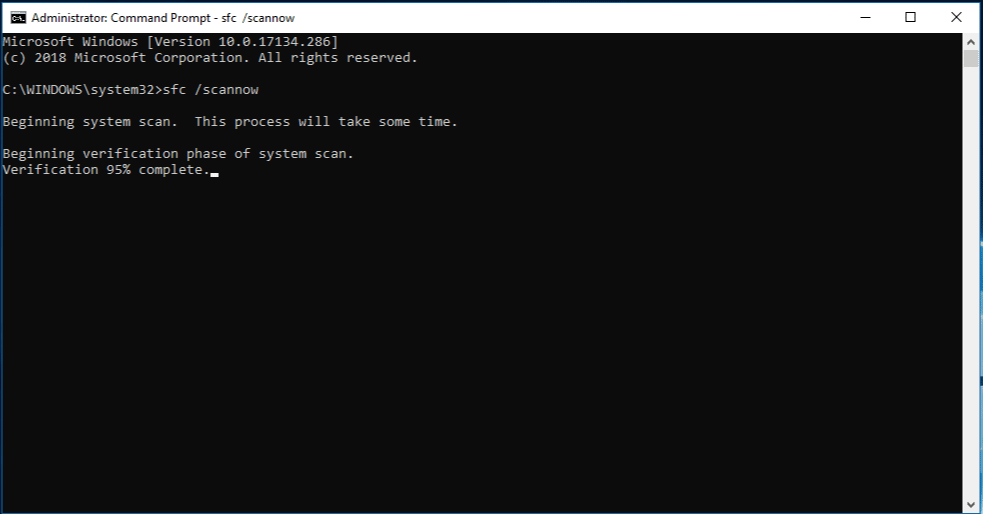
Now type SFC/scannow and then hit Enter.
The Windows system file checker will start the scanning process for identifying the issues and other related system file problems.
Pay heed to the onscreen prompts and you are done with the process.
It is important that you clean unnecessary files and junk from your system in order to free up disk space.
Start with clicking on the Start button.
Type Command in the search box, but ascertain that you do not hit the Enter tab yet.
Hold the Ctrl and Shift keys and then hit the Enter key.
A permission dialog box will appear on the screen, along with a black box with a blinking cursor, and all you need to do there is tap on the Yes option.
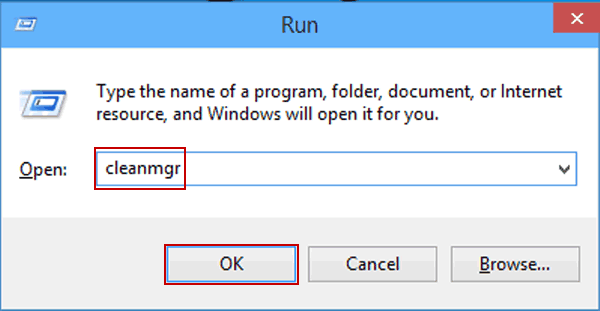
Type cleanmgr and then hit the Enter tab.
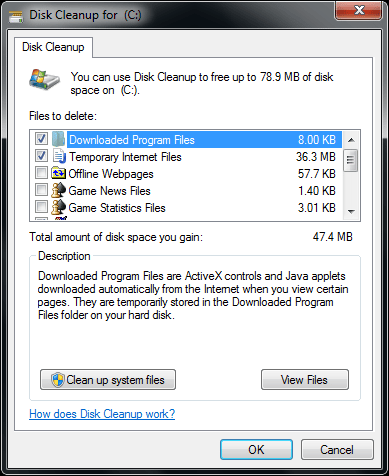
Disk cleanup will automatically begin with calculating the amount of occupied disk space that can be reclaimed.
The disk cleanup dialog box will appear on the screen.
In some of the situations, most of the disk space is occupied by the “Temporary Files” category.
Check the boxes of the categories that want to clean and then hit OK, and you are good to go.
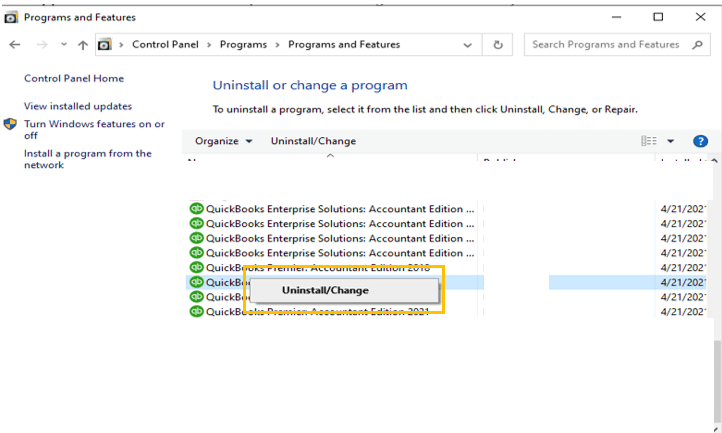
Method 4: Run the QuickBooks Install Diagnostic Tool
Among the various tools offered by Intuit, QuickBooks Install Diagnostic Tool is an important tool that can diagnose installation related issues in QuickBooks.
Latest method
You need to download the QuickBooks tool hub program from the official Intuit site.
After that download and install it on your server computer.
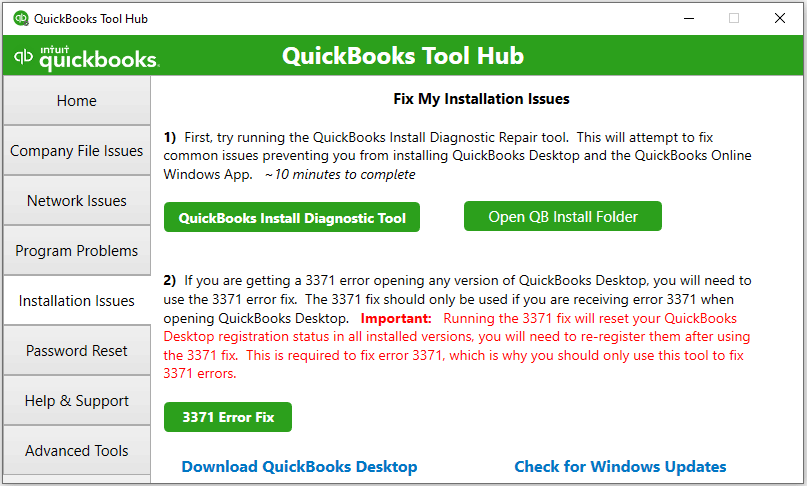
Launch the program, and move to Installation issues.
Now select QuickBooks install diagnostic tool. The tool will take upto 10 minuets to scan the affected file.
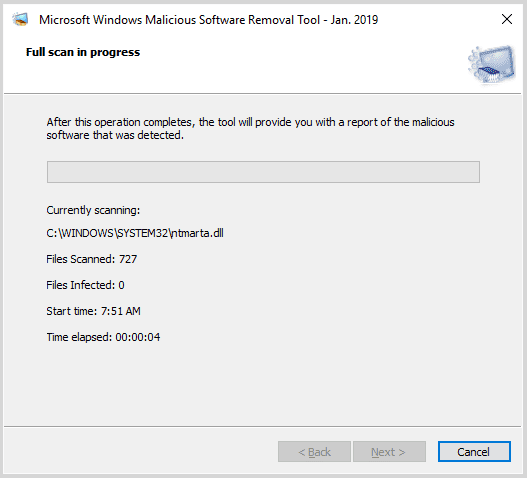
It should be noted that at majority of the times there can be instances when the malicious intruders damage or remove the runtime error related files. Moreover, you might bump into such sort of issue due to malware only. Then in that case it is recommended to perform a full malware scan of the system.
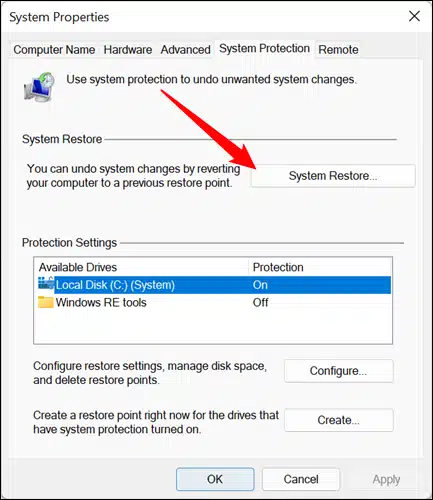
Method 8: Use Windows System Restore to Undo Recent System changes
The very first step is to hit a click on Start button.
After that type System Restore in the results.
Also, hit a click on System Restore option and enter the administrator password.
Pay heed to the onscreen prompts in the Wizard to select a restore point.
Fixing the QuickBooks error code 6209, 0 becomes a cakewalk once you preform the set of steps discussed earlier in this segment. Just in case you come across the same error even after performing the set of steps mentioned above, then in that scenario, we recommend you to talk with QuickBooks desktop error support team personnel using our helpline i.e., 1-800-761-1787. Our tech geeks will ensure to provide you with the right set of steps to chuck off all the accounting problems.
Dealing with the Install Error 1612 isn’t a tough nut to crack unless you perform the right set of steps. This particular write-up is going to brief you on the right set of steps that you can perform so as to rectify the QuickBooks error code 1612successfully. It is an error that often appears when we are trying to open the QuickBooks software or a company file. You can experience such an error when updating the software or when the update process stops suddenly, bringing an error message to your screen. This error comes up with a warning message that says,
“Error 1612: The update installer is not accessible”.
Scrolling through this segment can be of great assistance in tackling through QuickBooks desktop error 1612. Whereas, if you aren’t interested in performing the steps manually, then connecting with our tech personnel will surely help. You can connect with our tech geeks using our support line.
What instigates QuickBooks error code 1612?
There are a couple of triggers that can drop you into such an error. Scroll down and find out the right causes:
Performing the steps mentioned in this write-up will surely assist you in tackling through QuickBooks error 1612. Just in case you aren’t able to deal with the issue even after performing the steps mentioned in above, then in that case, connect with our QuickBooks error support personnel using our helpline i.e., 1-800-761-1787, and our experts will ensure to provide you with the right guidance to chuck off the error from its root cause.
FAQs related to Error code 1612
What is Error code 1612 in QuickBooks?
This error code related to the installation errors that might appear when installing or updating QuickBooks desktop. It may occur due to various reasons, such as network issues, or some incomplete installation files.
What causes Error 1612 in QuickBooks?
This error can encounter due to the following causes: 1. One of the most common causes can be a corrupted installation of QuickBooks. 2. Windows Registry may be damaged. 3. A virus or malware attack on the system can also lead to this error.
How does QuickBooks Error 1612 appear?
When this error encounters, an error message might appear on your screen stating as: “Error 1612: The update installer is not accessible”.
Will Clean Installation of QuickBooks fix Error 1612?
Yes! The Clean install process can easily fix the QuickBooks program, which can potentially fix such installation errors.
Learn how to fix error 15222 when you download a Payroll or QuickBooks desktop update:
Error 15xxx is a series of errors that has been troubling a majority of QB users lately. If you are another such user who bumped into the error and you are unable to get rid off from it, then follow this article till the end to find a practical and easy-to-follow walkthrough for fixing this error.
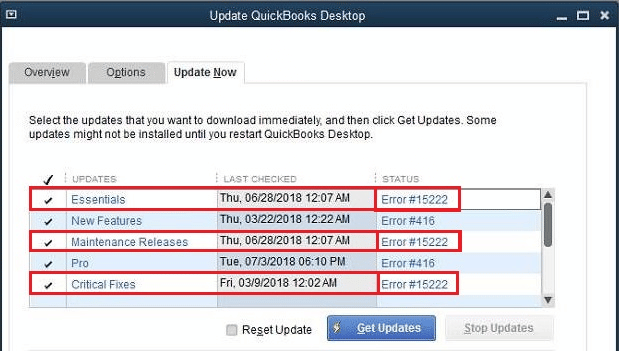
Tackling through QuickBooks errors is a daunting task unless you perform the right set of steps. In this segment, we will be talking about QuickBooks update error code 15222, factors triggering such an error, and also what measures are to be taken in order to tackle through the issue. You might come across such an error when you download a payroll or QuickBooks desktop updates. This particular basically belongs to the 15xxx series error and can be experienced due to the disability of QuickBooks to establish a stable network connection with the server to download the update files.
What is QuickBooks Error 15222?
The QuickBooks error message 15222 appears when the application is unable to establish a connection with the internet to download the update files, and this could happen due to a plethora of reasons, which we are going to discuss later in this segment. Thus, make sure to scroll through the informative article with much concentration. In the meantime, if you feel any need for technical assistance, connect with our tech personnel. Our team of U.S based team of QB experts is always there for your help.
What triggers QuickBooks error 15222?
There can be different factors causing the error 15222. Let us have a look:
When the registered digital signature does work any longer and the function is active in the Internet Explorer then this error happens.
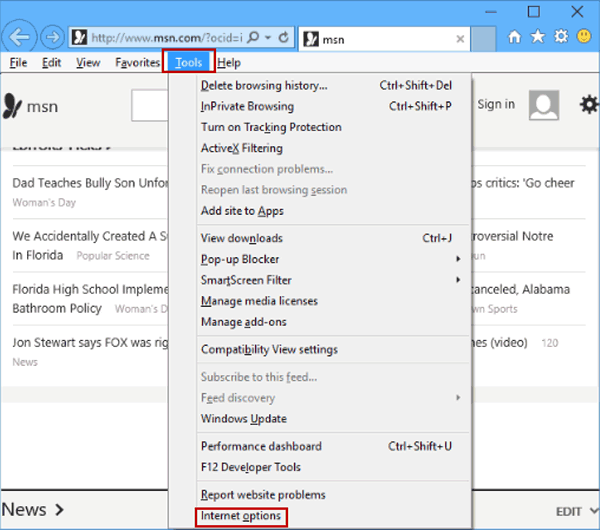
The user can also face such an error when the internet explorer isn’t set as the default browser.
One of the major triggers can be if the antispyware, anti-adware, antimalware, is analyzing the software as threat. Note that, this error is not typically associated with the antivirus, but it can be if it is coupled with antispyware.
Easy Solutions to Rectify QuickBooks Error Code 15222 Like a Pro
Below are the advanced measures to troubleshoot the QuickBooks error code 15222. Let us have a look:
Solution 1: Installing a digital signature certificate
Close your QuickBooks Desktop in the system.
You might not be able to see the digital signature if QuickBooks is opened.
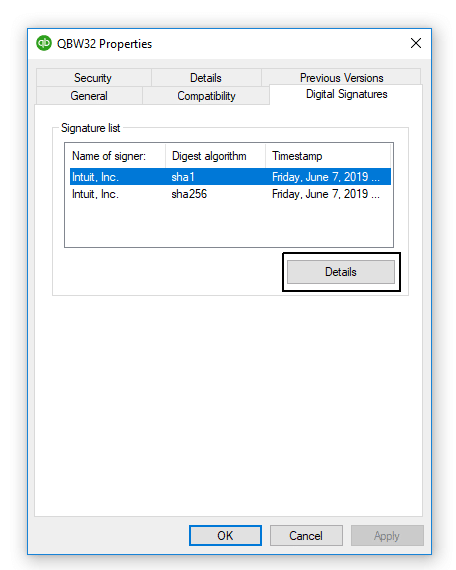
After that, look for the QBW32.exe file in the following path: Drive:\Program files\ Intuit\QuickBooks.
And further, right-click on QBW32.exe and choose the Properties option.
Also, choose the Digital signature tab and ensure that you have opted the intuit Inc. from the signature list.
Now pick the Details tab.
Moving ahead, choose the View certificate option from the Digital signaturedetails window.
From the certificate window, choose the Install certificate.
You also have to click on Next tab after the Finish icon appears on the screen.
Hit the Finish tab and Reboot the system.
Also, open QuickBooks and now try to download the recent updates.
Solution 3: Modify the antivirus settings and add QuickBooks files as exceptions
Third-party security software, including antivirus, antimalware, etc., may block the access of software with the server, It can also cause such error. To tackle out the problem, checkout the following steps:
At times you might come across such an error due to blocking by any of the antivirus software, then you simply have to modify their settings to exempt the files.
To do it, open the antivirus program installed on your computer and proceed to the modify settings option.
Include the following QB-related domain as exceptions:
Qbw32.exe
qbupdate.exe,
intuit.com,
QuickBooks.com,
payroll.com.
After exempted, the antimalware software will not prevent QuickBooks payroll downloads.
Important: Just in case you aren’t able to chuck off the payroll update issues 15222 using the steps above, and also if the error isn’t caused due to the causes mentioned in above, then performing the below stated set of steps sequentially.
Solution 4: Use QuickBooks File Doctor Tool using Tools Hub Program
The file doctor will detect the issue on its own and fix it immediately.
Solution 5: Turning off Windows firewall
Click on Start button and go to Settings option.
After that, you need to click on Windows security tab.
Moreover, click on Windows security and then go to Firewall and network protection option.
You are then required to choose Public network, domain and private network in sequence.
Heading forward, you need to switch off the Windows defender firewall containing the network types.
Check Internet Connectivity
You need to remove the ethernet cable that connects modem to the router.
Also, plug that ethernet cable directly into the system and reboot the router.
You also have to check if the system can recognize the system linked to it.
Solution 6: Updating the Security Software
Make sure that the security software installed on the computer is updated to its latest versions. After that, run a complete system scan and quarantine any virus-infected files.
Coming across the end of this segment, we expect that users might be able to successfully deal with the QuickBooks error code 15222. Just in case if you aren’t able to deal with such an error, then in that case, you simply have to connect with our QuickBooks payroll technical support personnel using our helpline, i.e., 1-800-761-1787. Our dedicated team of tech geeks will ensure to come up with the best support services immediately.
FAQs
Can Update Errors of QuickBooks be fixed using the QuickBooks Tool Hub?
Yes! Update errors in QuickBooks can be fixed by following the proper use of the different features available in the Tools Hub Program.
What are the scenarios when I can observe QuickBooks Error 15222?
This update/installation error is mostly observed by users wherein the Digital Signature Certificate for Intuit isn't updated to the latest.
Does QuickBooks Error 15222 effect company files?
No, this error is related to installation issues and doesn't affect the company files. However, sometimes it depends on the source of this error.