Learn how to troubleshoot 'Delivery Server Down' Issue in QuickBooks:
Did you know that QuickBooks Delivery Server Down Error is basically a QuickBooks Online error? Well, a delivery server down error in QuickBooks is often associated with attachments made in sales or invoices that are sent to the end customer. Not just that, it might further be impacted based on how you set up the company email address. To help you fix the delivery server down error in QuickBooks, here we are with this piece of writing sharing the complete set of steps that can be followed Let us dive in together.
Fix QuickBooks Delivery Server Down Error and Send your Transactions with Attachments
You need to check your email address format to eliminate QuickBooks Delivery Server Down Error. Here is how you can do that:
Solution 1: Check your company and customer-facing email address
Ascertain that your company email and all customer-facing email fields are filled appropriately and do not have any prefixes. This can be done as follows:
Head to the Settings tab.
Choose Account and settings.
Go for the Company tab.
Now, head to Contact info.
Check for company email and customer-facing email.
Rectify the formats, then hit Enter key. Now, retry sending the invoice.
Solution 2: Check your location’s email address
When you use location tracking, you are supposed to check email address format of the location that you used on the sales form. In case not, then you can avoid these steps.
Begin with the Settings tab.
Heading forward, choose All lists, and then opt for Locations.
You now have to find the location that you used on the Invoice.
Now, select the dropdown and Edit tab on the action column.
Once done with that, you are required to check the email address in the field “This location has a different email address for communicating with customers” and make changes in case required.
Here you are required to open the invoice that you are trying to send and ensure that it doesn’t have any special characters (! @ # $ % ^ & * ( ) _ - = + : ”) on the below essential information:
Description
Attachment name
Message
Email Address
Custom form templates
Solution 4: Checking sales forms email option
After following the above steps, you are supposed to check the sales forms email options. Simply update the attachment setting when emailing sales forms. This can be done as follows:
Begin by heading to the Settings tab.
Now, you need to choose the Account and settings.
Followed by opting for the Sales tab.
You now are required to choose Online delivery and then go for clear the PDF attached checkbox.
Now comes ensuring that the file that is attached isn’t a ZIP file, and also that its size doesn’t exceed 25 MB. You need to also check your Adobe Acrobat or Reader settings. The below steps can be followed to set up the Adobe Acrobat or reader print options:
Size – Actual
Orientation – Automatic
Select paper source by PDF page size – ON
Step 2: Check the Browser’s PDF setting
After completing all of the above steps, here are a few steps you can follow:
For Google Chrome users:
In case you opt for Google Chrome, then change the default PDF download permissions
Run Google Chrome.
Now, move to the Settings.
Here you need to choose Advanced drop-down and then hit on Content Settings.
After that, click on the PDF Documents option.
Herein, disable the option to download PDF files rather than automatically opening them in Chrome.
For Mozilla Firefox users:
Whereas, if you are a Firefox user, then you can set Adobe Reader as the default PDF viewer.
Run Mozilla Firefox browser and then move to Options.
After that, hit on Applications and then proceed to the Content Type.
Now, you need to select Portable Document Format (PDF).
And click on Use Adobe Reader (default).
Once done with that, close Options tab.
After checking all these settings, try resending the sales form and hopefully, you will now be able to complete the procedure without any interruption.
Well, QuickBooks Delivery Server Down Error can be a bit confusing for the majority of QBO users. However, implementing the steps enumerated above can definitely help in fixing the issue permanently. On the contrary, if you still experience the same issue, then reaching out to our QuickBooks desktop support team at 1-800-761-1787 is what we suggest. Our technical experts will ensure that all your queries are addressed as soon as possible.
Checkout these methods in order to rectify the QuickBooks Error OL-222 while web Importing from Suntrust:
Did you just witnessed a warning message that shows: QuickBooks was not able to complete your request? And does that error message was accompanied with an Error code OL-222? Well, If you saw this error message, you need to get it fixed asap. Errors that are often associated with OL indicates issues related to the bank. If you use QuickBooks, then linking your bank account is crucial to handle all the transactions, in order to keep a check of the facts. And often when there is an issue with the linked bank in QuickBooks, error OL-222 shows up on the screen. You can further come across this issue when trying to import .QBO file from the financial institution website.
As this error is associated with your bank, it becomes essential to address it as soon as possible. And we will help you with that for sure. All you need is to scroll through this segment carefully.
What is QuickBooks Error Code OL-222 all about?
Well, before you simply jump on to the fixation steps to such an error, it is essential to understand what this error is all about. QuickBooks error code OL-222 occurs when you try to import the files. This error indicates that QuickBooks software didn’t get a valid response from the financial institution’s server. Furthermore, such an error can be experienced when trying to import more than two characters. In simple words, when you import QBO file, it has certain unsupportive characters incompliant with Open Financial Exchange and can create such sort of nuisance.
You might stumble upon the following warning messages:
QuickBooks could not complete your process
Or
QuickBooks is unable to verify the financial institution information for this download. Please try again later.
What can lead to QuickBooks OL-222 Error?
There isn’t a huge list behind the occurrence of such an error, but we have tried to jot down some of the most commonly identified triggers that can lead you to this annoying error. Let us evaluate:
If the bank files being imported are corrupted.
Or if the internet connection breakdown in the middle of the download process.
You can further come across similar issue if any third-party application is creating nuisance.
Be prepared to experience this issue if the company file gets damaged.
Or if the bank server isn’t providing valid response.
Importing non-compliant characters can be an issue, as we mentioned earlier.
Also, if the company file isn’t formatted correctly, then you can experience such an error.
Quick Solutions to fix QuickBooks Error Code OL-222
Fixing the QuickBooks error message OL-222 is definitely possible, by simply implementing a bunch of solutions. Here we are with the right solutions that you should try to implement. Let us find it out:
Solution 1: Format QBO file
To start with, you need to choose Edit tab by right clicking the .qbo file
And then, select any Text editor app to open the file.
The next step is to Find and remove the invalid characters.
Now, click on Save tab from the File tab.
The last step is to, close the File and open it again in QuickBooks.
Solution 2: Importing your web connect files to QuickBooks
Begin with opening QuickBooks, and then click Banking and from the menu choose Bank feeds.
Once done with that, you need to choose Import web connect files.
Go for .qbo file you downloaded from the bank’s website.
In case you wish to import the transactions in an account already set up in QuickBooks.
Select Use an existing QuickBooks account option.
If you are going to save the transactions into a new account, then choose create a new QuickBooks account.
Click on the Continue tab and choose OK tab.
End the process by checking out the transactions clicking on the bank feeds center.
Solution 3: Fix the error by downloading the new FIDIR.TXT file
Under this process, you need to update QuickBooks to the latest release.
Now, copy the entire text from the FIDIR txt page.
After that, Create a new file.
You now have to Paste the text there
Save the file with the name FIDIR.txt
And then, Delete the original file.
Choose the Option tab.
And click on Go.
Go for the library in the finder application.
And then, click and download the Applicationsupport/com.intuit.QuickBooks 20XX to proceed further.
Now, delete the File from the folder.
After that from the finder application access QuickBooks.
You now have to click on QuickBooks by pressing Control key.
And then, the context menu will show up, where you need to click on show package contents.
The next step is to double click the content folder in the new window.
And furthermore, locate the file and Delete it.
Copy the New file and paste it to the downloads folder.
Once all these steps are performed, make sure to import the file into QuickBooks.
Solution 4: Change Bank Feeds
Under this solution, you need to open your QuickBooks and hit a right click on Banking menu.
After that, hit on Bank Feeds.
Then click on Change Bank Feeds Mode.
Lastly, select Classic Mode and then try to import the .QBO file.
Solution 5: Create a Test File
Open QuickBooks and move to File menu,
Then, hit a click on New Company.
Here you need to select Express Start and create a new company named “TestCompany”.
Hit on the Start Working option.
Now, try importing the .QBO file in this newly created “TestCompany” file.
Conclusion!
Getting rid of the QuickBooks error code OL-222 isn’t a tough nut to crack. By simply performing the steps we have enumerated in this segment, you might surely be able to get rid of the issue permanently. Just in case you fail to do so, and need any sort of technical guidance, then in that scenario, do not hesitate in contacting our technical QuickBooks error support team at 1-800-761-1787, and they will answer all your queries in the best possible way.
FAQs
What is QuickBooks Error OL222?
This is one of the many import errors in QuickBooks. It is encountered when importing transactions from Suntrust, and other banks to QuickBooks.
Which file format should be used during the import of transactions?
The CSV or XLS file formats are compatible with the import process from banks to QuickBooks Online.
What is Bank Feeds in QuickBooks?
Bank Feeds option in QuickBooks is used for connecting bank and to download the transactions pretty easily in QuickBooks.
What is FIDIR.tx in QuickBooks?
FIDIR is the symbol for Financial Institutions Directory. This directory gets updated upon sending or receiving transactions to and from QuickBooks.
Just when you start working on your QuickBooks software smoothly, an unwanted error might show up hindering the smooth process. QuickBooks error code WLT1003 is one such error that you can come across. This tends to be a unique error that might not see quite often. You can end up in such an error when the Windows operating system tries to include a credit card for a particular customer. As a result of this error, you might be blocked from the score cards for 12 hours and in common scenarios, you might require to wait for 12 hours and then again try to add the customer credit card. You can experience this error with a warning sign i.e.,
Well, the QuickBooks error WLT1003 might seem to be quite complicated, understanding this, we have curated this piece of writing sharing the complete information as to how you can get rid of this error permanently and what factors can actually drag you into such an error.
What Leads to the WLT1003 Error in QuickBooks?
There isn't a huge list of factors causing this error. However, a bunch of factors can trigger the same. Let us explore the common ones:
One of the basic causes can be if the antivirus or the firewall of the system is blocking the connection, then ending up in this not so common error is possible
Not just that, but in case if there isn't a stable internet connection, then coming across such an error is also possible.
You can further end up in the QuickBooks WLT1003 error if the bank's website is facing some serious backend maintenance.
How to identify QuickBooks Error code WLT1003?
Spotting the issue becomes easy once you have a grip on to the signs and symptoms of QuickBooks error code WLT1003. Here are a few signs of this error that can help you identify the issue quickly.
Your system or the program either freezes or crashes all of a sudden, especially when you try to connect QuickBooks to the server.
You can further identify the error in case you are unsuccessful in saving the credit card values in the particular wallet system.
In case there is a sudden restart, especially when trying to connect QuickBooks software to the server, then such an error can be seen.
Methods to Fix Risk decision is declined error WLT1003 in QuickBooks
Now that you have understood the causes behind the QuickBooks WLT1003 error, it is time to perform the right steps to fix the issue. Let us evaluate each of the methods to fix the QuickBooks error WLT1003.
Fix 1: Clear the system cache
If there are any sort of cache memory, then it can cause such an error. The only solution here is to clear the system cache with the help of the steps below:
Start by, clicking on the Windows tab.
Now, go for the settings option is the Next step.
Once done with that click on Enter tab.
Also, go for the System tab.
Head to the Storage tab and click on option Free up space now.
Select the files you wish to delete and further click on the Remove files tab.
Fix 2: Review the internet connection
A wobbly internet connection can further cause QuickBooks error WLT1003. Here are the steps to review the internet connection successfully.
At first, you need to review the internet connection.
You can further talk to the IT person for a stable internet connection.
Using an outdated QuickBooks can lead to a bunch of errors, one such error can be QuickBooks error WLT1003. Updating the software to the latest release can resolve a bunch of errors. Here are a solution steps that can help you update the software:
Start by running the QuickBooks as admin.
Now, right click the icon for QuickBooks.
Head to the option to Run as admin.
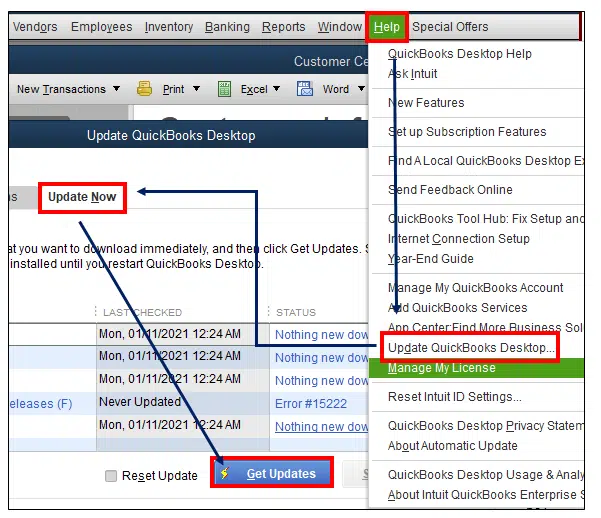
Followed by pressing the Help menu.
Also, choose the update QuickBooks desktop.
And then, click on the Update now tab.
Further, you need to checkmark the option Reset updates.
Lastly, you need to click on Get updates and wait for the process to complete.
Fix 4: Re-enable bank feeds
At times, re-enabling the bank feeds can also fix this type of error. The steps to be followed here are:
Move to the option for Lists.
Furthermore, click on the option Chart of accounts.
The next step is to right-click the account and click on Deactivate option.
Also, go for the Edit account.
You now have to proceed to the Bank feeds settings.
And then, click on the option Deactivate all online services.
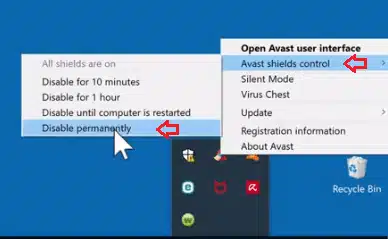
Your antivirus software might be creating trouble for you. If that is the case, then simply deactivate the antivirus temporarily. The steps to be performed here are:
The very first step is to right click the icon for Antivirus.
Also, go for the Option tab.
You need to see the option to Temporary disable the antivirus protection.
Furthermore, click on it.
Ensure to run QuickBooks.
Try re-establishing the link between QuickBooks and the server.
Conclusion!
Getting rid of this complicated error becomes way easier with the right steps implemented the right way. Hopefully, the QuickBooks error WLT1003 gets resolved with the steps shared in above. In case you still have certain queries, then give us a call at 1-800-761-1787, and get answers to all your queries immediately. Our technically sound QuickBooks ProAdvisors will ensure that all your queries are addressed immediately and resolved permanently.
If you have been working with QuickBooks for a while now, you definitely know the drill by now. Getting errors in QuickBooks isn’t something extraordinary, you just end up in common technical snags at some point in time. One such error that we are going to talk about in this segment is QuickBooks error 15242 which usually appears while downloading or installing QuickBooks payroll updates. This error falls under the 15000 series errors and usually shows up due to a bunch of reasons, but it is mainly related to payroll updates not completing successfully. It is a basic payroll error that may encounter due to QuickBooks file copy service (FCS) is disabled or damaged or responsible for not downloading QuickBooks payroll updates.
Note: In order to resolve this error, you should also check that your payroll subscription is Active and ensure that the correct service key is entered in QuickBooks.
What is QuickBooks Error Code 15242?
If you are trying to update your payroll or download a QuickBooks latest release update and suddenly see bumped into QuickBooks error code 15242, then you’re not alone. This error usually pops up when File Copy Service (FCS) is damaged and preventing QuickBooks from verifying or installing payroll updates properly. In order to address this issue, you will have to verify the status of the payroll subscription and further add the correct service key.
This error might pop up on the screen stating the following as:
Problem
[Error 15242]:
Description
The payroll update did not complete successfully. QuickBooks File Copy Service (FCS) is damaged or disabled.
Failed to download payroll update.
Now that you know the majority of the information related to the error code 15242 in QuickBooks, let us find out how to deal with it.
What can trigger QuickBooks payroll update error 15242?
A bunch of factors can bring such an error to you. Here are some common ones:
In case the QuickBooks file copy service (FCS) is disabled or damaged.
Solutions to Fix QuickBooks Payroll Error 15242 (Updated Methods)
Fixing QuickBooks payroll error 15242 doesn’t involve any rocket science, you simply need to perform some basic steps and you are all done:
Solution 1: Check for payroll subscription
Having an active payroll subscription is essential to fix such errors in QuickBooks. Here is how you can check whether you have an active payroll subscription or not:
Run QuickBooks as Admin.
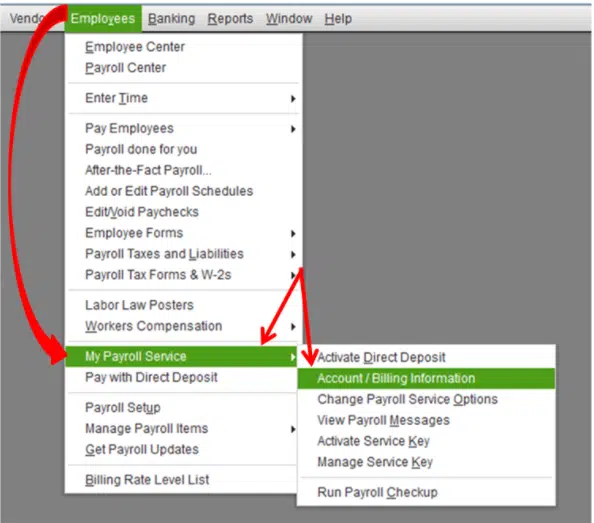
Then head to the Employees tab.
Now click on My payroll service and head to Account/billing information.
Open Payroll account maintenance page.
Ascertain that the payroll subscription is Active.
If not, then make sure to activate it and then try updating the software.
Solution 2: Configure the File Copy Service (FCS)
There can be a possibility of your FCS being disabled. You can fix the file copy service by configuring it. The steps involved in here are:
First step is to press Windows + R keys to open the Run window.
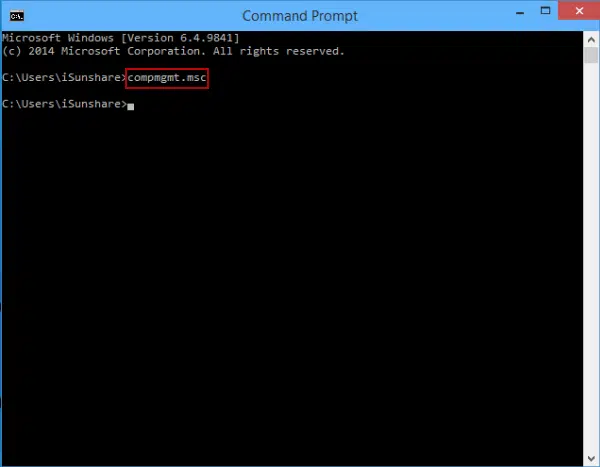
And then enter the command COMPMGMT.MSC and click on Enter tab.
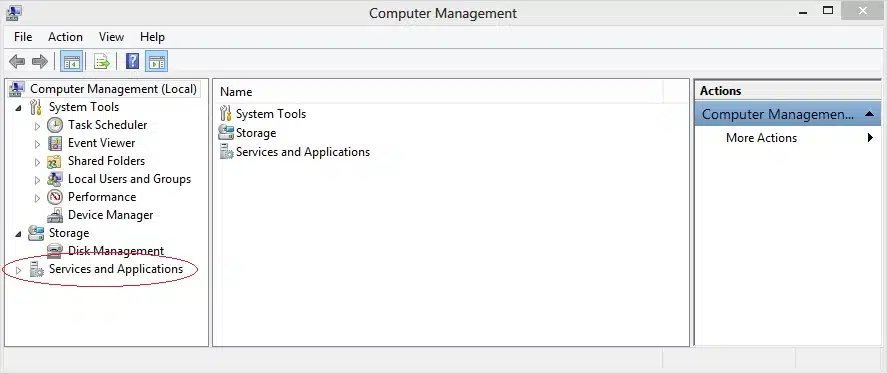
The next step is to open the Computer management window.
Further, hit a click on Services and applications tab.
Now click on the Services tab.
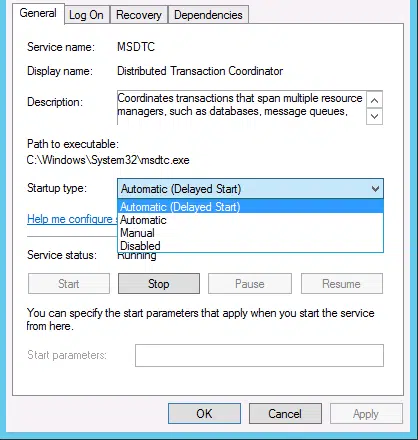
Also double click on the Intuit QuickBooks FCS.
After that, click on the Startup type.
Towards the end, click on Manual and click on Apply tab to complete the process..
QuickBooks error 15242 is mostly a service related issue and in most cases, simply enabling the File Copy Service (FCS) or running QuickBooks as admin fixes it quickly. Dealing with this error isn’t that difficult, all you need is to perform the steps discussed above and you are all set to go. Just in case you fail to fix the issue, or if you require any sort of technical guidance, then feel free to consult our technical support team, and our certified QuickBooks payroll error support experts will ensure that your issues are addressed immediately.
FAQs
When QuickBooks Error 15242 occurs?
This error usually linked to update-related issue. Also, it usually appears while sending payrolls through QuickBooks.
What is FCS in QuickBooks?
FCS means QuickBooks File Copy Service. This allows to create a portable company file which is compressed in size.
Can I fix QuickBooks Error 15242 with System Restore?
Did you just get stuck and witness the client-ready reports compile error in QuickBooks? Well, this isn’t actually a common error, and many QuickBooks users might find it a bit confusing to handle. This error can be quite frustrating for users, as it interrupt your work operations in between and blocks you from accessing some important features or exporting the data to Excel. You might also experience this issue when trying to run the client-ready reports. It shows up usually when there is some sort of technical glitch with the code or syntax in a module that isn’t compatible with the application’s version and UI.
At the time the compile error in hidden module encounters, it may prevent you from exporting your data to excel using client Ready Repots feature. Well, fixing this glitch is definitely possible, and to help you with that, here we are with this segment sharing some more details about this error, along with the quick solutions that you can surely implement to get rid of it. Let us dig in deep:
What is QuickBooks Client Ready Reports Compile Error?
The client-ready reports compile error is also termed as QuickBooks compile error in hidden module. You can expect this error when trying to export client-ready reports in the software. It further shows up randomly on the screen even if you haven’t performed any activity. Client-ready reports in QuickBooks is an amazing feature that assists in the formation of professional reports that are to be shared with clients. The occurrence of this error often interrupts the feature. You might come across this issue when the Microsoft Office and QuickBooks aren’t compatible.
When you try to open a crucial module within QuickBooks desktop, an error message pop-ups on screen:
"Compile Error in Hidden Module."
QuickBooks compile error with hidden module is generally associated with a specific company file. Also, there might be a bunch of reasons that can drag you into such an error, which we are going to cover in this comprehensive article. To ger better understand about this error, keep reading this article till the end carefully.
What causes Client Ready Reports Compile Error in QuickBooks
A bunch of factors can drag you into such a situation. These factors include:
Using an outdated QuickBooks software or MS Excel.
You can expect this issue if the Excel version isn’t compatible with the QuickBooks version.
Another possible reason behind the occurrence of such an error can be if there are certain add-ons that are set with QuickBooks incompatible with Excel.
Also, if the company file gets damaged for some reason.
Or if the client-ready reports fail to transfer due to interruption by anti-virus applications.
Virus-infected MS Office can also create such a nuisance in QuickBooks.
Quick Fixes for Client Ready Reports Compile Error in QuickBooks
Of course, there are possible fixes to the QuickBooks compile error. We have summarized the most common solutions that you can try to implement and get rid of this issue permanently. Let us have a look:
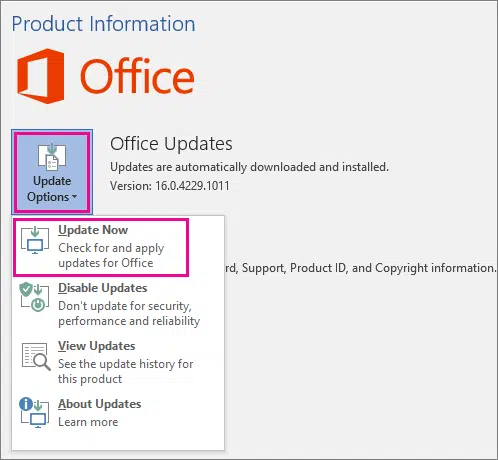
Method 1: Update QuickBooks Desktop to the latest version
After that Reset update box and click on the Get updates option.
You now have to select the Yes tab on the consent prompt for the update process.
Once done with that, reboot QuickBooks.
Also, try to export the client ready reports to excel.
Lastly, try to export the client ready reports to excel again.
Method 2: Update Microsoft Excel
There are two ways to update Microsoft Excel, which include updating using the official website, or using the software. Let us check out the steps involved in both the cases:
As we mentioned earlier, outdated MS Excel or misconfigured Excel can create such errors in QuickBooks. Thus, all you need is to perform the below steps to configure Excel. The steps involved in here are:
You need to initially open MS Excel.
After that, choose File tab.
And then, go for Options tab.
Now, head to the Advanced tab.
And navigate to the General section.
You now need to mark the option named Ignore other applications that use dynamic data exchange (DDE).
The last step in this process is to hit Enter and Save tabs respectively.
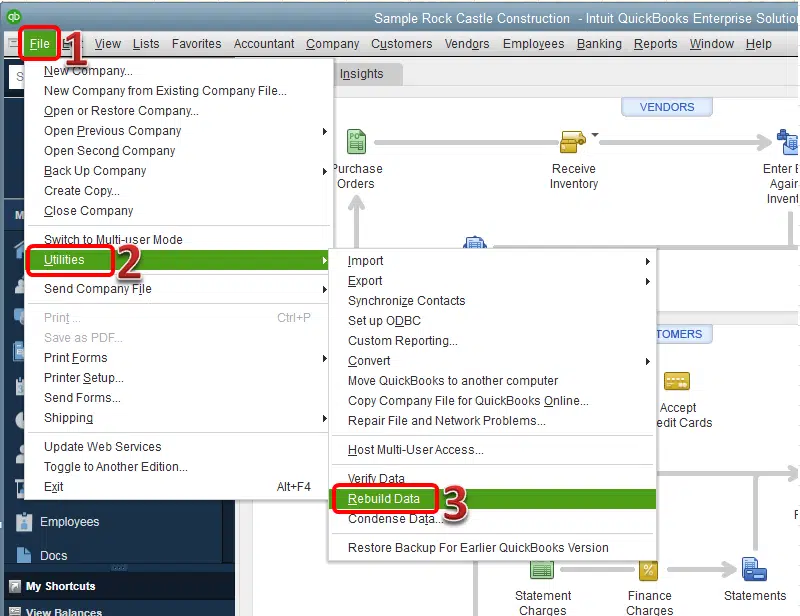
Method 6: Use Verify and Rebuild Data Tool
You can try the Verify and Rebuild Tools to diagnose and fix any existing errors in the company files. The steps for the same are given below:
Start off with the File menu.
Click on the Utilities tab.
You now have to go for Verify data to start the verification process of the company file.
Go for the File menu once again.
And then, navigate to the Rebuild data option using utilities.
Now, wait for some time and then Verify the data again.
The last step is to export the client ready reports and check if the issue still continues to trouble you.
Once the tax table has been successfully updated, try exporting the client ready reports again to Excel. That's it!
Summing Up!
Still unable to deal with the not-so-common client-ready reports compile error in QuickBooks? Well, need not worry, simply dial our toll-free customer support number i.e., 1-800-761-1787 and our certified QuickBooks ProAdvisors will ensure that your queries are addressed immediately. You need to simply reach out to our QuickBooks desktop error support and share your issue.
FAQs
What is Client Ready Report in QuickBooks?
Client Ready Report in QuickBooks lets users to create professional, customizable reports that can be shared with the clients.
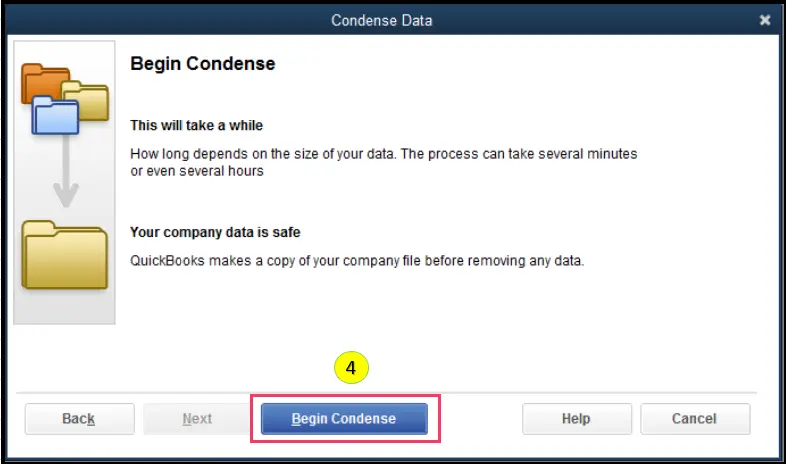
What is Condense data tool in QuickBooks?
Condense data tool is a very important feature that allows users to reduce the company file size.
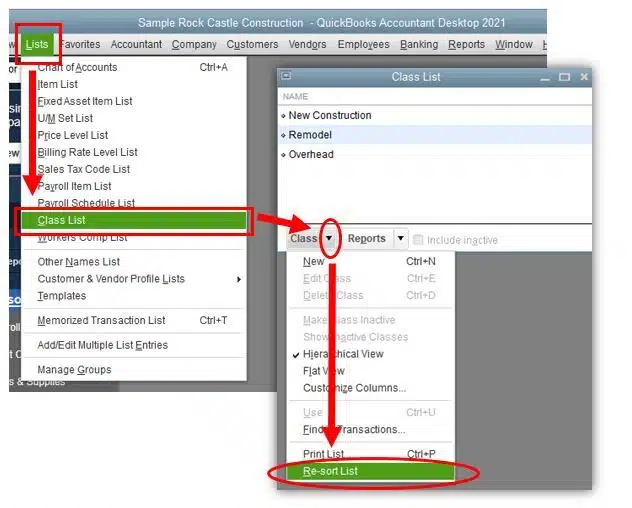
What is inferred by resorting of the lists in QuickBooks?
Resorting process for lists suggest the rearrangement of the various entries included in a list on the basis of different criteria.
What is QuickBooks Tax Table?
The tax table in QuickBooks contains essential information for the accurate calculation of taxes.