Running a travel agency is as exciting as it is complex. Between managing client deposits, vendor payments, commissions, and frequent cancellations, maintaining accurate financial records can feel like navigating through turbulence. In an industry driven by tight margins and multiple intermediaries — from airlines and hotels to tour operators and local agents — travel agency accounting demands precision, structure, and reliable systems.
This guide walks you through how to manage client bookings, deposits, vendor reconciliations, commissions, and foreign transactions to achieve accuracy, transparency, and consistent profitability in your travel business.
Unique Challenges in Travel Agency Accounting
The travel industry has one of the most intricate accounting landscapes. Every transaction often involves multiple parties, fluctuating currencies, and conditional payments, which complicate bookkeeping and reporting.
Here are the main financial challenges travel agencies face:
Client Deposits and Prepayments
Travel agencies collect deposits or full payments in advance — often weeks or months before a trip. These funds cannot be recognized as revenue until the travel service is delivered, which requires careful liability tracking.
Vendor Obligations
Agencies owe payments to airlines, hotels, car rental companies, and destination partners. Some require immediate payment, others after client confirmation — all of which must be tracked to avoid missed payments or duplicate charges.
Commissions and Overrides
Agencies earn commissions from suppliers or override incentives based on sales volumes. Tracking, recording, and reconciling these across multiple vendors is critical to ensure you receive the right earnings.
Refunds and Cancellations
In a volatile travel environment, last-minute cancellations are common. Proper accounting ensures you adjust for refunds, chargebacks, and rebookings without distorting revenue figures.
Foreign Currency Transactions
Global bookings involve multiple currencies, creating exposure to exchange rate fluctuations. Accounting systems must record gains or losses arising from these rate differences to reflect true profitability.
In short: Travel accounting is not just about keeping books — it’s about maintaining financial control across a constantly moving network of transactions.
Booking & Deposit Management
Deposits are a double-edged sword — they provide cash flow but can also misstate revenue if not handled properly.
How to Manage Client Deposits Correctly:
Record deposits as liabilities, not revenue, until the trip or service is actually delivered.
Recognize income only when the client completes their travel — i.e., at the point of service fulfillment.
Maintain a deposit ledger or liability account to track pending services and unearned revenue.
Create a clear schedule of booking contracts, detailing travel dates, service types, and when to convert each deposit into revenue.
For group bookings or package tours, recognize partial revenue only for completed portions of the service.
Proper deposit management ensures that your profit statements reflect reality — not inflated earnings.
Vendor Reconciliation & Payables Management
Travel agencies often work with hundreds of suppliers — each with different billing terms, credit limits, and payment cycles. Without structured reconciliation, discrepancies can go unnoticed, leading to overpayments or missed vendor credits.
Vendor Reconciliation Best Practices:
Reconcile vendor statements monthly against your internal booking and payment records.
Record expenses when incurred — even if the invoice hasn’t arrived yet — to follow the accrual accounting principle.
Maintain a separate ledger for each vendor (airline, hotel, or local partner).
Track commission withholdings and net payments carefully, especially when suppliers deduct commissions at source.
Automate payables workflows using accounting software integrated with your booking platform to minimize manual errors.
A disciplined reconciliation process keeps your books accurate and ensures you maintain healthy vendor relationships.
Commission & Revenue Sharing
Commissions are a vital revenue source for travel agencies, but they can be tricky to account for due to varying agreements across suppliers.
Commission Accounting Essentials:
Record commissions receivable as assets once the booking is confirmed — even if payment is pending.
Use tracking codes or cost centers to categorize commissions by region, product type, or vendor.
Adjust commissions for cancellations or partial service delivery to prevent overstatement.
Record override incentives (bonus commissions based on volume or sales targets) as separate income lines.
Reconcile all commission earnings against supplier statements to ensure accuracy.
Example:
If a hotel pays a 10% commission on bookings, record the gross booking value as revenue, and the supplier’s portion as payable — recognizing only your retained commission as income.
When handled properly, commissions can significantly enhance your profitability without misrepresenting total sales.
Foreign Currency & Exchange Gains/Losses
Most travel agencies operate internationally, meaning foreign currency transactions are part of everyday operations.
Best Practices for Multi-Currency Accounting:
Always record transactions in your base currency, while noting the exchange rate used.
Recognize exchange gains or losses when payments are made or balances revalued.
Reconcile foreign bank accounts monthly to capture rate fluctuations accurately.
Use hedging strategies or forward contracts for large foreign obligations to minimize currency risk.
Ensure your accounting system supports multi-currency reporting to automate conversions.
Accurate currency management prevents discrepancies and ensures your profit margins remain reliable despite global rate changes.
Best Practices & Tools for Travel Agency Accounting
Streamlining accounting processes helps you focus more on customer experience and less on financial administration.
Top Accounting Practices for Travel Businesses:
Integrate booking software with your accounting system to eliminate double data entry.
Automate vendor payments and commission calculations to ensure accuracy.
Perform monthly reconciliations between your booking system and general ledger.
Use trip-level or client-level job codes to track profitability per itinerary or group.
Maintain an audit trail for refunds, chargebacks, and cancellations to prevent financial misstatements.
Keep digital copies of invoices and vendor contracts for compliance and audits.
Recommended Tools:
Cloud-based accounting platforms with API integration (e.g., Zoho Books, Xero, Sage Intacct).
Commission management add-ons or CRMs for travel agents.
Payment reconciliation tools for global suppliers (Stripe, Wise Business, Airwallex).
Automation reduces manual effort and error — freeing up your time to grow your agency and deliver better service to clients.
Travel agency accounting is inherently complex — balancing deposits, commissions, vendor payables, and global currencies.
However, with the right systems and accounting practices, you can transform that complexity into clarity. Accurate books help you:
Maintain compliance and transparency
Improve cash flow visibility
Identify your most profitable travel products and partners
Scale your operations confidently
Next Step: Simplify Your Travel Agency Accounting
At QBS Enterprise Support, we help travel agencies streamline their financial operations with customized accounting and bookkeeping solutions designed specifically for the travel industry.
Our team of experts will:
Automate your deposit tracking and vendor reconciliation
Manage multi-currency accounting and commission calculations
Deliver accurate, real-time financial reporting to support your growth
📞 Schedule a free consultation today and let’s build a smoother accounting process for your travel business.
Running a construction business is as much about managing numbers as managing projects. Every job is unique, costs fluctuate constantly, and multiple subcontractors often work simultaneously. Unlike traditional businesses with steady cash flow, contractors operate in a world of project-based revenue, complex billing, and unpredictable expenses. Standard bookkeeping simply doesn’t cut it. To succeed, contractors need specialized bookkeeping systems designed to handle job costing, progress billing, retainage, subcontractor payments, and cash flow — all while maintaining compliance and accuracy.
In this guide, we’ll break down the essentials of contractor bookkeeping and how to streamline your accounting for better financial control and profitability.
Why Construction & Contracting Are Different
Bookkeeping for construction companies is unlike any other industry. While most businesses record sales and expenses on a straightforward timeline, contractors deal with long-term projects, staggered billing, and retention terms that can delay revenue recognition.
Here’s what makes construction accounting unique:
Revenue is earned over time, not all at once. You’ll often use progress billing or percentage-of-completion methods instead of billing the full amount upfront.
Costs must be tracked per project or contract, not just as general business expenses. Each job functions as its own profit center.
Retainage (retention) — a portion of payment withheld until project completion — must be tracked separately to avoid cash flow surprises.
Subcontractor invoicing, lien waivers, change orders, and compliance documentation add multiple layers of financial complexity.
Without precise bookkeeping tailored for these challenges, even profitable projects can appear unprofitable on paper.
Job Costing & Cost Allocation
Job costing is the heart of contractor bookkeeping. It enables you to see exactly how much each project costs — and how profitable it truly is.
How to Implement Effective Job Costing
Create separate job codes for each contract or project. This ensures that all income and expenses are tied to a specific job.
Track all direct costs — including materials, equipment, subcontractor labor, and employee time — under the appropriate job code.
Allocate indirect costs or overhead (like insurance, fuel, or office rent) proportionally to jobs. You can use activity-based metrics such as machine hours or square footage.
Compare estimates to actual costs regularly to identify cost overruns or underbidding issues.
By accurately allocating costs, you can determine which projects deliver the best margins and which may require pricing adjustments.
Pro Tip:
Run job profitability reports weekly or monthly — not just at the end of the project — so you can adjust before costs spiral.
Progress Billing & Revenue Recognition
Unlike retail or service businesses, contractors rarely get paid in one lump sum. Progress billing allows you to bill clients as work is completed — often tied to specific milestones.
Best Practices for Progress Billing
Bill according to percentage of completion or specific project stages (e.g., foundation, framing, roofing).
Maintain clear documentation and approvals before issuing invoices to avoid disputes.
Recognize revenue proportionally with completed work, aligning with the percentage-of-completion method allowed under accounting standards.
Track and adjust for retentions (retainage) — amounts withheld until final project acceptance.
Include change orders in your billing updates to keep financials accurate.
When properly managed, progress billing keeps your cash flow steady and ensures you’re paid fairly for work completed.
Subcontractors & Vendor Payments
Managing subcontractors is another crucial part of contractor bookkeeping. Each subcontractor represents a financial and compliance responsibility.
How to Streamline Subcontractor Accounting
Maintain detailed records for each subcontractor — agreements, payments, insurance certificates, and tax forms.
Track retainage amounts for subcontractors separately to ensure you release payments appropriately at project completion.
Ensure lien waivers are obtained before final payments to protect against legal claims.
Automate 1099 reporting (in the U.S.) or equivalent forms to remain compliant with tax regulations.
Set up vendor aging reports to avoid missing due dates and maintain good supplier relationships.
Proper subcontractor tracking protects your business legally and financially — ensuring transparency across every project.
Cash Flow Management in Construction
Construction projects often involve heavy upfront expenses for materials, permits, and labor — long before you get paid.
That’s why effective cash flow management is vital.
Smart Cash Flow Strategies
Forecast cash inflows and outflows by project milestone.
Use short-term financing or credit lines to cover material and payroll costs during delayed billing cycles.
Set up retention tracking so you know exactly how much cash is locked up.
Keep a cash reserve (typically 3–6 months of expenses) to cushion against project delays.
Automate accounts receivable reminders to reduce late client payments.
With accurate cash flow forecasting, you can ensure your business stays solvent even during payment lags or slow seasons
Best Practices & Tips for Contractor Bookkeeping
Implementing structured systems can turn your construction accounting from chaotic to efficient.
Key Practices to Follow
Use cloud-based accounting software that supports job costing and project tracking. This ensures real-time updates from anywhere.
Reconcile job expenses weekly to catch errors or misallocations early.
Maintain job profitability reports to compare projects side-by-side.
Build cost buffers into budgets for unexpected overruns.
Establish strong internal controls — including purchase orders, approval workflows, and time tracking systems — to minimize waste and fraud.
Review financial KPIs regularly: profit per project, cash flow trends, and overhead ratios.
Bonus Tip:
Train your project managers on basic accounting reports. When field and finance teams share data, cost control improves dramatically.
Contractor bookkeeping requires precision, structure, and foresight — far more than generic small business accounting. By managing job costs, tracking progress billing, and maintaining tight control over subcontractors and cash flow, you can make every project financially transparent and profitable.
When done right, your books become more than just records — they become a roadmap for business growth.
Next Step: Simplify Your Contractor Bookkeeping
AtQBS Enterprise Support, we help contractors and construction firms implement accurate, automated, and efficient bookkeeping systems that give you total visibility over every project.
Our team of experts can:
Set up job costing systems tailored to your workflow
Automate progress billing and revenue recognition
Manage subcontractor payments, retainage, and cash flow forecasting
📞 Book a free consultation today to discover how we can help you save time, reduce accounting errors, and boost project profitability.
Manufacturing businesses face a unique challenge: turning raw materials, labor, and overhead into finished goods while maintaining profitability.
Without a rigorous accounting framework, hidden costs can quietly erode your margins, making it difficult to pinpoint inefficiencies or make data-driven pricing decisions.
That’s where manufacturing accounting comes in — a specialized system designed to track production costs, measure true profitability, and give manufacturers complete financial control.
In this guide, we’ll explain how to track production costs effectively, value your inventory accurately, manage cost of goods sold (COGS), and improve margins through smarter accounting practices.
What Is Manufacturing Accounting?
Manufacturing accounting is a specialized branch of cost accounting that focuses on capturing every financial aspect of production — from sourcing materials to assembling finished goods.
Unlike general financial accounting, which looks at overall business results, manufacturing accounting dives deeper into operations, providing insight into production efficiency and cost control.
Key elements include:
Direct Materials: The raw components and parts used to create finished goods.
Direct Labor: The wages paid to employees directly involved in manufacturing.
Manufacturing Overhead: Indirect costs such as electricity, maintenance, equipment depreciation, and factory rent.
A well-designed manufacturing accounting system allows you to:
Set accurate product pricing based on true costs.
Manage inventory efficiently at every production stage.
Measure profitability per unit, batch, or product line.
In short — it’s the financial backbone of a manufacturing business.
Key Concepts & Cost Classifications
Understanding cost classification is essential to building a transparent accounting structure.
Direct Costs
Expenses directly linked to a specific product — such as raw materials, packaging, or assembly labor.
Indirect Costs (Overhead)
These are necessary for production but can’t be directly traced to a single product. Examples include equipment depreciation, rent, factory insurance, and maintenance.
Pre-Determined Overhead Rate
A formula used to allocate overhead to each product:
Estimated Overhead ÷ Activity Base (e.g., machine hours or labor hours).
This ensures that all costs are fairly distributed across units produced.
Costing Methods
Absorption Costing: Includes all manufacturing costs (direct + indirect). Required under GAAP for external reporting.
Variable Costing: Considers only variable production costs (for internal decision-making).
Process vs. Job Costing
Process Costing applies to continuous, large-scale production (e.g., chemicals, food, textiles).
Job Costing is for customized, project-based manufacturing (e.g., machinery, furniture, or prototypes).
Choosing the right method ensures that your financial reports reflect the true cost structure of your production line.
Inventory is often one of the largest assets on a manufacturer’s balance sheet — and mismanaging it can distort profitability.
You’ll typically manage three types of inventory:
Raw Materials: Unused components and supplies.
Work-in-Process (WIP): Items in production that aren’t yet finished.
Finished Goods: Completed products ready for sale.
Valuing WIP
Work-in-process includes materials, labor, and overhead that have been incurred up to the current stage of production.
An accurate valuation ensures your balance sheet reflects the true asset value of partially completed goods.
Common Inventory Valuation Methods
FIFO (First In, First Out): Oldest costs are recognized first.
LIFO (Last In, First Out): Most recent costs are recognized first.
Weighted Average Cost: Smooths fluctuations over time.
Regular inventory reconciliations, supported by real-time tracking systems, help prevent shrinkage, obsolescence, or stock discrepancies.
Allocating Overhead & Controlling Costs
Overhead allocation is the process of assigning indirect costs (like electricity or machine maintenance) to individual products or jobs.
Fair Overhead Allocation
Use appropriate cost drivers (e.g., machine hours, labor hours, material costs) instead of spreading overhead evenly.
Update cost drivers periodically as your production processes evolve.
Variance Analysis
Compare standard costs (expected) to actual costs to identify inefficiencies. For instance:
Higher-than-expected material usage might signal wastage.
Increased labor hours could indicate production bottlenecks.
Continuous Cost Control
Review cost reports regularly — monthly or per production cycle.
Automate data collection to reduce manual entry errors.
Empower production teams to take responsibility for cost targets.
With consistent monitoring, you can uncover hidden inefficiencies and improve gross margins over time.
Revenue Recognition & Reporting
Revenue recognition in manufacturing can be tricky, especially if your business involves long production cycles or contract-based manufacturing.
Best Practices
Recognize revenue over time if goods are produced specifically for a customer under a binding contract.
Use percentage-of-completion or milestone billing for long-term projects.
Integrate your accounting system with production software to ensure seamless synchronization of:
Inventory levels
COGS (Cost of Goods Sold)
Work-in-process balances
Sales and revenue reporting
When production, inventory, and accounting data align, your financial statements accurately represent true profitability.
Best Practices & Automation Tips
Automation is the key to scalability and precision in manufacturing accounting.
Best Practices for Efficient Manufacturing Accounting
Implement an integrated ERP or manufacturing accounting platform to unify data from finance, production, and inventory.
Automate shop-floor data capture (time clocks, machine sensors, barcodes) to eliminate manual errors.
Update standard cost structures regularly as material or labor prices change.
Monitor key cost metrics (unit cost, labor productivity, margin trends) at least monthly.
Strengthen internal controls to safeguard against inventory theft, data entry errors, or fraud.
Encourage cross-functional collaboration — production, operations, and finance teams should work from the same data set.
Automation Tip:
Modern manufacturing systems can automatically feed production data into your accounting software, drastically reducing reconciliation time and errors.
Common Pitfalls & How to Avoid Them
Even experienced manufacturers make accounting errors that distort their profitability reports.
Here are the most common pitfalls — and how to prevent them:
Pitfall
Impact
Prevention
Misclassifying overhead as direct costs
Skewed product pricing
Define cost categories clearly and review periodically
Ignoring WIP adjustments
Inflated profits or losses
Adjust WIP balances monthly
Overreliance on uniform overhead allocation
Misstated cost of production
Use activity-based costing for accuracy
Not validating cost assumptions
Incorrect forecasts and budgets
Conduct regular cost audits
Disconnected systems
Delayed or inaccurate reporting
Integrate production, inventory, and finance platforms
Proactive monitoring and integration are the foundation of accurate manufacturing accounting.
Manufacturing accounting is far more than a bookkeeping exercise — it’s a strategic tool for improving margins, forecasting with accuracy, and making smarter operational decisions.
By tracking production costs meticulously, valuing inventory correctly, and integrating your systems, you can transform accounting from a compliance function into a competitive advantage.
Next Step: Let’s Optimize Your Factory’s Accounting System
At QBS Enterprise Support, we specialize in manufacturing accounting solutions tailored to your production model.
Our experts help manufacturers:
Streamline cost tracking and reporting
Set up automated WIP and inventory systems
Analyze cost drivers to improve profit margins
📞 Book a free consultation today to get your cost accounting audit and uncover hidden opportunities to increase efficiency and profitability.
The issues when you work on QuickBooks online software can be endless, and every error that you experience brings in a whole new challenge for you to tackle through. And for a smooth experience with your QuickBooks accounting software, clearing cache and cookies timely is something you cannot avoid at all. We believe that your experience with QuickBooks software should be smooth and productive and so we do not leave any stone unturned to give you the smoothest experience and remove all sorts of technical glitches that might trouble you with your software presently or in the coming future. Thus, we have prepared this segment sharing the nitty-gritties of clearing cache and cookies to fix errors while you use QuickBooks online.
What are the uses of caches and cookies in QuickBooks Online?
QuickBooks Online demands browser cache and cookies, so as to load pages smoother, faster and improve performance. However, in some cases this stored data can become outdated or corrupted and start blocking certain pages from loading properly. Whereas, even though these files are much needed, at some point in time, they might create hindrances in smooth loading website and thus, removing them is the only solution. Here are a few major issues that you might come across when working on QuickBooks online due to caches and cookies.
You might not be able to login your QuickBooks online and QuickBooks keeps asking you to sign in repeatedly, even after entering correct login details.
Your browser is taking too much time to download forms and fails to access forms.
You have issues with the data exporting, such as reports to Excel or transactions to another software.
Not just that, many pages in QuickBooks that are not loading properly or getting stuck repeatedly.
Effective Steps for Clearing Cache and Cookies in QuickBooks Online
You can definitely get done with the caches and cookies that are occupying space and hindering the functioning of QuickBooks online by simply using the steps discussed below:
Step 1: Removing cache from browser’s history
When you have cache files stored in your browser, it might take too long for loading your sites, and removing it can cut down a lot of extra load time. As at some point in time, the files might get outdated and this would further trigger issues. Here are the steps that you need to follow for your browser.
Windows
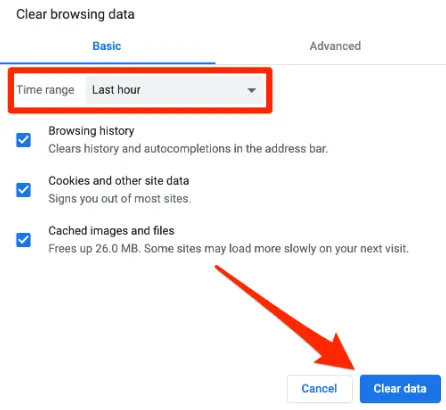
Tap on to Control + shift + Delete keys when you try using the browser.
Post that, pick the range to all time and further mark the checkboxes that have cache images, cache files, and cookies.
Next step is to go for the Delete data or Clear now tab.
Mac IOS
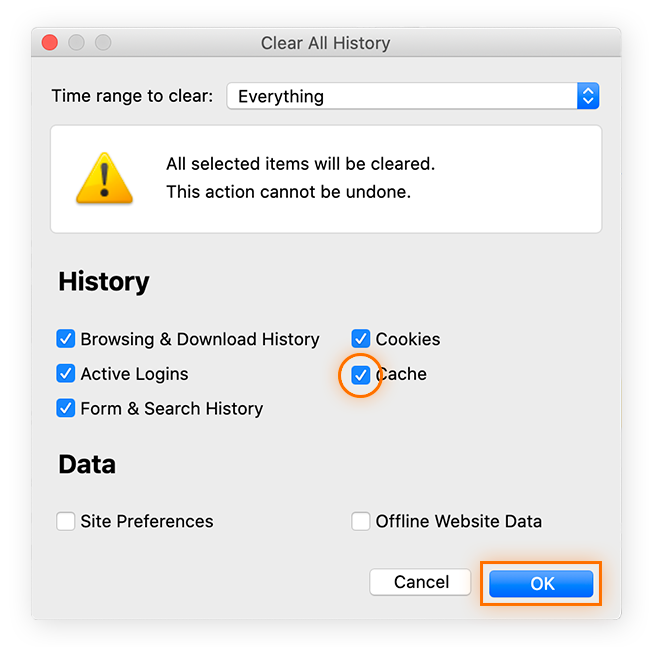
Go for Command and shift keys along with Delete on your MacBook.
Once done, pick the checkboxes that have Cache files, cache images and cookies.
Now tap on the option that has Clear data or delete data.
Do not skip a restart after you have successfully cleared the caches files and cookies.
Microsoft Edge
To clear cache and cookies in Microsoft Edge, follow these steps:
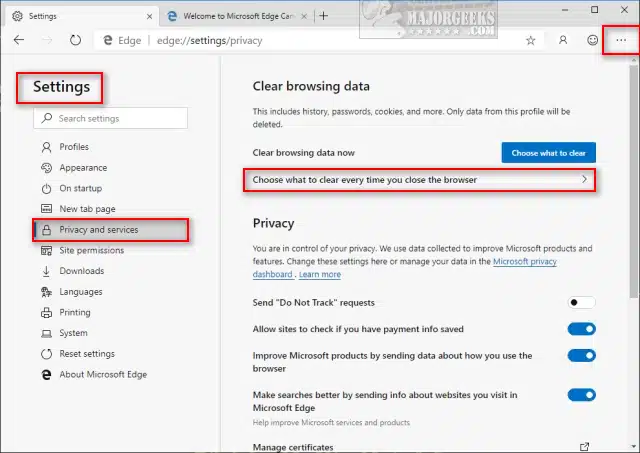
Open Microsoft Edge browser and click on Settings and more (three dots).
Go to Settings and select Privacy, search, and services.
Now scroll down and select Clear browsing data, then click on Choose what to clear.
Under the time range option, select All time to pick all browsing data and cookies.
Select Cookies and cached files.
Once done, click on Clear now to remove all cache and cookies.
After clearing the data, restart the browser and open QuickBooks again to check if the issue is resolved.
Step 2: Remove browser’s intuit-specific cookies
At times just clearing the browser cookies aren’t enough, you have to remove the Intuit specific cookies that might trigger problems. After the cookies are eliminated, you would have to opt for website preferences to be refreshed. Ascertain that you are removing only the Intuit-specific cookies.
Mozilla Firefox
From the Top right, select the Menu icon.
Further, select Settings tab.
Now choose Privacy and security.
Pick Manage data that is present under the Cookies and site data.
Type and enter Intuit in the Search bar and find Intuit cookies by hitting on Enter tab.
Now choose Remove all displayed.
Once done, click on Save changes.
The last step is to reboot Mozilla Firefox to save the changes take effect.
Google Chrome
From the Top right bar, choose More Icon and then go for Settings tab.
Then , choose Privacy and security option.
Now go for Cookies and other Site data.
Also, select See all cookies and site data.
Once done, find the Intuit cookies and then go for Intuit into the search field.
Simply tap on Trash can option or Remove all shown.
The last step is to reboot Google chrome to apply the changes you have done.
Safari
First step is to open Safari browser, then select Safari beside the apple icon to the top left.
And then proceed to Preferences or Settings tab.
Next step is to go for Privacy and select Manage data for websites.
Later on, find Intuit into the search bar to find the Intuit cooking.
To Remove All of them, select Remove now option.
Now select Done tab.
And towards the end, restart safari to save the changes and you are good to go.
Conclusion!
Isn’t clearing cache and cookies extremely easy with the right steps in handy? Well, we know how important it is for you to make the most of your QuickBooks online and so this segment carried all the essential information that would make your QuickBooks experience smooth and uninterrupted. However, if you have some glitches showing up on your screen or if you have some queries unanswered, then connecting with our QuickBooks desktop support geeks at 1-800-761-1787 is all that you need. Do not hesitate in sharing your issues with our ProAdvisors and they will surely provide you with the best possible assistance.
QuickBooks is an accounting software which needs to be updated every year or when the new update comes. Using its latest version helps to avoid unwanted errors and automatically optimize the software performance leading to your improved performance and productivity. Updating QuickBooks desktop to the latest version has its own significance and helps you to function seamlessly with the new version. It ensures better security and is free of bugs which you might have faced or been facing in the outdated version. Thus, we have crafted this informative post where you will get the updated easy methods to update older QuickBooks desktop versions to latest release. Go through this post and find out the benefits of updated version.
Why to update QuickBooks desktop to the latest available version?
If you want to experience a smooth, usage of QuickBooks, devoid of any technical glitches. We will provide you the ways in which you can solve your problems of getting interruptions amidst work. QuickBooks needs to be updated to the latest of versions for error-free and smooth functioning without any interruptions. The Intuit Developer releases latest updates of the QuickBooks software at set time intervals. Every update comes with new features and technicalities. These timely updates also protect the system from malware attacks. As mentioned above, updating older QuickBooks desktop versions to the latest available version comes with a lot of benefits. To be more precise, some of the benefits are as follows:
New updates of QuickBooks provide security of data.
It protects the system from malware attacks.
It brings in the features of real-time status-tracking of invoices and lot more.
Also, it helps to ensure error-free knowledge of user.
Why New Updates? What comes with the latest updates of QuickBooks?
The latest version of QuickBooks desktop available is the 2024 release. In this particular update, you would get the following new features and functionalities.
State of the Art User Management feature
Managing the user roles, and permissions according to the requirement is now possible. Further with this particular feature, you an restrict the users to do a particular activity.
Enhancement of RFA
The QuickBooks update allows the new users to send requests to QuickBooks for another admin.
Tax 1099 NEC and MISC
Unlike earlier, QuickBooks support with the 1099 MISC and 1099 NEC and to print and E-filing. It also allows the third-party applications to use the software developer kit for the e-filing.
Advanced Inventory Aging Report
Talking about the inventory report, it will inform you the value, quality, age, and acquisition of the stocks. By this, you can ensure about the details of the stock product.
Enhancements in Online Banking
This particular feature will let you to save the customization of columns and create rules for both running money out transactions and money in transactions. You can assign a customer in QuickBooks job to their expenses in their banking transactions table.
Steps to check whether QuickBooks is up-to-dated or not
Before attempting the update, make sure that you have checked whether your software is updated or not. This helps save time and energy.
Open QuickBooks Desktop.
Press F2 key. This will open the Product Information Window.
Now check your current version and check online whether any version or QuickBooks release is available.
Verify the QuickBooks release which is available.
How to Update QuickBooks older versions to latest release (2024)?
Before proceeding to the update of your QuickBooks desktop, make sure that you back up the current version to avoid any loss of data. This will keep your data safe in case of any technical error.
Back up the current version
Open the Current version of QuickBooks Desktop.
Login to it as Admin.
In the left side of the tab, click on File menu.
Go to Backup Company Option, and click on it.
Once it opens, click on the Create Local Backup option.
Options will open for you to choose for Company File Backup. Choose the desired option and save your backup.
Now that the backup is done, we will move to the next step.
Steps to update the new QuickBooks desktop to latest release
When you open the QuickBooks desktop and receive a prompt to update it to latest version. Then you can proceed with the below steps. Before moving ahead, make sure that you are logged out from QuickBooks current version.
Step 1: Download and Install automatic updates
First of all, open QuickBooks.
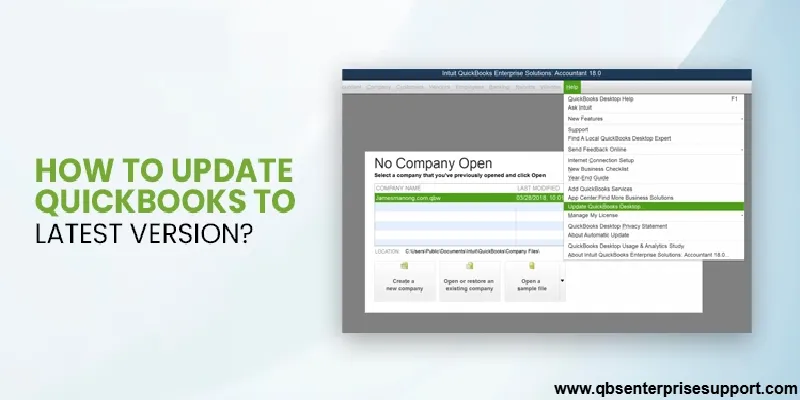
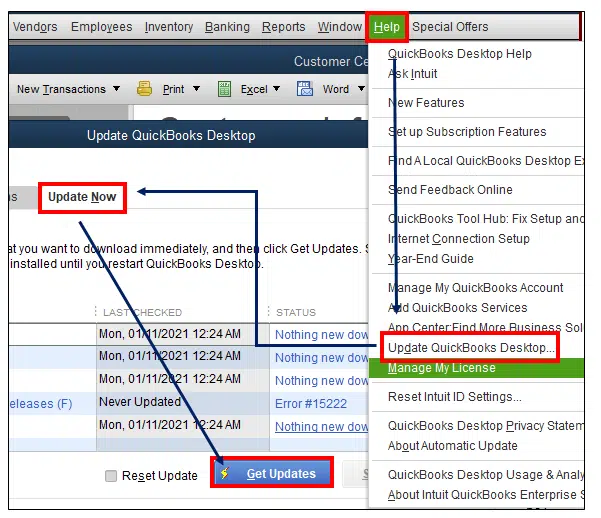
Then go to the Help menu.
Hit a click on the Update QuickBooks desktop tab.
On the update QuickBooks screen, click on Update Now.
Then all the previously downloaded updates need to be removed.
Hit a click on Reset updates.
At last click on Get updates and reboot QuickBooks.
Step 2: Try the Immediate Update Method
Open QuickBooks and go to the Help menu.
After that choose Update QuickBooks desktop.
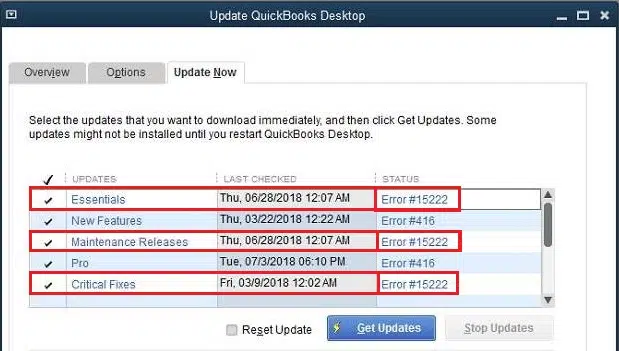
Navigate to the Update Now tab and choose the desired updates and click on Get Updates.
On the Maintenance Releases link, find the changes / improvements in the update.
After all the updates, you are required to restart the computer and check for the installation.
Step 3: Update QuickBooks within the Application
Note: If you are facing any trouble with the update feature or getting glitches while installing updates, you may install updates through the update feature.
Open QuickBooks.
Go to File tab and click on Close Company/Logoff.
Then close it.
After that go to Desktop and right-click on QuickBooks and choose Run as Administrator.
The dialog box saying No Company Open will appear. Click on Help and then choose Update QuickBooks.
In the Options menu, choose Mark All. Save it.
In the Update Now menu, mark the Reset Updates.
Click on Get Updated and Once the dialog box appears, exit the application.
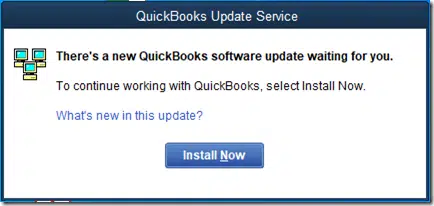
Open QuickBooks Again, and the pop will appear. On that pop-up, click on Install Updates.
Once updates are done, restart your system.
You can also turn on the automatic updates in your QuickBooks but for that make sure that you timely update your QuickBooks desktop.
Step 4: Manual Updates
You are required to shut down the company file along with the QuickBooks desktop.
Then hit a single right-click on QuickBooks icon.
Also, click on Run as administrator option.
Now go to the Help menu > Mark All. These options will be available on the No Company Open.
Then go to the Options tab and select Mark All.
Then, choose Save.
After that, select the Reset Update option from Update Now.
Then, select the Get Update.
Once the update is done, you need to close the software and select Install updates by clicking on Yes.
At last, you need to restart the computer.
Step 5: Try ULIP – Ultralight Patch
First of all, download the latest release.
It is required to move all the Company files.
After that navigate to the Start menu and search for Desktop.
Now hit a right click and select Run as Admin option.
Navigate to the No Company open screen. Click on Help.
Then you need to click on Update QuickBooks.
Along with it, select on Mark All.
Then select Save.
Hit a click on Update Now and Reset Update.
At last click on Get Updates.
What are the features in latest versions of QuickBooks?
Intuit provides the new software versions and patches for QuickBooks desktop update. This QuickBooks accounting software helps to boost privacy features, security patches and feature additions along with many other benefits. Once these updates are done, they impart several benefits which are given below:
Features are enhanced
To cater to the evolving basic needs, the new version is equipped with new features or you may find that existing ones have been enhanced. This will help you streamline your work and be more efficient.
Security Updates
This update provides you protection against potential threats and vulnerabilities that become important to run a successful business by keeping your data safe.
Fixes Bugs
Any type of error, bug or glitch that your QuickBooks desktop is facing, is resolved or eliminated when it’s updated to the latest release.
Conclusion
The article above, provides all the necessary steps and procedures to update the older versions of QuickBooks desktop to the latest release. In case you are not able to preform the steps by your own, then you can reach out to our QuickBooks desktop help and support team. This will help accelerate the process and complete in the blink of an eye.