
The issues when you work on QuickBooks online software can be endless, and every error that you experience brings in a whole new challenge for you to tackle through. And for a smooth experience with your QuickBooks accounting software, clearing cache and cookies timely is something you cannot avoid at all. We believe that your experience with QuickBooks software should be smooth and productive and so we do not leave any stone unturned to give you the smoothest experience and remove all sorts of technical glitches that might trouble you with your software presently or in the coming future. Thus, we have prepared this segment sharing the nitty-gritties of clearing cache and cookies to fix errors while you use QuickBooks online.
What are the uses of caches and cookies in QuickBooks Online?
QuickBooks Online demands browser cache and cookies, so as to load pages smoother, faster and improve performance. However, in some cases this stored data can become outdated or corrupted and start blocking certain pages from loading properly. Whereas, even though these files are much needed, at some point in time, they might create hindrances in smooth loading website and thus, removing them is the only solution. Here are a few major issues that you might come across when working on QuickBooks online due to caches and cookies.
- You might not be able to login your QuickBooks online and QuickBooks keeps asking you to sign in repeatedly, even after entering correct login details.
- Your browser is taking too much time to download forms and fails to access forms.
- You have issues with the data exporting, such as reports to Excel or transactions to another software.
- Not just that, many pages in QuickBooks that are not loading properly or getting stuck repeatedly.
Effective Steps for Clearing Cache and Cookies in QuickBooks Online
You can definitely get done with the caches and cookies that are occupying space and hindering the functioning of QuickBooks online by simply using the steps discussed below:
Step 1: Removing cache from browser’s history
When you have cache files stored in your browser, it might take too long for loading your sites, and removing it can cut down a lot of extra load time. As at some point in time, the files might get outdated and this would further trigger issues. Here are the steps that you need to follow for your browser.
Windows
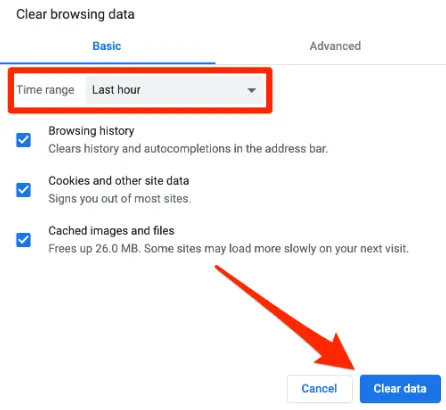
- Tap on to Control + shift + Delete keys when you try using the browser.
- Post that, pick the range to all time and further mark the checkboxes that have cache images, cache files, and cookies.
- Next step is to go for the Delete data or Clear now tab.
Mac IOS
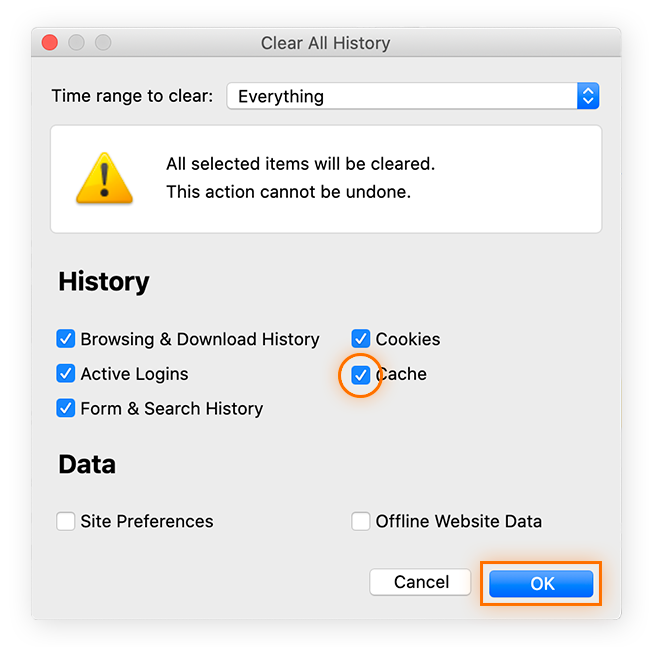
- Go for Command and shift keys along with Delete on your MacBook.
- Once done, pick the checkboxes that have Cache files, cache images and cookies.
- Now tap on the option that has Clear data or delete data.
Do not skip a restart after you have successfully cleared the caches files and cookies.
Microsoft Edge
To clear cache and cookies in Microsoft Edge, follow these steps:
- Open Microsoft Edge browser and click on Settings and more (three dots).
- Go to Settings and select Privacy, search, and services.
- Now scroll down and select Clear browsing data, then click on Choose what to clear.
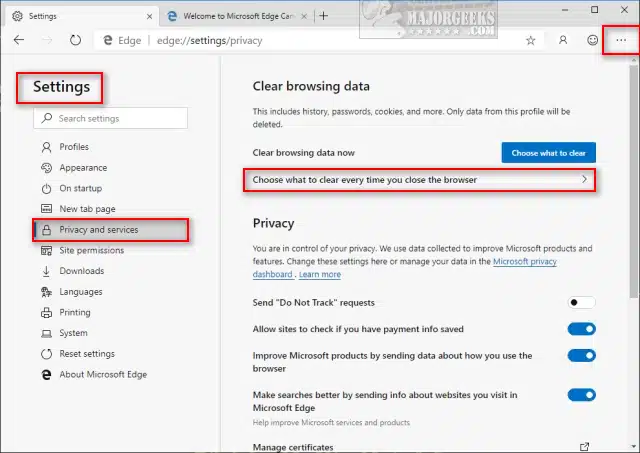
- Under the time range option, select All time to pick all browsing data and cookies.
- Select Cookies and cached files.
- Once done, click on Clear now to remove all cache and cookies.
After clearing the data, restart the browser and open QuickBooks again to check if the issue is resolved.
Step 2: Remove browser’s intuit-specific cookies
At times just clearing the browser cookies aren’t enough, you have to remove the Intuit specific cookies that might trigger problems. After the cookies are eliminated, you would have to opt for website preferences to be refreshed. Ascertain that you are removing only the Intuit-specific cookies.
Mozilla Firefox
- From the Top right, select the Menu icon.
- Further, select Settings tab.
- Now choose Privacy and security.
- Pick Manage data that is present under the Cookies and site data.
- Type and enter Intuit in the Search bar and find Intuit cookies by hitting on Enter tab.
- Now choose Remove all displayed.
- Once done, click on Save changes.
- The last step is to reboot Mozilla Firefox to save the changes take effect.
Google Chrome
- From the Top right bar, choose More Icon and then go for Settings tab.
- Then , choose Privacy and security option.
- Now go for Cookies and other Site data.
- Also, select See all cookies and site data.
- Once done, find the Intuit cookies and then go for Intuit into the search field.
- Simply tap on Trash can option or Remove all shown.
- The last step is to reboot Google chrome to apply the changes you have done.
Safari
- First step is to open Safari browser, then select Safari beside the apple icon to the top left.
- And then proceed to Preferences or Settings tab.
- Next step is to go for Privacy and select Manage data for websites.
- Later on, find Intuit into the search bar to find the Intuit cooking.
- To Remove All of them, select Remove now option.
- Now select Done tab.
- And towards the end, restart safari to save the changes and you are good to go.
Conclusion!
Isn’t clearing cache and cookies extremely easy with the right steps in handy? Well, we know how important it is for you to make the most of your QuickBooks online and so this segment carried all the essential information that would make your QuickBooks experience smooth and uninterrupted. However, if you have some glitches showing up on your screen or if you have some queries unanswered, then connecting with our QuickBooks desktop support geeks at 1-800-761-1787 is all that you need. Do not hesitate in sharing your issues with our ProAdvisors and they will surely provide you with the best possible assistance.
Fix QuickBooks Error 1303: Installer has insufficient privilege
How to fix QuickBooks Error Code 6105?
Cannot communicate with the company file due to firewall - How to Fix It?