Knocked into QuickBooks Error code 1327: Invalid drive letter error and unable to get through it? Well, we have got you covered. This error is basically an installation error that is usually encountered when installing the QuickBooks software or when the drive recorded is unapproachable. It usually appears with messages like: “Invalid Drive: [Drive Letter]”. In simple words, it is seen when the system disconnects with system drives and other portable storage drives. Such an error can be a bit tricky to tackle at times, considering which we have drafted this article, where we will be elaborating on the factors instigating the ongoing error, along with the possible troubleshooting steps. Thus, if you are interested in shunning the error on your own, then reading this piece of information till the end is suggested.
Moreover, if you don’t want to invest your precious time in fixing this QuickBooks error C= 1327 manually, then hook up with our accounting experts using our dedicated customer support line and let our QuickBooks error support team take over the situation.
Overview of QuickBooks Error Code 1327
As we mentioned earlier, QuickBooks error code 1327 is basically an installation error that comes to light when installing the QuickBooks software on the system. This error usually occurs when QuickBooks is unable to access or locate a specific drive on your computer. In most cases, it encounters because the drive path is incorrect, the drive is disconnected or registry entries are damaged. When you insert the installation media and try installing, and then there is an error box with a warning message that states as:
| Error 1327 | The Drive is Invalid. Invalid Drive: letter. |

Well, it should be noted that installed programs and their components are stored in the computer in places called drives. In Windows, all the system files and folders are usually stored in the C drive. You can find the list of drives available on the system by checking in My Computer or this PC. Drives are actually partitions of the computer’s memory, which is quite similar to dividing the space of a house into rooms. Such an error is seen when the drive isn’t working properly.
What are the Causes of QuickBooks error message 1327?
There can be several reasons behind the occurrence of QuickBooks Error 1327, including:
- Outdated Windows or issue with the Windows user
- Incorrect or improper registry settings
- Corrupted Microsoft .Net framework
- Corrupted or moved storage devices
- Any sort of connection issue with storage device/ cable
What are the Symptoms of QuickBooks Error 1327?
Some common symptoms of this install error are:
- QuickBooks experiencing frequent crashing when installing updates
- Windows stops responding when going for QuickBooks update
- Input devices like the Mouse or keyboard take considerable time to process user inputs.
- QuickBooks stops responding all of a sudden.
- The error message "The Drive is Invalid" appears on the screen.
What are the solutions to fix QuickBooks error code 1327?
QuickBooks error code 1327 can be resolved with much ease once you are well-versed with the respective causes. Thus, below, we will be discussing each of the methods for fixing this issue in detail.
Solution 1: Create a new Windows user and install Windows
The steps might vary according to the version of Windows. Thus, check wisely before performing any of the steps.
On Windows 11
- If you are a Windows 10 user, then start by hitting the Start tab and clicking on the Settings tab.
- Hit on the Accounts and select Family and Other Users.
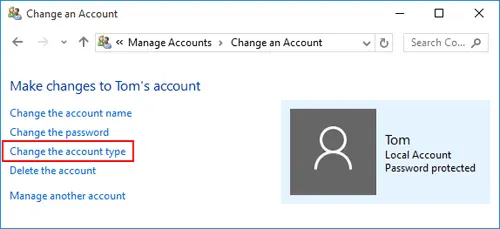
- Now go for the Add someone else to this PC tab.
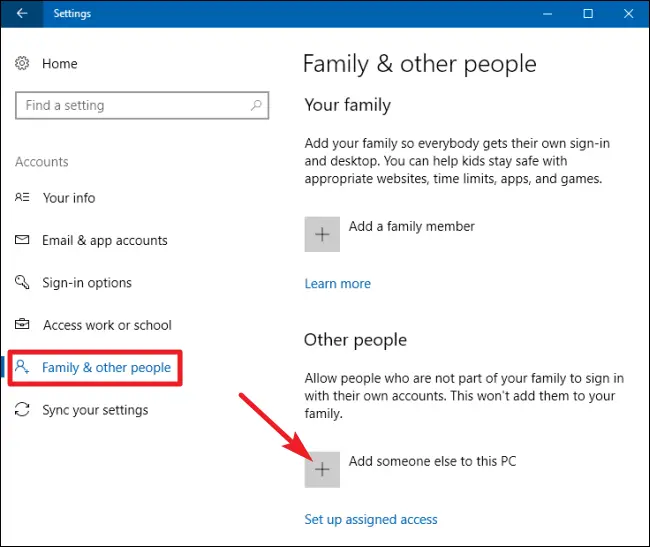
- Complete the process by entering a New password, name, password hint and tap on the Next tab.
On Windows 8/10
- Hit a click on Start tab and then hit a click on Control Panel.
- Then select the User accounts and opt for Manage another account.
- Later, make a New account.
- Next step is to assign a name and choose the Admin tab.
- Moving ahead pick Create account option and reboot the system.
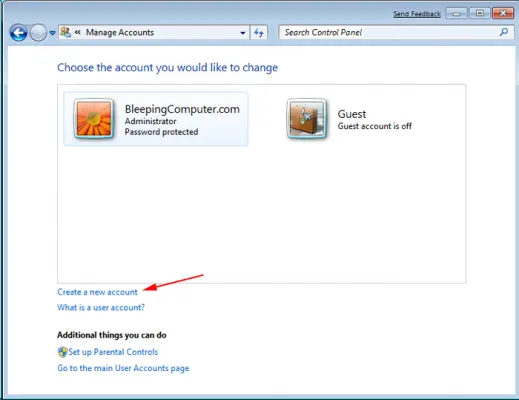
- Log in the PC with admin credentials and try to install again.
On Windows 10
- If you are a Windows 10 user, then start by hitting the Start tab and clicking on the Settings tab.
- Hit on the Accounts and select Family and Other Users.
- Now go for the Add someone else to this PC tab.
- Complete the process by entering a New password, name, password hint and tap on the Next tab.
Solution 2: Fixing registry settings
- Start off by Backing up the system registry.
- Press Windows + R tabs and then type in Regedit and also click on Run tab.

- After that navigate to the specific key: HKEY_CURRENT_USER\Software\Microsoft\CurrentVersion\Explorer\Shell Folders.

- Try to spot the entries that list the Drive letter mentioned in the message.
- Fix the incorrect drive names to C:\
- End the process by saving the settings, restarting the system, and reinstalling. After the installation process comes to an end, revert the changes that were made to the registry earlier.
Read Also: Steps to fix QuickBooks found an error when parsing the provided xml text stream
Solution 3: Configuring Microsoft .Net framework
- You are supposed to look for Programs in the control panel.
- And choose Turn Windows features on/off.

- Furthermore, confirm with the Admin password.
- And uncheck the box next to the Microsoft .net framework and restart the system.

- Last step is to open programs and follow the same steps and also check the box next to the Microsoft .net framework.
Solution 4: Delete the network drive
- Start with selecting the Start tab itself and opt for Programs later on.
- After that click on Windows Explorer tab.
- And choose the Network drive on which the shell folder is available and hit the OK tab.
- Now move ahead by selecting the Map network drive in the tool menu.

- Next step is to Shell Folder uncheck reconnect at logon and write the path.

- Tap on OK tab.
- End the process by restarting Windows and installing the applications.
Solution 5: Ensure that storage devices have proper connection
At times, there can be issues due to connection problems. Thus, it is very much important to ensure that the cables and other related things are properly connected to the computer. And also, check if the USBs or Flash devices that are being used to install QuickBooks desktop are functioning properly and are also connected properly.
Related article: Why is a Balance Sheet in Cash/Accrual Basis Out of Balance?
Sum up!
Coming to the end of this piece of writing, we now expect that the readers might be of successfully able to shun off the QuickBooks error code 1327 successfully. Anyhow, If the error stays in the same place or condition then the only choice that you have left is to connect with our accounting professionals directly using our helpline number i.e. 1-800-761-1787. We have a 24/7 QuickBooks support team consisting of U.S.-based tech geeks who will be sure to clear your clouds of confusion.
FAQ’s
Why does QuickBooks show “Invalid Drive” error?
This happens due to disconnected external drives, corrupted registry entries, or wrong drive mapping.
Can I fix Error C=1327 by reconnecting the drive?
Yes. If the error is due to a removable or network drive, reconnecting or remapping it usually resolves the issue.
Does this error delete my company data?
No. QuickBooks Error C=1327 only affects installation or updates. Your company data remains safe.
Do I need to edit the Windows registry for this error?
Sometimes, yes. If registry entries point to invalid drives, editing them may be necessary, but it should only be done by advanced users or IT professionals.
Can a corrupted installer cause this error?
Yes. If the QuickBooks setup files are damaged or incomplete, it may trigger Error C=1327 with the invalid drive message.
Can reinstalling QuickBooks on a different drive solve the issue?
Yes. Installing QuickBooks on a valid local drive instead of a missing or invalid one can bypass the error.
More Resources
Setup QuickBooks Email Service/ Email invoices In QB Desktop
Fixation of QuickBooks Desktop doesn't start or won't open error
Banking Error 185 in QuickBooks desktop