Intuit has come up with the latest version of QuickBooks Desktop 2023, and this new version comes up with a wide range of perks to facilitate easy accounting operations. QuickBooks Desktop 2023 subsumes unprecedented state-of-the-art features to enhance the productivity and efficiency of businesses. This new version comes with security features that make up a strong bulwark against previously occurring technical errors.
If you’re wondering, is there a QuickBooks Desktop 2023 version available, the answer is yes, and it brings multiple new tools for improved accounting. While we apprise you of the new features in quickbooks-desktop-2023, if you have any doubts or want any form of technical issues in QuickBooks Desktop sorted out, you can call qbsenterprisesupport at 1-800-761-1787.
System Requirements for QuickBooks Desktop 2023
The latest QuickBooks Desktop 2023 requires a 64-bit version of Windows OS. It does not run on 32-bit. Get a complete information about the operating system, hardware, software, and other requirements to run QB Desktop 2023 smoothly.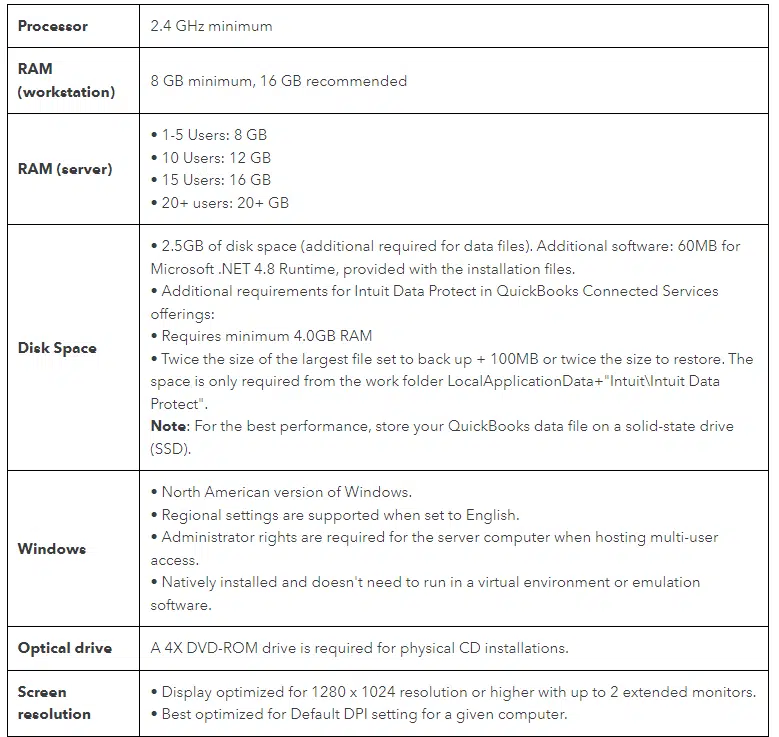
System requirements needed to run QuickBooks Desktop 2023 on Windows.
You might see also: How to Resolve QuickBooks Runtime Error R6025?
New and Improved Features in QuickBooks Desktop 2023
This section unravels the new avant-garde features that come along with QuickBooks Desktop 2023. So, stay attuned till the end.1. Now you can Categorize your Inventory

Inventory item categorization screen in QuickBooks Desktop 2023, allowing users to group and manage items efficiently.
How to access Inventory item categorization?

Add or edit inventory item categories in QuickBooks Desktop 2023 for better item organization.
-
- From the menu bar, choose Lists.
-
- After that choose Item List.
-
- Also Add New or Edit an existing item.
Also See: How to resolve ABS PDF driver issues in QuickBooks?
2. A separate field for expiration dates on lot numbers

QuickBooks Desktop 2023 introduces a dedicated expiration date field to manage inventory lot numbers more accurately.

Enable and customize expiration date tracking for lot-numbered inventory items in QuickBooks Desktop 2023.
How it can be accessible?
-
- At first, the user needs to log into the file as the Admin user.
-
- From the menu bar, the user needs to choose Edit and then hit a click on Preferences.
-
- Next, hit a click on Items & Inventory.
-
- After then, the user needs to choose the Advanced inventory settings button and then choose Serial/Lot No. & Expiration tab.
-
- Once the option is enabled, the user can then choose the desired items to require a Lot No. and if applicable required expiration date.
3. Tracking mileage of your company trips
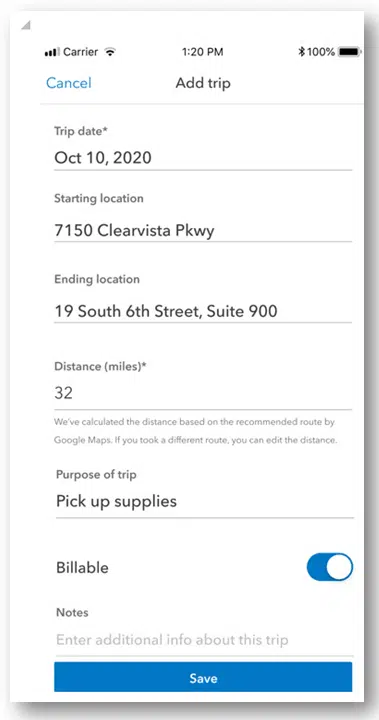
The new Mileage Tracker in QuickBooks Desktop 2023 helps users record and manage business travel distances efficiently.

Mileage data recorded in the QuickBooks mobile app can be easily imported and reviewed in QuickBooks Desktop 2023.
How this feature can be accessed
-
- Initially, the user needs to select Company option from the menu bar.
-
- After that track Vehicle Mileage option.
Read Also: Repair Damaged Transaction of the QuickBooks Company File
4. Monitoring your business finances via the Cash Flow Hub
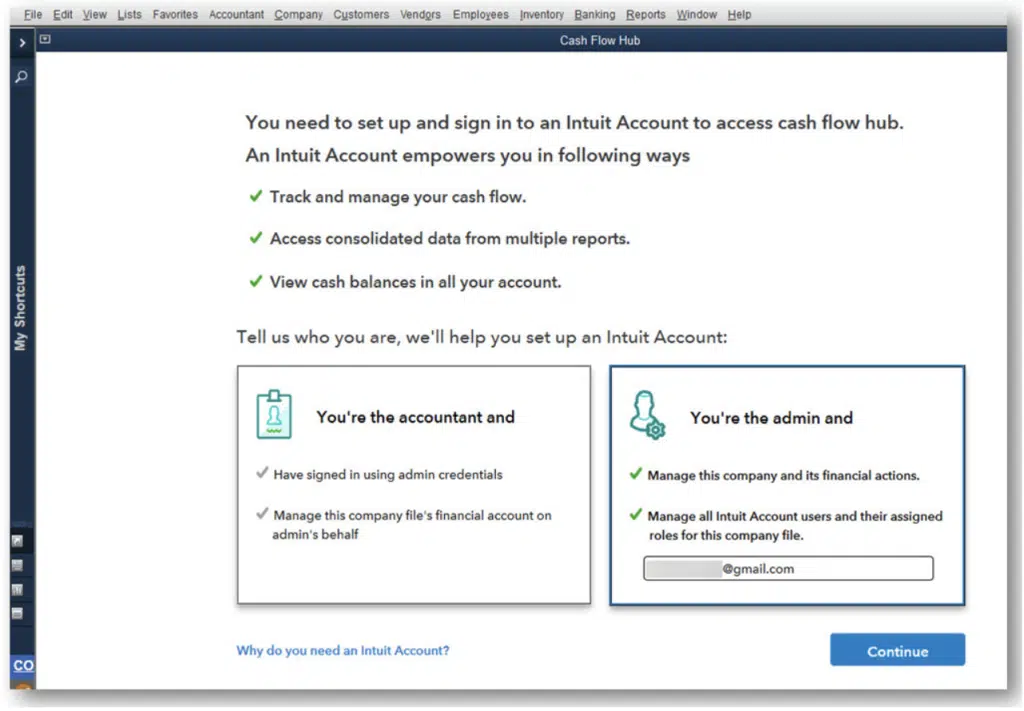
The Cash Flow Hub in QuickBooks Desktop 2023 provides a centralized view of your company’s financial health and cash movement.
How can you use Cash Flow Hub?
You can easily use the Cash Flow Hub via the Company tab. Another quick access to this feature is through the shortcut available on the sidebar of the Home Screen.5. Incorporation of Payment links tracking
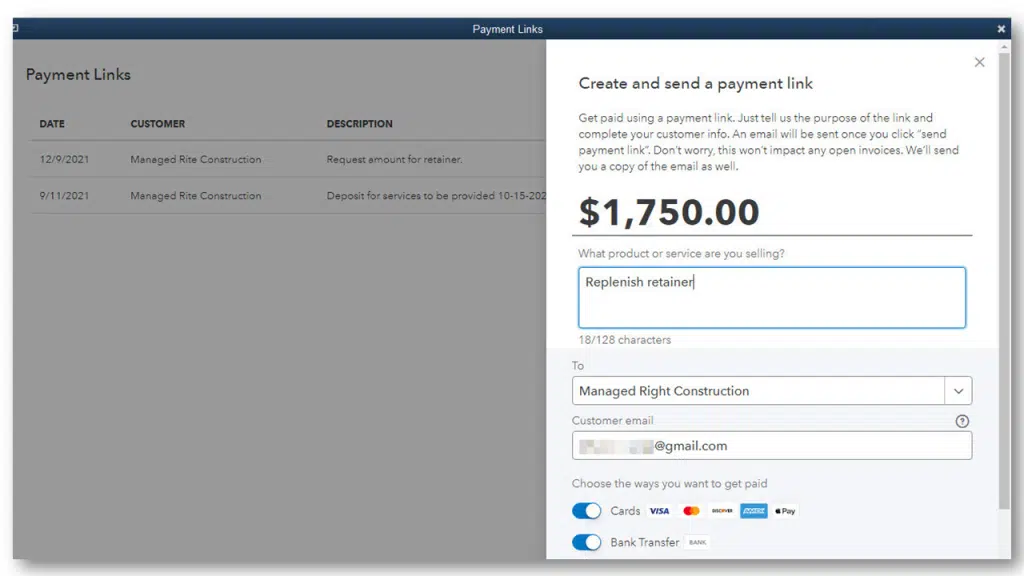
QuickBooks Desktop 2023 now lets users send and track payment links, making customer billing faster and more convenient.
How to Access Payment links tracking?
-
- Open QuickBooks and navigate to the menu bar.
-
- Here you need to choose the customers option and the select Payment Links.
Similar Post: How to Fix QuickBooks Payroll Error PS077, or Error PS032?
6. Convenience in transactions across different company files

QuickBooks Desktop 2023 interface showing the Intercompany Transactions feature used to manage bills and checks across related company files.
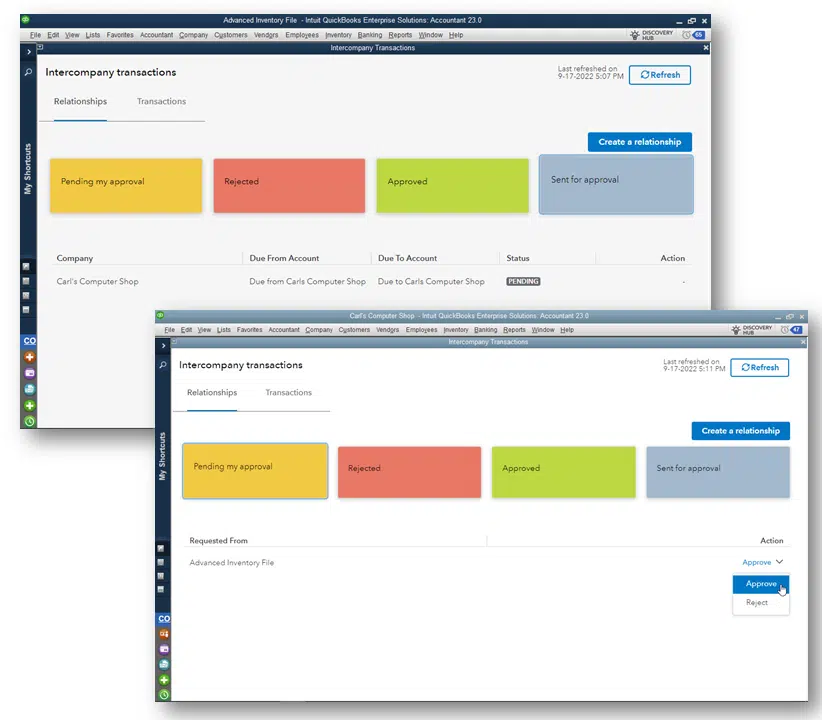
QuickBooks Desktop 2023 allows users to link multiple company files under one Intuit account to enable intercompany transaction workflows.

QuickBooks Desktop 2023 enables users to create bills and checks across related company files using the enhanced Intercompany Transactions feature.
How to access the new Intercompany transactions feature?
-
- At first open a QuickBooks company file.
-
- After that select F2 key and on the top right you will see the Intuit account email associated with the file.
-
- After logging in to each related file with the same Intuit account, create the relationship between of them.
-
- Now from the menu bar, choose company and the hit a click on Intercompany Transactions.
7. Easy Creation of approvals for bills workflow and Purchase order
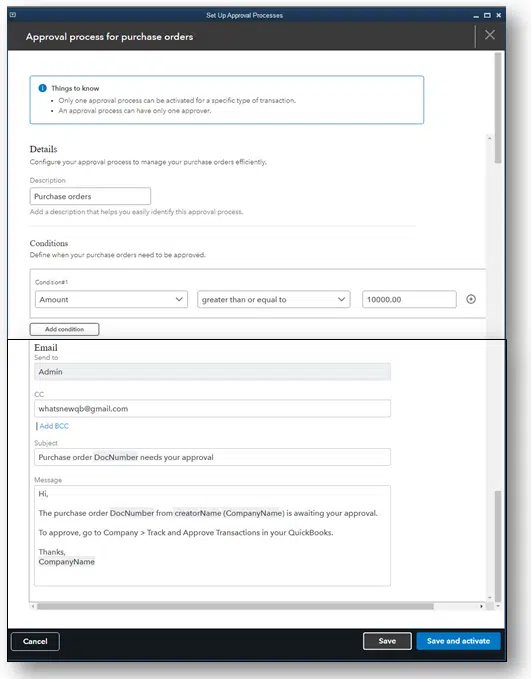
QuickBooks Desktop 2023 introduces enhanced workflow approvals, allowing users to manage and track purchase order and bill authorizations efficiently.
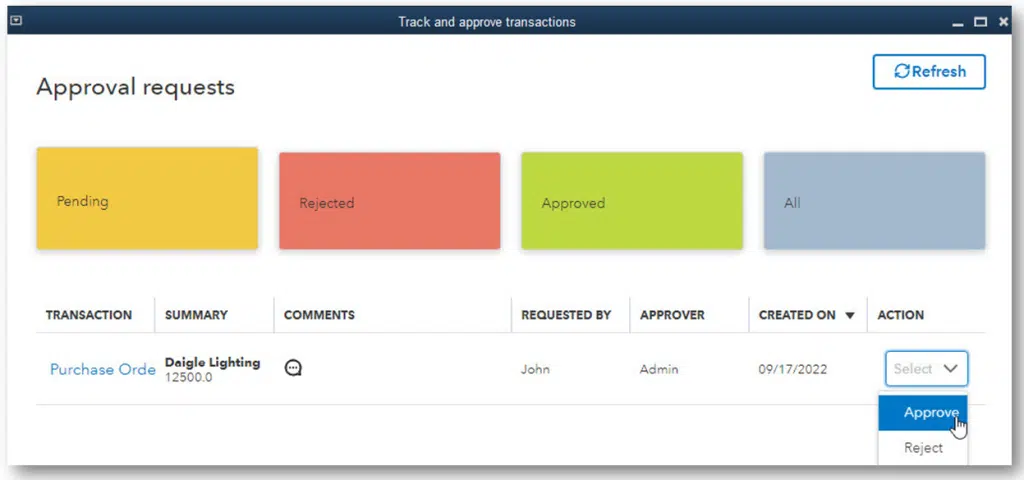
QuickBooks Desktop 2023 interface showing the workflow approval setup for purchase orders and bills.
How we can access this new feature?
-
- To setup the approval process in your QuickBooks, the user needs to login as the Admin user.
-
- Now from the menu bar section, choose the Company option and then select the Set Up Approval Processes option.
Also See: How to Resolve QuickBooks Error Code C=272?
8. Get your Reports performance optimized
The process of compiling large company files was a tedious task in the previous versions of QuickBooks. However, QuickBooks Desktop 2023 allows easy compilation and optimization of company files that exceed 300 MB in file size. The reports will also take lesser time to load as compared to the previous QuickBooks versions. This feature is specific to Desktop version 2023 in U.S. and Canada in the R1 release.9. Evolved Bank Connectivity
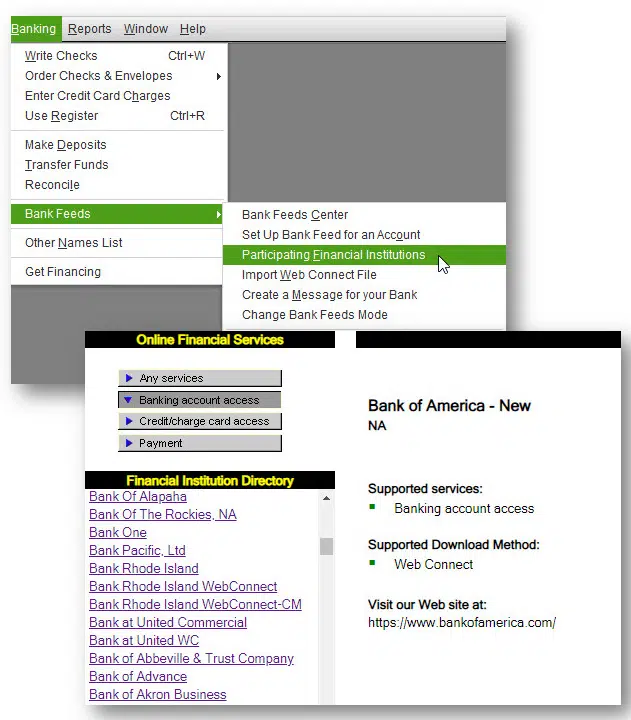
QuickBooks Desktop 2023 offers improved banking connections, enabling smoother bank linking and more reliable transaction downloads.
How to enable Banking connectivity in QuickBooks Desktop 2023?
-
- To leverage this feature, you need to proceed as follows:
-
- Launch QuickBooks Desktop 2023.
-
- Click on the Banking option.
-
- Afterward, proceed to Bank Feeds.
-
- Choose your financial institution/bank and get the connection verified.
-
- You can now download your bank-related transactions.
Read Also: How to Resolve QuickBooks Error 2107 in Payroll & Desktop? Winding up! The latest QuickBooks Desktop comes with assorted features to enhance the overall user experience and propel business productivity. This article delved into the new and improved features in QuickBooks Desktop 2023. If you are seeking support, then call our QuickBooks desktop support experts at 1-800-761-1787.