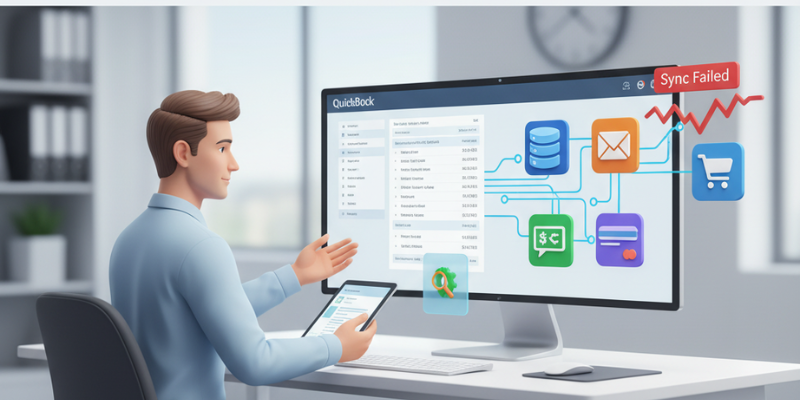
QuickBooks Desktop allows businesses to connect with various 3rd party applications such as CRMs, eCommerce platforms, payroll software, and inventory tools. These integrations make business management easier — until something goes wrong. At times, users encounter QuickBooks integration errors when syncing data between QuickBooks and connected applications. You may see messages like:
QuickBooks failed to connect with the application.
An unexpected error occurred while communicating with QuickBooks.
QuickBooks error 80040408 or 80029c4a while syncing with third-party app.
These errors typically occurs due to communication breakdowns, outdated SDK components, or damaged QuickBooks Web Connector files. In this article, we’ll explore the most common integration errors, why they occurs, and how you can fix them step-by-step. Thus, keep read on!
What are the Common QuickBooks Integration Errors?
Below are some of the most frequent errors users face while connecting or syncing third-party apps with QuickBooks:
QuickBooks Error Codes and Descriptions
| Error Code / Message | Description |
|---|---|
| QuickBooks Error 80040408 | QuickBooks cannot start or connect to the company file during integration. |
| QuickBooks Error 80029c4a | Integration fails due to missing or corrupted system files. |
| QuickBooks Sync Manager Error | Occurs when QuickBooks Sync Manager stops working or becomes outdated. |
| Web Connector Error QBWC1085 | QuickBooks Web Connector log file is missing or damaged. |
| QuickBooks Error 80070057 | App cannot access the company file due to permission issues. |
| QuickBooks SDK Connection Error | Outdated or corrupted SDK prevents communication with the third-party app. |
These errors interrupt data synchronization, delay processes, and may even lead to data inconsistencies between QuickBooks and the external application.
Why QuickBooks Integration Errors Occur?
There are multiple factors that can disrupt integration between QuickBooks and connected apps. Below are the most common causes:
- The Web Connector is responsible for facilitating communication between QuickBooks Desktop and integrated apps.
- If it becomes corrupted or outdated, sync operations fail.
- Third-party apps require the latest QuickBooks SDK (Software Development Kit) to work properly.
- If QuickBooks Desktop or its SDK isn’t updated, you may face compatibility issues.
- Incorrect login details or misconfigured connection settings within the app can cause QuickBooks to deny access.
- A corrupt or oversized company file may prevent successful data transmission between QuickBooks and the external app.
- Security software may block the ports or processes required by QuickBooks to communicate with other applications.
- Running multiple QuickBooks versions on the same system often confuses the Web Connector, leading to conflicts.
Step-by-Step Fixes for QuickBooks Integration Errors when sync failed connection between QuickBooks & third-party apps
Follow these effective troubleshooting methods to fix sync and integration errors quickly.
Fix 1: Update QuickBooks Desktop and Web Connector
- At first, open QuickBooks Desktop.
- Then go to Help menu and select Update QuickBooks Desktop.
- Now move to Update Now tab and choose Get Updates.
- Once done with that, restart QuickBooks.
- Now update the QuickBooks Web Connector:
- Visit the official Intuit website.
- Download and install the latest version of QuickBooks Web Connector.
- Restart your system.
Updating both QuickBooks and the Web Connector ensures compatibility with all third-party apps.
Fix 2: Repair or Reinstall QuickBooks Web Connector
If your Web Connector installation is damaged, reinstalling it can fix most integration errors.
- Close all QuickBooks and Web Connector windows.
- Then press Windows + R keys, type cpl, and hit on Enter key.
- In the next step, locate QuickBooks Web Connector and click Uninstall.
- Reboot your system.
- Now download the latest version from Intuit’s official site and reinstall it.
- Reconnect your apps by re-importing the .qwc configuration file.
Fix 3: Reconnect the Third-Party App with QuickBooks
- Initially, open QuickBooks desktop as an Administrator.
- After that go to Edit menu and select Preferences.
- Next step is to select Integrated Applications and choose Company Preferences.
- Now locate the third-party app and uncheck it and tap on Remove.
- Reopen QuickBooks and the app and try to reconnect or reauthorize integration.
- Re-import the .qwc file provided by the application vendor.
Fix 4: Run QuickBooks File Doctor
If your company file is damaged, integration might fail. Running QuickBooks File Doctor helps fix file corruption and network issues.
- Download and install the QuickBooks tool hub program on your system.
- If already installed, then open tool hub and move to Company File Issues tab.
- Now select Run QuickBooks File Doctor.
- Here you need to browse and select your company file (Damaged/Corrupted File).
- Choose Check your file and network and tap on Continue.
- Lastly, enter your QuickBooks Admin password and click Next.
Once the repair is complete, try syncing your app again.
Fix 5: Configure Firewall and Security Settings
If your firewall or antivirus blocks communication between QuickBooks and the app, follow these steps:
- Open Windows Defender Firewall and Allow an app through firewall.
- Then make sure QuickBooks, QuickBooks Web Connector, and Database Server Manager are allowed for both private and public networks.
- Add inbound/outbound rules for QuickBooks ports:
- 8019, 56728, 55378–55382 (depends on QuickBooks version).
- Restart your system.
Fix 6: Use the QuickBooks Tool Hub to Resolve Program Problems
QuickBooks Tool Hub includes multiple utilities to fix integration-related errors.
- Open QuickBooks Tool Hub and navigate to the Program Problems.
- Then select Quick Fix my Program to close background processes and refresh program components.
- Once done, relaunch QuickBooks and test the integration.
Prevention Tips for Smooth QuickBooks Integrations
To avoid future integration errors and sync failures, follow these preventive measures:
- Keep QuickBooks Desktop and third-party apps updated.
- Always use the latest version of QuickBooks Web Connector.
- Avoid running multiple versions of QuickBooks on one system.
- Schedule regular company file maintenance using the Verify and Rebuild Data utility.
- Add QuickBooks to the firewall and antivirus exclusion list.
- Use stable network connectivity when syncing large data.
Conclusion
QuickBooks integration errors can interrupt business workflows and prevent seamless data synchronization between QuickBooks and other apps. However, by updating your software or repairing your company file you can easily fix most sync failures issues. In the meanwhile, If you stuck in complex integration issues, then feel free to contact our QuickBooks error support team. Our experts specialize in resolving QuickBooks desktop, web connector, and API-related errors ensuring your integrations work flawlessly.