Table of Contents
ToggleHow to Update QuickBooks Desktop to the Latest Release Version
Keeping your QuickBooks Desktop updated is crucial for ensuring smooth business operations. Regular updates not only fix bugs but also enhance data security, improve performance, and introduce useful new features that make accounting simpler. At QBS Enterprise Support, we always recommend staying on the latest release to get the best out of your QuickBooks software
Ways to Update QuickBooks Desktop
Method 1 – Update QuickBooks Automatically
If you prefer not to worry about manual updates, QuickBooks allows you to enable automatic updates. Once this option is turned on, the system automatically downloads and installs the latest releases as soon as they’re available.
How to Enable Auto-Updates:
Open QuickBooks Desktop.
Go to Help → Update QuickBooks Desktop.
Click on the Options tab.
Choose Yes to turn on automatic updates.
Select Close to save changes.
You can also schedule updates for a specific time — for instance, outside of working hours — so that your workflow remains uninterrupted.
Method 2 – Update QuickBooks Manually
Prefer to handle updates yourself? No problem! QuickBooks gives you the flexibility to update manually whenever you’re ready.
Steps to Update Manually:
Launch QuickBooks Desktop.
Navigate to Help → Update QuickBooks Desktop.
Select the Update Now tab.
Check the box next to Reset Update to clear any previous downloads.
Click Get Updates and wait for the process to finish.
Restart QuickBooks to install the update.
This ensures your software gets a clean, fresh update without carrying over old files.
Method 3 – On-Demand Update via Ultra-Light Patch (ULIP)
QuickBooks also offers an Ultra-Light Patch (ULIP) feature for on-demand updates. This method lets you download smaller, critical updates that don’t require a full installation. It’s an efficient way to apply urgent fixes or enhancements instantly without slowing down your system.
Update QuickBooks Through the Internet
You can also download updates directly from the Intuit website. Simply search for your QuickBooks version, download the latest patch, and install it.
To Check Update Status:
Open QuickBooks Desktop and press F2.
In the Product Information window, verify the current version and release.
If it doesn’t match the latest one listed online, it’s time to update.
Update Payroll Tax Tables
If you use QuickBooks Payroll, keeping your payroll tax tables up to date is just as important as updating the main software. Outdated tables can cause inaccurate tax calculations or compliance issues.
To Update Payroll Tax Table:
Go to Employees → Get Payroll Updates.
Check Download Entire Update.
Click Download Latest Update.
Once the download completes, you’ll see a confirmation message. Regular payroll updates ensure your employees’ paychecks and tax filings remain accurate and compliant.
Check Your QuickBooks Release Version
Want to verify your QuickBooks version? Simply press F2 on your keyboard while QuickBooks is open. This opens the Product Information window, where you can view the current version, release number, and license details.
Fix Update Errors
Sometimes, errors such as 15223, 15227, or 15243 can occur during updates. These typically happen due to incomplete downloads or configuration issues.
How to Fix:
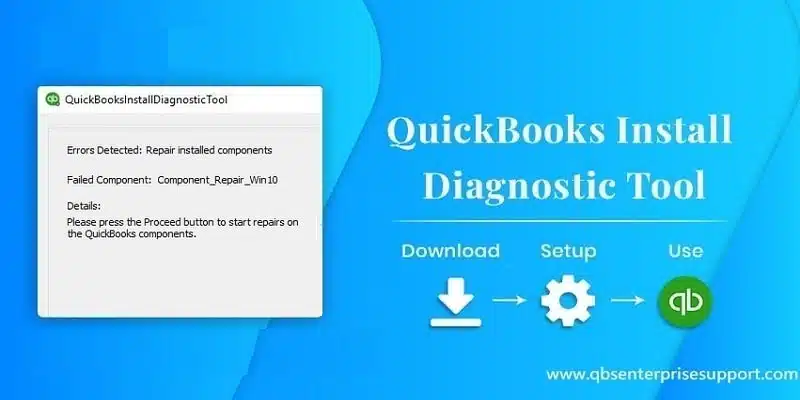
Download and install the QuickBooks Tool Hub.
Open it and navigate to the Program Problems section.
Run the recommended fix for update-related issues.
At QBS Enterprise Support, our experts can guide you through resolving such errors quickly to ensure your QuickBooks stays up and running.
Frequently Asked Questions (FAQs)
How do I update QuickBooks Desktop to the latest release?
Updating QuickBooks Desktop to the latest release is simple. You can either allow QuickBooks to download updates automatically or choose to do it manually.
For an automatic update, open QuickBooks and go to Help → Update QuickBooks Desktop → Options tab, then select Yes to turn on automatic updates.
For a manual update, go to Help → Update QuickBooks Desktop → Update Now tab, check Reset Update, and click Get Updates. Once the update finishes, restart QuickBooks to install it.
If you’re unsure or encounter issues during the update, the team at QBS Enterprise Support can guide you through every step.
Why is it important to keep QuickBooks Desktop updated?
Regular updates are essential because they bring the latest security patches, fix bugs, and improve software stability and performance. Updates also ensure compatibility with new features like payroll tax tables and third-party integrations.
By keeping your QuickBooks up to date, you minimize the risk of data corruption or software crashes. QBS Enterprise Support always recommends installing updates as soon as they’re released to get the best performance and protection for your accounting data.
What should I do if I face errors while updating QuickBooks?
Sometimes, you may encounter update errors such as 15223, 15227, or 15243. These errors usually occur due to internet connection problems, outdated Windows files, or partial downloads.
To fix these issues:
Download and install the QuickBooks Tool Hub from Intuit’s official website.
Open it and click on Program Problems.
Run the Quick Fix my Program option to resolve update issues.
If the error persists, contact QBS Enterprise Support. Our experts can troubleshoot your system and fix QuickBooks update errors efficiently.
How can I update my QuickBooks Payroll tax tables?
Updating payroll tax tables ensures that employee paychecks and tax calculations are accurate. To update:
Open QuickBooks Desktop.
Go to Employees → Get Payroll Updates.
Check the box next to Download Entire Update.
Click Download Latest Update.
Once completed, you’ll receive a confirmation message that your payroll tax tables have been updated successfully.
If you encounter issues while updating payroll, the QBS Enterprise Support team can help ensure your payroll data remains accurate and compliant with the latest tax regulations
Regularly updating QuickBooks Desktop is essential for maintaining performance, security, and compliance. Whether you choose automatic, manual, or on-demand updates, staying current ensures a seamless accounting experience.
If you need assistance, QBS Enterprise Support is here to help you with QuickBooks updates, payroll setup, and troubleshooting errors. You can also check out our guides on the QuickBooks Tool Hub and Payroll Updates for step-by-step instructions.